 TUTORIALS
Add Some Squareness to iOS with RingUI
 03/29/2017
 6155
6155
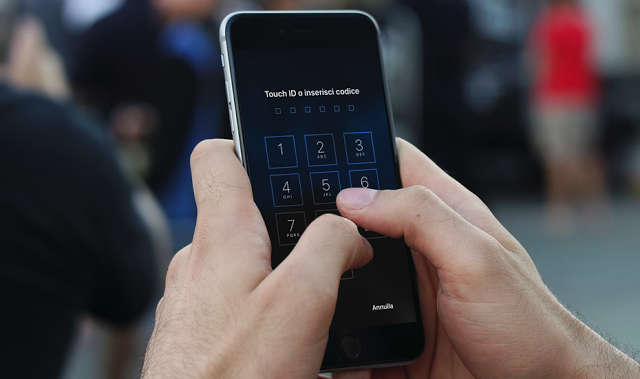
A handful of elements that make up the iOS UI in its entirety are round or have rounded corners; this includes, but is not limited to: passcode buttons, Control Center toggles, the corners of banner notifications, and Home screen folders, among other things.
If you're not a fan of this system-wide rounded style, a new free jailbreak tweak called ringUI by CydiaGeek can be installed to make several elements on your device look much squarer.
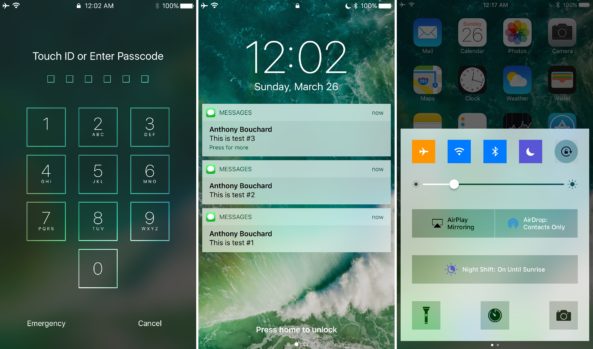
After you install ringUI, a new preferences pane is added to the Settings app so you can remove the roundness effects from a number of things in iOS:
There are four separate toggle switches, each of which handle their own handful of elements. Among the things the tweak can modify are:
Notification banners
Notifications in Notification Center and on the Lock screen
Widgets in Today view
Folder icons on the Home screen and folder backgrounds
Passcode number pad buttons
Control Center toggle buttons
App Switcher cards
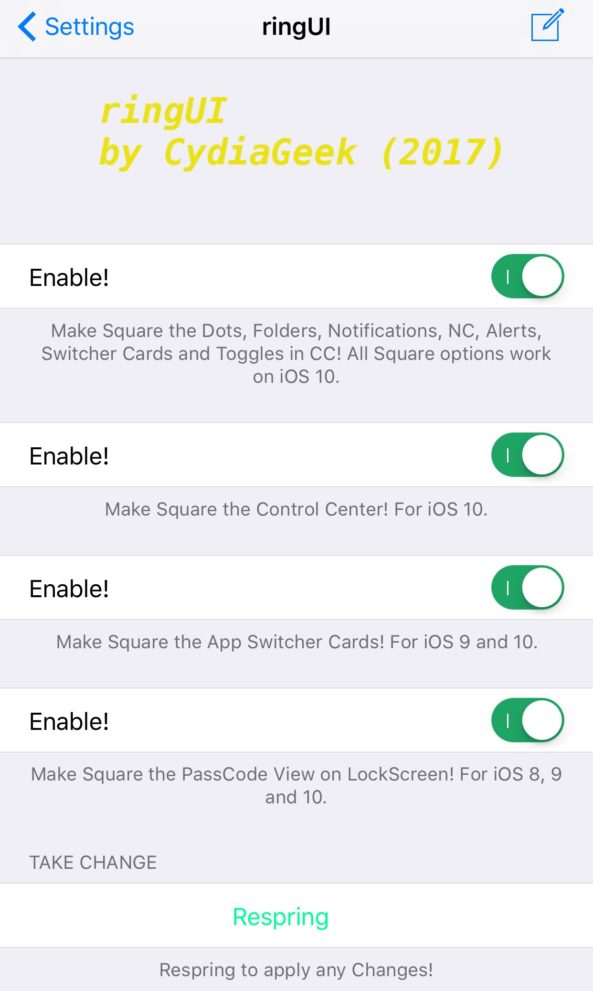
Once you adjust the settings the way you want, you can tap on the respring button at the bottom of the preferences pane to save your changes.
Because ringUI is an aesthetic tweak, whether or not it looks good to you will come down to personal opinion. Installing the tweak won't impact the usability of your device in any way, as it's simply intended to let you to make your device look different from everyone else's.
If you're interested in trying ringUI, you can grab it for free from Cydia's BigBoss repository. The tweak works on jailbroken iOS 8, 9 and 10 devices.
You might also like:
How to Hide Your iOS Status Bar on iPhone Using TapTap Statusbar?
How to Enable Cydia Stashing To Get More Storage Space For Tweaks?










