 TUTORIALS
DontSwipe: Prevent People from Snooping Around your iDevice
 07/26/2018
 6549
6549
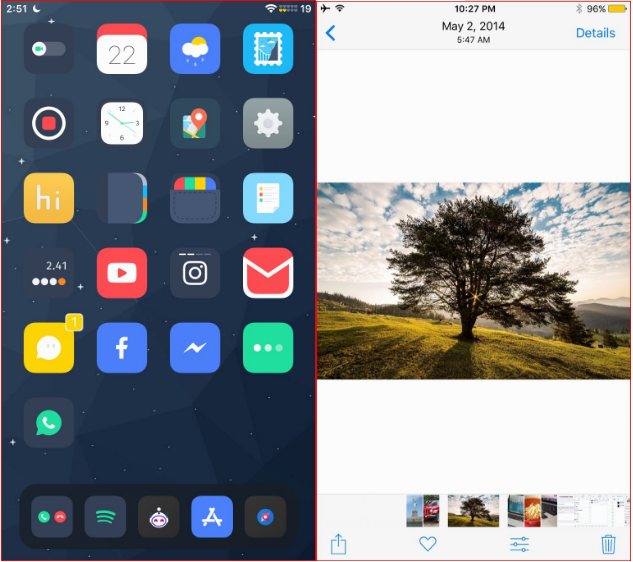
If you worry that someone may swipe through your Camera Roll, then you may want to take a look at a new free jailbreak tweak called DontSwipe by iOS developer SecondEight1, as it can lay your worries to rest.
Just as the name implies, DontSwipe prevents other people from swiping through the contents of your Camera Roll whenever you hand someone your phone to look at one of your photos. As it a bonus, it also:
Prevents notification interactions
Prevents Home button interactions
Prevents Sleep button interactions
Prevents Control Center interactions
Prevents volume button interactions
DontSwipe works by integrating with Activator. As you look at a photograph in your Camera Roll, you can invoke your chosen Activator action, and the screen becomes locked on the current photograph.
When the tweak is enabled, you’ll notice a thin red border surrounding your entire display, as shown above. The red border disappears when you invoke your selected Activator action for the second time to toggle the tweak off.
You can choose the Activator action that you want to use with DontSwipe from Settings → Activator or from the Activator app on your Home screen. For our demo, we’ve assigned the tweak to double-tapping the Status Bar, as this is easy to do from the Photos app:
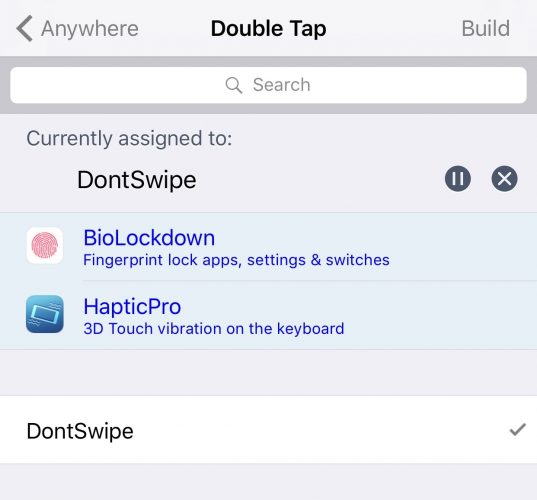
Apart from choosing an Activator action, there are no other options to configure for DontSwipe. This dead-simple jailbreak tweak protects your privacy and potentially saves you a ton of embarrassment. With that in mind, it’s a win/win for almost anyone.
If you’re interested in trying DontSwipe, then you can download it for free from Cydia’s Packix repository. The tweak works on all jailbroken iOS 10 and 11 devices and requires Ryan Petrich’s Activator extension to be used.
Source: idb










