
TUTORIALS

This Tweak Lets You Colorize the iPhone X’s Gesture Bar

07/24/2018

5894

While the notch is one of the iPhone X’s most distinguishable features, so too is the missing Home button, which has been replaced with a new gesture bar.


Unfortunately, Apple doesn’t provide any customization options for said gesture bar, but a new free jailbreak tweak called LS Gesture Bar Colour (iPhone X) by iOS developer Justin Petkovic provides you with the customization that you might be looking for.


Just as the name implies, LS Gesture Bar Colour (iPhone X) lets you change the color of the iPhone X’s gesture bar. In the screenshots above, you can see a few examples of the tweak in action.
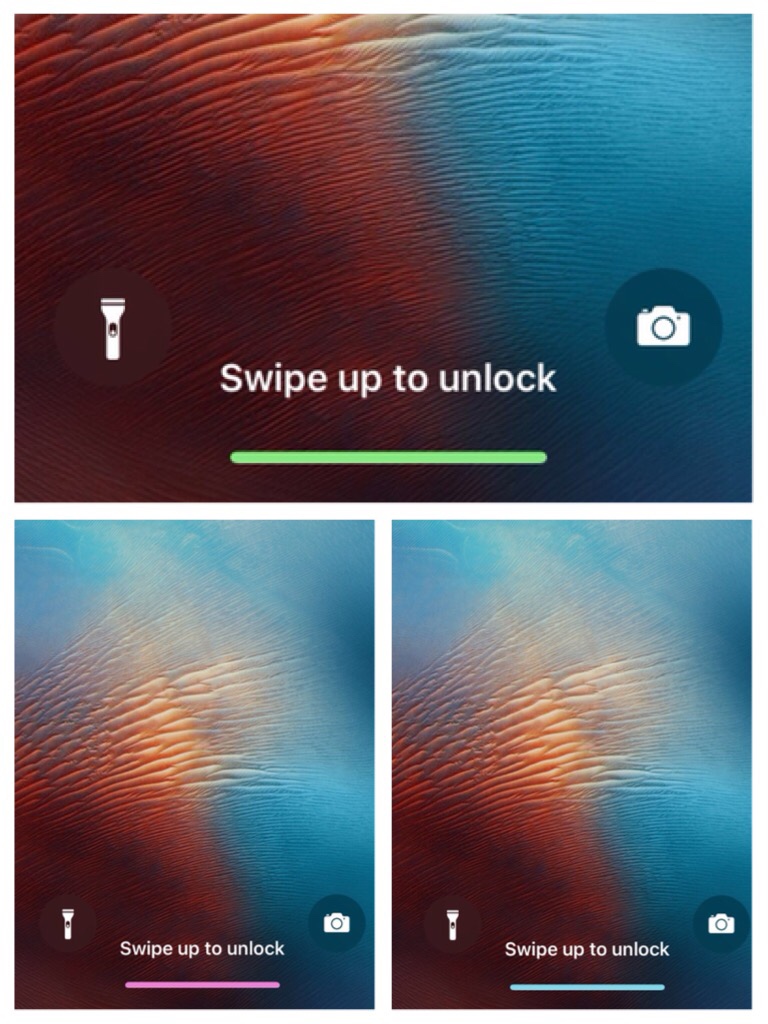

This Tweak Lets You Colorize the iPhone X’s Gesture Bar

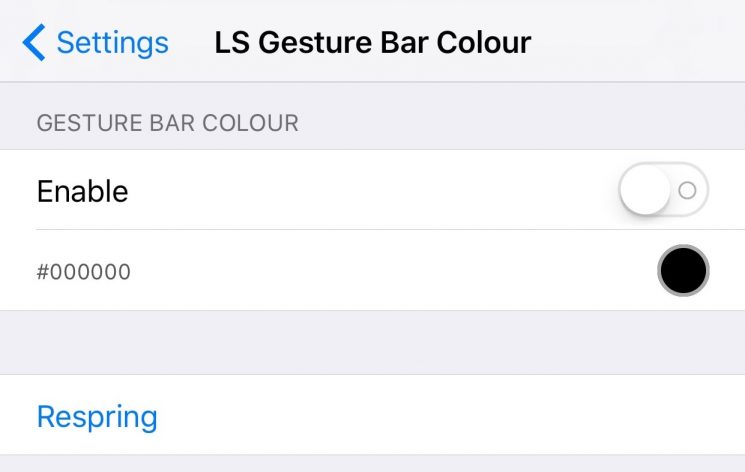
LS Gesture Bar Colour (iPhone X) adds a preference pane to the Settings app where you can set the tweak up:

This Tweak Lets You Colorize the iPhone X’s Gesture Bar


Here, you can:

  • Toggle the tweak on or off on demand

  • Select a custom color for your gesture bar


Notably, the color cell opens a color picker rather than a list of pre-defined colors. This means you can find every major color and everything in between, which provides seemingly-infinite options.


The developer also includes a convenient respring button in the preference pane so that you can save your changes every time you change the color or toggle the tweak on or off.


While it seems like a trivial means of customizing the iPhone X, it’s amazing what such a small modification can do to personalize your device. If you’d like to give it a try for yourself, then you can download it for free from Cydia’s Packix repository.


LS Gesture Bar Colour (iPhone X) is made to work on jailbroken iPhone X handsets only, and consequently, requires iOS 11.


Source: idb


Windows
Mac OS
iOS
Linux
3uTools
Win 64-bit For this device
V9.01 2025-12-27
Download
Win 32-bit For this device
V9.01 2025-12-27
Download
3uTools
Intel Chip How to Identify Chip Type
V9.0 2025-12-02
Download
Apple Silicon
V9.0 2025-12-02
Download
How to Identify Chip Type
1.  Click the Apple icon in the top-left corner of the screen and select About This Mac.
2.  Check the Processor or Chip field to determine if it is "Intel" or "Apple".
Please use the 3uTools PC client to install the iOS client:
1、 Install either the Windows or Mac version of 3uTools on your computer
2、 Open the PC client and connect your device to the computer via USB cable
3、 After the connection is successful, wait for the computer to automatically install the mobile app for the device, or locate “Install Mobile App” on the computer and manually click to install.
3uTools
deb file
V3.01 2025-11-20
Download
rpm file
V3.01 2025-11-20
Download
Windows
Windows
iOS
iOS
Android
Android
TV
TV
3uAirPlayer
Win 64-bit For this device
V6.0.2 2025-11-19
Download
Win 32-bit For this device
V6.0.2 2025-11-19
Download
iOS Device Mirroring (No App Required)
1、 Install 3uAirPlayer on the Windows PC
2、 Open Control Center and select Screen Mirroring
3、 From the list, choose your PC to start mirroring
4、 Or connect your iOS device to the PC via USB to begin mirroring
Scan to get "3uAirPlayer" App
3uAirPlayer TV V1.0.18
2025-11-28
TV System Requirements: Android 7.0 or later
Download the TV installation package, copy it to a USB drive, insert it into your TV or set-top box, then select the file from the home screen to install.




