 TUTORIALS
What To Do If Jailbroken iPhone Damaged?
 11/28/2017
 7902
7902
Jailbreaking affords you a lot of freedom over what you do with your iPhone, iPad or iPod Touch. But what should you do if your jailbroken iPhone is damaged?
If you jailbreak your Apple device and are refused service, it’s entirely your own fault. The reason? You violated the company’s terms and conditions (which most people don’t read) by tampering with the software on your device.
This article is about adverse issues experienced by customers who have made unauthorized modifications to iOS (this hacking process is often called "jailbreaking").
iOS is designed to be reliable and secure from the moment you turn on your device. Built-in security features protect against malware and viruses and help to secure access to personal information and corporate data. Unauthorized modifications to iOS (also known as "jailbreaking") bypass security features and can cause numerous issues to the hacked iPhone, iPad, or iPod touch, including:
* Security vulnerabilities: Jailbreaking your device eliminates security layers designed to protect your personal information and your iOS device. With this security removed from your iOS device, hackers may steal your personal information, damage your device, attack your network, or introduce malware, spyware, or viruses.
* Instability: Frequent and unexpected crashes of the device, crashes, and freezes of built-in apps and third-party apps, and loss of data.
* Shortened battery life: The hacked software has caused an accelerated battery drain that shortens the operation of an iPhone, iPad, or iPod touch on a single battery charge.
* Unreliable voice and data: Dropped calls, slow, or unreliable data connections, and delayed or inaccurate location data.
* Disruption of services: Services such as iCloud, iMessage, FaceTime, Apple Pay, Visual Voicemail, Weather, and Stocks, have been disrupted or no longer work on the device. Additionally, third-party apps that use the Apple Push Notification Service have had difficulty receiving notifications or received notifications that were intended for a different hacked device. Other push-based services such as iCloud and Exchange have experienced problems synchronizing data with their respective servers.
* Inability to apply future software updates: Some unauthorized modifications have caused damage to iOS that is not repairable. This can result in the hacked iPhone, iPad, or iPod touch becoming permanently inoperable when a future Apple-supplied iOS update is installed.
Apple strongly cautions against installing any software that hacks iOS. It is also important to note that unauthorized modification of iOS is a violation of the iOS end-user software license agreement and because of this, Apple may deny service for an iPhone, iPad, or iPod touch that has installed any unauthorized software.
Restore your iPhone to factory settings before repair.
1. Update or download 3uTools on PC.
2. Connect your iPhone to PC using the USB cable and launch 3uTools.
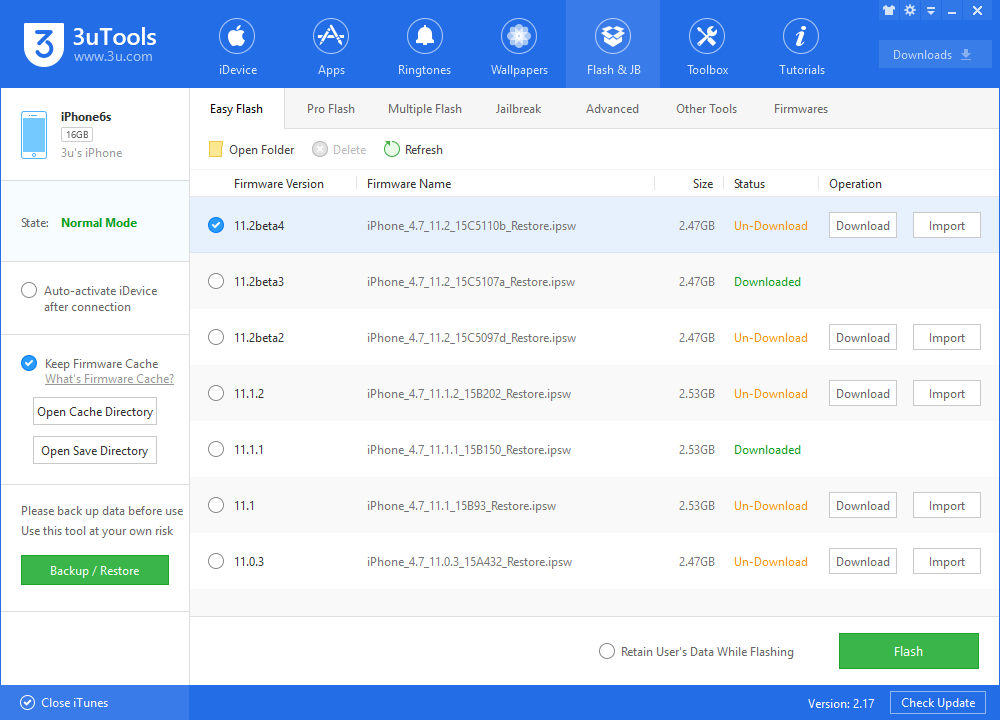
3. Click Backup and Restore. Under the Backups heading, select your device and click Backup to create a backup. Wait until this process is finished.
4. Then restore iPhone. Click Flash & JB, choose the firmware then flash it. This will reset the device to an as-new condition and install the latest version of iOS.
Now, you have a “new” iPhone – you could take it straight to Apple and get it serviced for that faulty home button or crackly speaker that’s been irking you.










