 TUTORIALS
Semperon Adds an ‘Always-on-display’ to your Jailbroken iPhone
 07/20/2018
 7939
7939
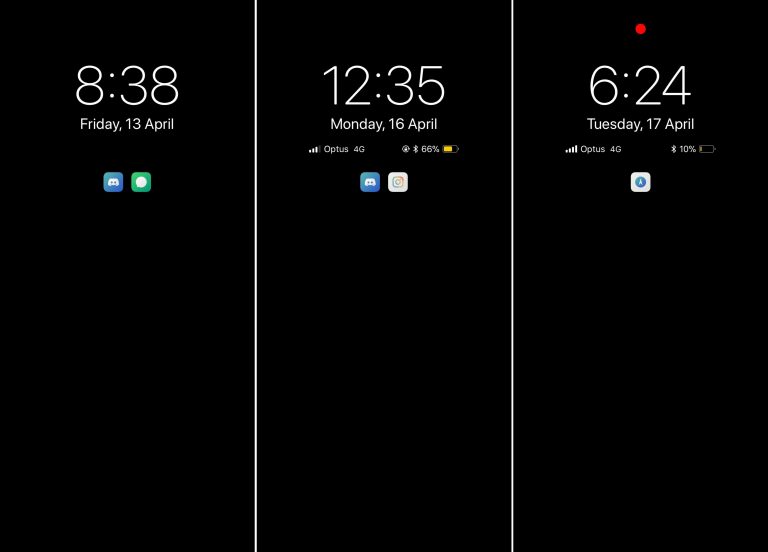
A plethora of Android smartphones on the market today support ‘always-on-display’ functionality in which the background remains dark, but the time and date appear in legible white font for your convenience. Now, a new jailbreak tweakdubbed Semperon by iOS developer LaughingQuoll mimics this functionality on any jailbroken iPhone or iPad running iOS 11.
The screenshots above depict what your locked device’s display will look like after installing Semperon. It will continuously look this way whether you’re interacting with the handset or not, hence the “always-on” aspect.
The tweak automatically shifts the time from the top of the display to the bottom, and back again, after a certain amount of time; this feature combats screen burn-in, an adverse side-effect that often results from having the same thing showing on your display for too long.
After you’ve installed Semperon, you’ll find a preference pane in the Settings app:
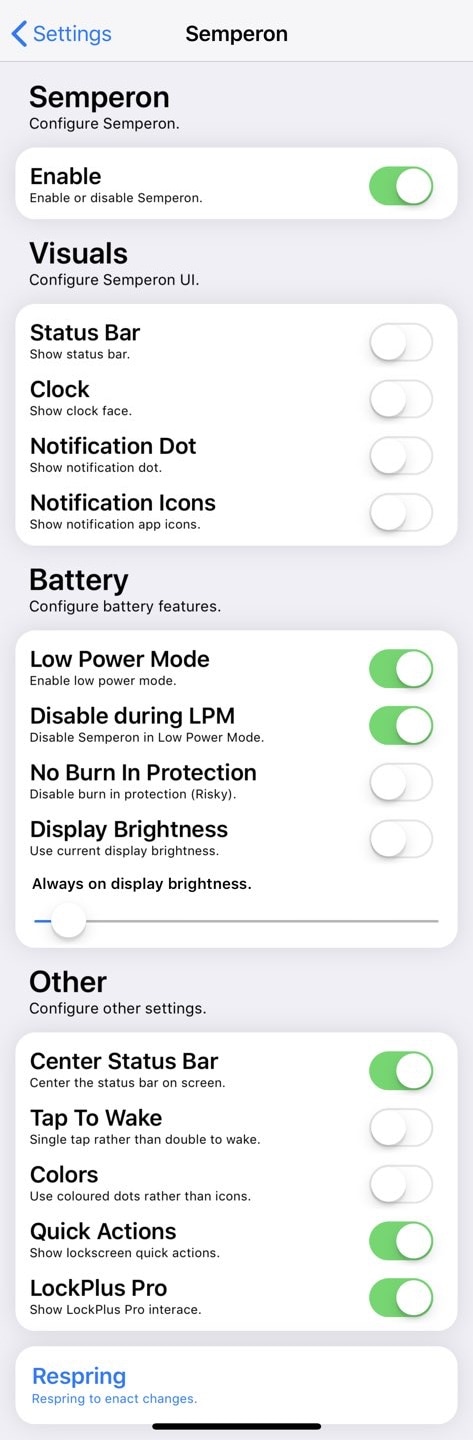
The developer includes a Respring button for your convenience so that you can save changes to the preference pane each time you make them.
If you’re considering trying Semperon, then keep in mind that an always-on-display uses more battery life. The drain is less profound on the iPhone X because of the nature of dark colors on OLED displays, but LCD-equipped iPhones will see a more drastic impact. The tweak mitigates battery drain by automatically dimming the backlight whenever possible.
You can download Semperon from the Packix Repo for $1.49. After you install Semperon, you’ll also need to manually install two dependencies from Cydia: 1) libSparkAppList and 2) PrefixUI. Citing the developer, these aren’t installed automatically because of an APT bug present in this version of Cydia on iOS 11.
Source: idb










