 NEWS
NEWS
Filmmaker “Shocked” at How Good iPhone XS Video Capture is vs. a $10K Cinema Camera
 10/10/2018
 3512
3512
Having pitted his iPhone XS versus Canon’s C200 cinema camera that sells for $10,000, filmmaker Ed Gregory came away impressed by the quality of video capture on Apple’s smartphone and was “quite shocked” at how good the new Apple phone is at shooting video.
Can you spot the difference?
Writing on his blog yesterday, Ed explained he basically took a bunch of videos with both cameras over the course of a few days. He shot everything in the stock Camera app on the XS.
On the Canon side, he used the Canon RAW lite codec and set a similar focal length to the wide lens on his iPhone XS (f1.8). He then attached the phone to the top of the Canon camera and placed them both on the DJI Ronin-S stabilizer.
You can see the results for yourself on the comparison images and the video below.
Follow along for a few notable observations.
The best smartphone camera there is
Ed was “actually shocked” at how good the iPhone footage looked on the phone itself—he’d also watch videos shot on his Canon and questioned which one he liked more. No surprises there because any piece of content displayed on that OLED panel with wide color (the P3 cinema profile), one to million contrast ratio and native HDR support looks great.
The iPhone footage took almost no work to color-grade in the Color Studios app, but Canon’s required a lot of heavy lifting because the C200 camera was shooting in RAW. The iPhone footage “fell apart” when viewed in fullscreen on a 27-inch iMac due to too much sharpening.
“The details just got lost and all the leaves with details just got smushed together,” he observed, while the Canon footage “still looked great.” He could have gotten rid of sharpening by shooting on his iPhone in RAW using a third-party app, like the excellent FiLMiC Pro.
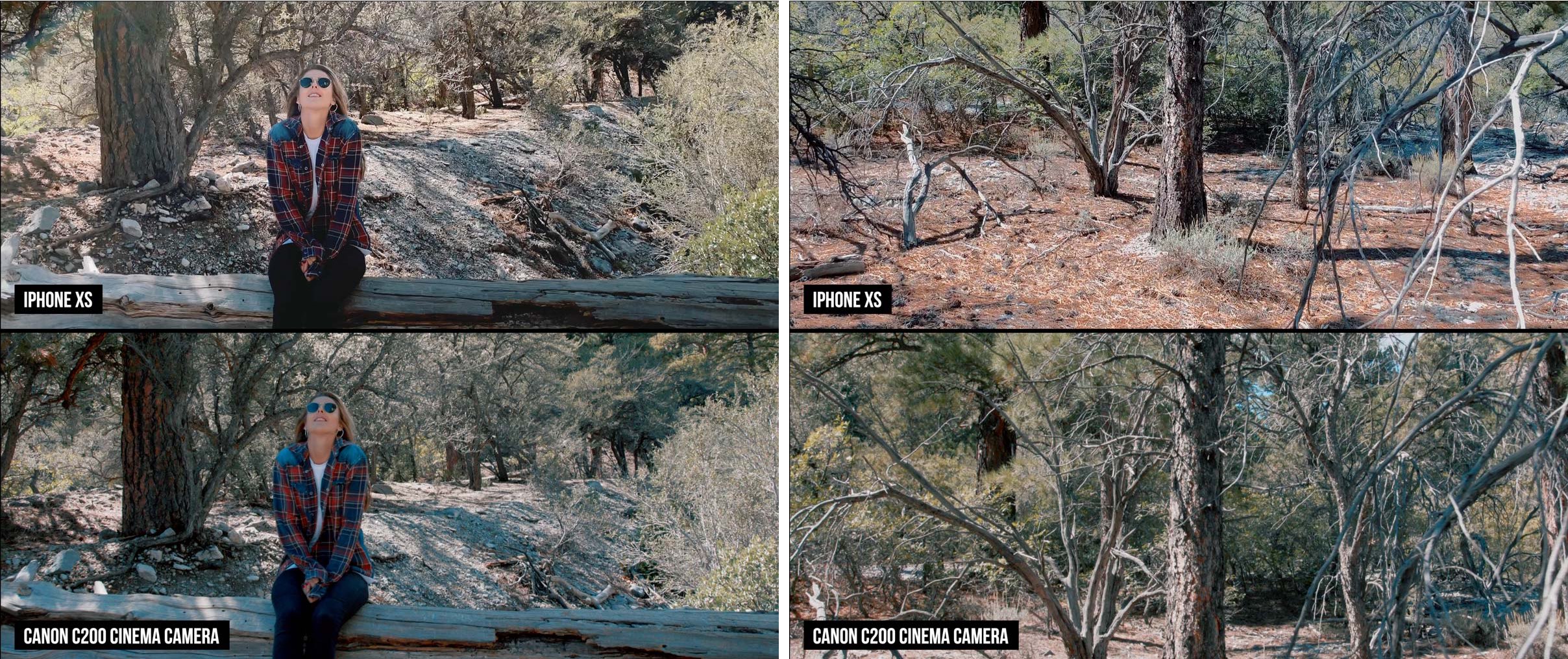
The dynamic range is “super impressive” on the iPhone XS camera.
Smart HDR steps into the limelight
Thanks to the new A12 Bionic chip powering computational photography advancements such as Smart HDR and real-time processing, Apple’s smartphone keeps the highlights on the bright sun while keeping details in the shadows.
“This is some crazy multiple exposure processing thats been done,” he notes. “Considering this is all being done in real time in the palm of your hand. It’s super impressive.”
From the conclusion:
"The iPhone camera is a smartphone camera and always will be. It is incredibly small but to be honest give completely mind-blowing results. If you are shooting to video that is intended to be viewed on a smartphone and you don’t want to do any post processing then the files strait from the app are impressive. Apple has done a great job of optimizing the output to make the files look great instantly."
“Is it as good as a cinema camera, not at all,” he summed it up nicely. “Is it the best camera I have ever seen on a smartphone? Hundred percent!”
Source: idb










