 NEWS
NEWS
YouTuber Trolls Google Pixel Fans with Photos that Were Really Taken with an iPhone XS
 10/09/2018
 3149
3149
YouTuber trolls Google Pixel fans with photos that were really taken with an iPhone XS
Like clockwork, every new iPhone release is accompanied by some sort of scandal that is often exaggerated for dramatic effect, and in some instances, seemingly made up out of thin air. There was, of course, the bendgate saga that accompanied the iPhone 6, and who could forget the downright comical his state that came about in the wake of the iPhone 7 release. Arguably, the silliest ‘-gate’ controversy we’ve seen with Apple happened just recently with beautygate.
Amid complaints that selfies on the iPhone XS look different than they do on the iPhone X — which is to say they look softer — YouTuber Jonathan Morrison recently posted a series of selfies on social media which he claimed were taken with a Google Pixel 2. In reality, the photos were taken with the iPhone XS. Predictably, there were no shortage of comments from fooled commenters thrashing photos taken from what they were led to believe was an iPhone.
A few of the more noteworthy comments include: “could easily get mistaken for a DSLR”, “best portrait mode yet”, and “I have an iPhone XS Max and what Google is doing software wise is witchcraft. that pic is so good lol.”
One of the photos Morrison took can be seen below.
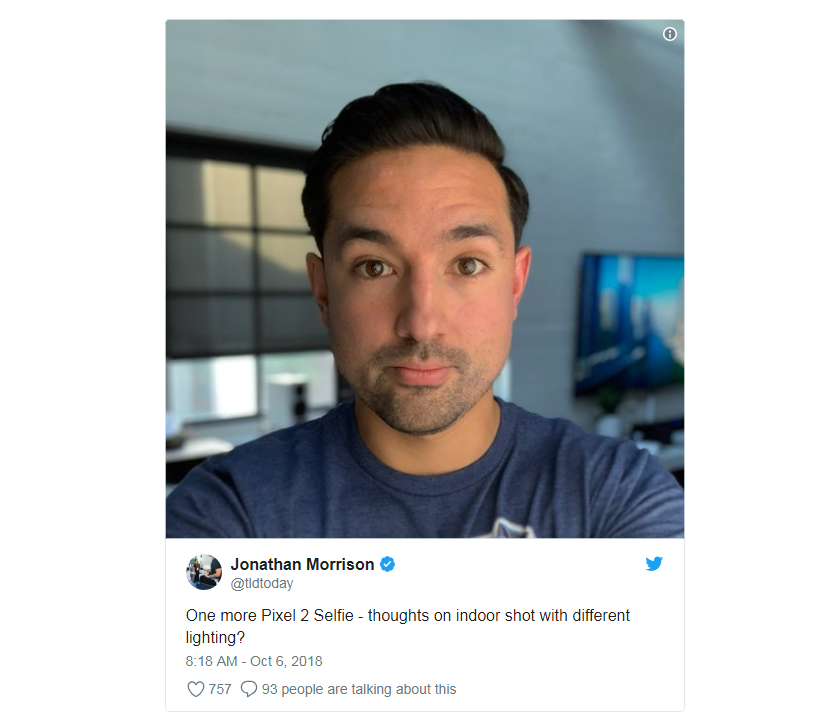
Morrison also put out a YouTube video detailing his little photo prank along with some technical explanations as to why photo quality on the iPhone XS trumps the iPhone X, the whole saga surrounding beautygate notwithstanding.
All in all, the ongoing debate between photo quality on the iPhone and the Google Pixel 2 is arguably pointless. The quality of photos we can take today compared to what was possible even a few years ago is absolutely insane. Suffice it to say, any premium smartphone you buy today will take absolutely stunning photos. And sure, camera enthusiasts might debate the pros and cons amongst different smartphones for hours on end, but for the average buyer, the debate is simply not worth having.
Source: bgr










