 NEWS
NEWS
iOS 12.1 Beta 1 Enables eSIM Functionality
 09/27/2018
 4025
4025
The embedded SIM (eSIM) functionality in the iPhone XS and iPhone XS Max, a feature that will enable dual line support in the latest flagship iPhone, can be found in the latest iOS 12.1 beta.
As Apple has outlined in its support document, Dual SIM functionality allows users with two phone lines to use both lines on the same phone. Although the eSIM settings are present in iOS 12.1, you’ll need to gather a QR code or additional information from your carrier before you can put it to use.
About DSDS SUPPORT
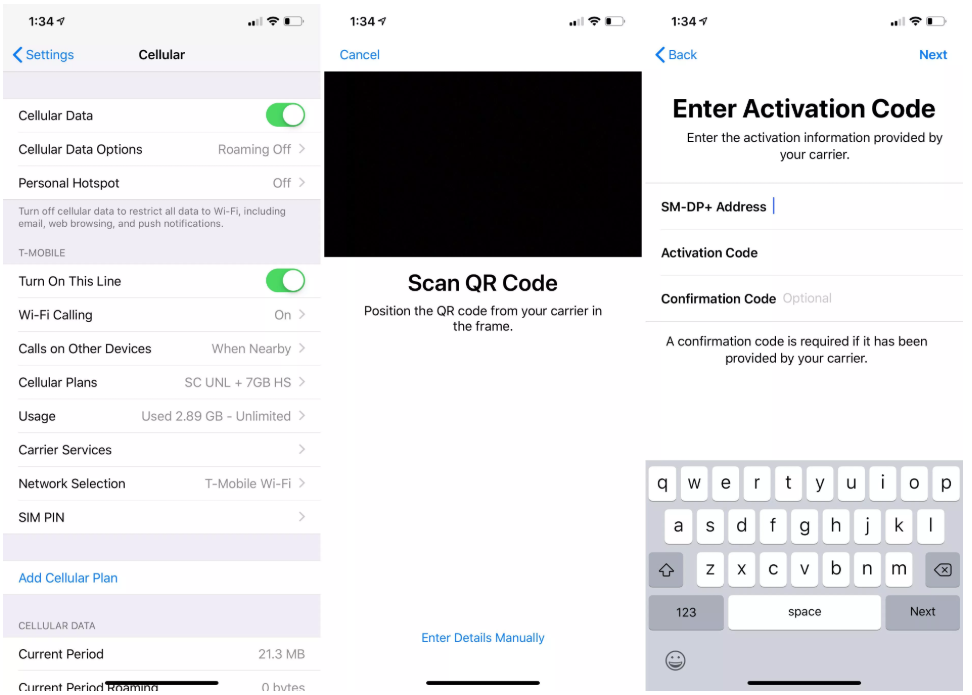
To view the new eSIM settings in iOS, you’ll need to be running the 12.1 beta on your iPhone XS or iPhone XS Max. Once you’ve installed the beta, it’s just a matter of heading over to Settings → Cellular to find details related to eSIM set up.
Inside the Cellular settings panel, you’ll see carrier details for your current line assigned to the removable nano SIM inside the phone. Beneath the current line details, you’ll find a link that says Add Cellular Plan. Tapping this link will prompt you to scan a QR code provided by your carrier, which will contain details of all of the necessary settings to enable the line.
Users also have the option of entering details manually via the link at the bottom of the Scan QR Code page. Required manual details include the SM-DP+ Address, Activation Code, and an optional confirmation code. T-Mobile, my cellular provider, is one of several carriers set to support eSIM functionality on the latest iPhones beginning this fall. Just to be sure, I reached out to T-Mobile customer care to check the status of its eSIM support for the iPhone XS, and was told that it’s not yet ready.
Iphone-ticker.de reports that some Deutsche Telekom users are already able to take advantage of the dual SIM support in iOS 12.1. Signal bars for both SIM cards are displayed when invoking Control Center. iMessage and FaceTime will have preferences for establishing which of the two lines will be associated with these services. Priority for a specific line will be able to be established on a per-contact basis, and you can set iOS to automatically use the last number used in communication with a certain contact. Contacts will need to be reassigned if a SIM is removed or no longer has service.
Source: 9to5mac










