
NEWS

Apple Watch Series 3’s Cellular Access Blocked In China

12/18/2017

3180

China is notorious when it comes to online censorship and also dictating what can or cannot be accessed on the internet, which is why it did not really come as a surprise to learn that the Apple Watch Series 3’s cellular connectivity feature has been blocked in the country following concerns about its eSIM.


This is according to a report from The Wall Street Journal who has suggested that the eSIM could be one of the reasons why cellular connectivity has been blocked. The report reads, “The benefit of a device carrying an eSIM is that, with software, users can choose a telecom operator and a communications plan. But in China, that new system raises the question of how carriers and regulators can track the device user’s identity.”
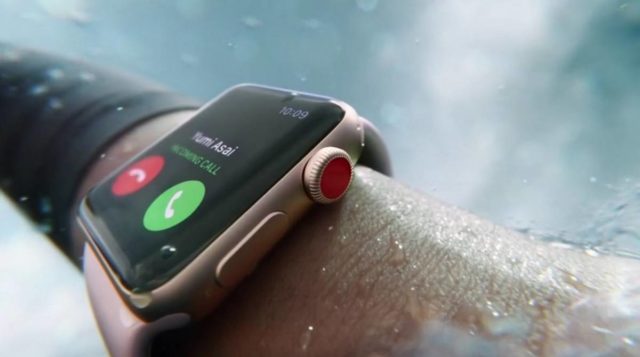

Apple Watch Series 3’s Cellular Access Blocked In China


It is interesting that China has only chosen now to block it, especially after local telco China Unicom had offered cellular service for the Apple Watch late September, only to cut off access to it saying that it was only offered on a trial basis. Apple has since released a statement confirming that the feature had been suspended.


“We were informed by China Unicom that the new cellular feature on the Apple Watch Series 3 has been suspended.” It is unclear when this will be resolved, but for now it looks like Apple Watch customers in China should probably wait or opt for the WiFi-only model.


Source: ubergizmo


Windows
Mac OS
iOS
Linux
3uTools
Win 64-bit For this device
V9.01 2025-12-27
Download
Win 32-bit For this device
V9.01 2025-12-27
Download
3uTools
Intel Chip How to Identify Chip Type
V9.0 2025-12-02
Download
Apple Silicon
V9.0 2025-12-02
Download
How to Identify Chip Type
1.  Click the Apple icon in the top-left corner of the screen and select About This Mac.
2.  Check the Processor or Chip field to determine if it is "Intel" or "Apple".
Please use the 3uTools PC client to install the iOS client:
1、 Install either the Windows or Mac version of 3uTools on your computer
2、 Open the PC client and connect your device to the computer via USB cable
3、 After the connection is successful, wait for the computer to automatically install the mobile app for the device, or locate “Install Mobile App” on the computer and manually click to install.
3uTools
deb file
V3.01 2025-11-20
Download
rpm file
V3.01 2025-11-20
Download
Windows
Windows
iOS
iOS
Android
Android
TV
TV
3uAirPlayer
Win 64-bit For this device
V6.0.2 2025-11-19
Download
Win 32-bit For this device
V6.0.2 2025-11-19
Download
iOS Device Mirroring (No App Required)
1、 Install 3uAirPlayer on the Windows PC
2、 Open Control Center and select Screen Mirroring
3、 From the list, choose your PC to start mirroring
4、 Or connect your iOS device to the PC via USB to begin mirroring
Scan to get "3uAirPlayer" App
3uAirPlayer TV V1.0.18
2025-11-28
TV System Requirements: Android 7.0 or later
Download the TV installation package, copy it to a USB drive, insert it into your TV or set-top box, then select the file from the home screen to install.




