 NEWS
NEWS
Apple Releases Eighth Beta Builds of iOS 14.5, iPadOS 14.5
 04/14/2021
 2214
2214
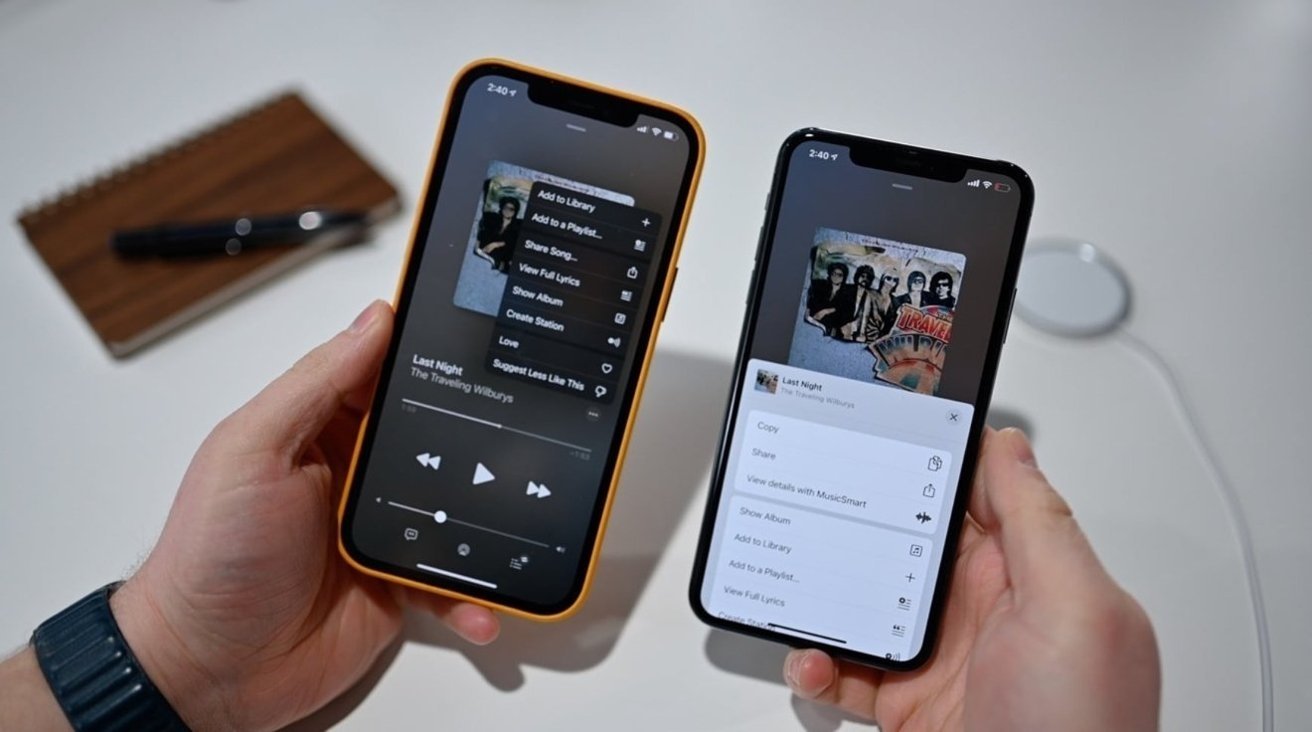
Apple is now on its eighth generation of developer betas, with a fresh round of builds for iOS 14.5 and iPadOS 14.5 now available for testing.
The newest builds can be downloaded via the Apple Developer Center for those enrolled in the test program, or via an over-the-air update on devices running the beta software. Public betas typically arrive within a few days of the developer versions, via the Apple Beta Software Program website.
The eighth builds arrive after Apple's seventh round, which were released on April 7, and follow after the March 31 release of the sixth round. The first round of betas were issued on February 1.
The build number for iOS 14.5 and iPadOS 14.5 beta 8 is 18E5199a.
For iOS and iPadOS 14.5, the main additions is the rollout of App Tracking Transparency. An assist for Face ID unlocking is also included, taking advantage of the presence of a nearby Apple Watch in cases where a mask is being worn by the user.
Support for the PlayStation 5 and Xbox Series X game controllers are also included, as well as AirPlay 2 streaming support for Apple Fitness+, alterations to Apple Music, and over 200 new emoji.
Users of Siri will also benefit from two extra English voice options, as well as eliminating gendered labels and will no longer default to a female voice at setup.
AppleInsider, and Apple itself, strongly recommend users don't install the betas on to "mission-critical" or primary devices, as there is the remote possibility of data loss or other issues. Instead, testers should install betas onto secondary or non-essential devices, and to make sure there are sufficient backups of important data before updating.
Find any changes in the new betas? Reach out to us on Twitter at @AppleInsider or @Andrew_OSU, or send Andrew an email at andrew@AppleInsider.com.
Stay on top of all Apple news right from your HomePod. Say, "Hey, Siri, play AppleInsider," and you'll get latest AppleInsider Podcast. Or ask your HomePod mini for "AppleInsider Daily" instead and you'll hear a fast update direct from our news team. And, if you're interested in Apple-centric home automation, say "Hey, Siri, play HomeKit Insider," and you'll be listening to our newest specialized podcast in moments.
Source: Appleinsider









