
TUTORIALS

How to Turn On Siri for Third-Party Apps in iOS 10?

01/14/2017

4740

Apple made a big deal of third-party Siri integration when it introduced iOS 10, but you may have noticed that you can't order your favorite apps around by default —here's how to make it work.

How to Turn On Siri for Third-Party Apps in iOS 10?


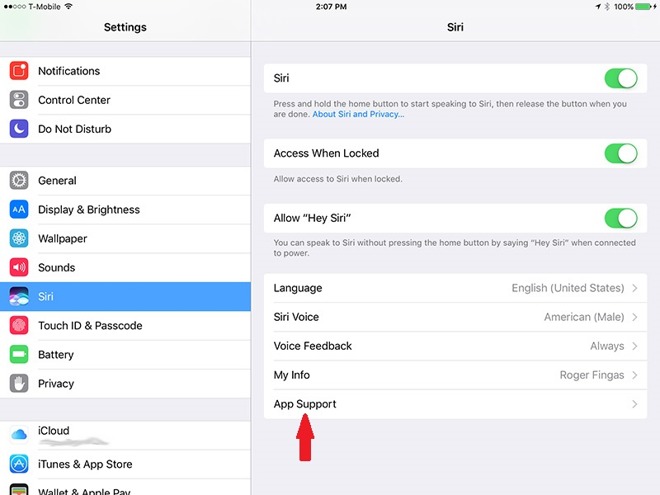
First, open up the Settings app from the iOS home screen, then scroll down to the Siri menu option. Here's where Apple's been needlessly cryptic, as the next step is tapping on a vague "App Support" option.


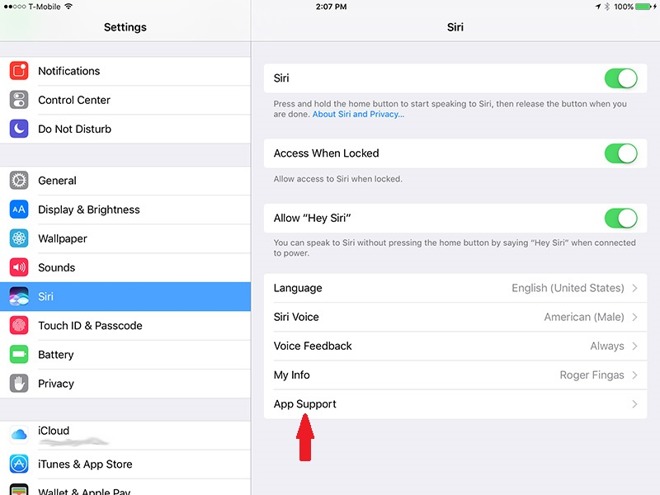
The truth is that third-party Siri support is off by default, and has to be manually toggled on app-by-app for titles that support the technology. And there aren't many that do at this time. As you can see, on an iPad with over 100 apps installed very few are Siri-compatible, and the situation isn't much better on iPhones.

How to Turn On Siri for Third-Party Apps in iOS 10?


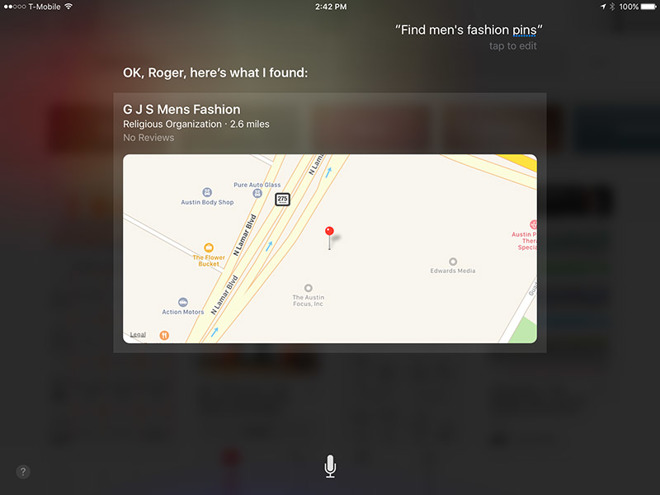
It can also take some extensive web searches to figure out what commands Siri will accept from which apps. One common trope, though, is that you have to mention an app by name. While saying "find men's fashion pins on Pinterest" will generate results, for example, just saying "find men's fashion pins" will not only fail to open Pinterest, but potentially create wacky consequences as Siri tries to interpret what you mean.

How to Turn On Siri for Third-Party Apps in iOS 10?


Some other potential commands include "get me an Uber/Lyft/etc. to..." for ride-sharing apps, "call [contact name] on Skype," or "send [dollar amount] to [contact] using PayPal/Cash/etc." In some cases it might just take experimentation to figure out which phrases will work.


Source: appleinsider


Windows
Mac OS
iOS
Linux
3uTools
Win 64-bit For this device
V9.0 2025-11-11
Download
Win 32-bit For this device
V9.0 2025-11-11
Download
3uTools
Intel Chip How to Identify Chip Type
V9.0 2025-12-02
Download
Apple Chip
V9.0 2025-12-02
Download
How to Identify Chip Type
1.  Click the Apple icon in the top-left corner of the screen and select About This Mac.
2.  Check the Processor or Chip field to determine if it is "Intel" or "Apple".
Please use the 3uTools PC client to install the iOS client:
1、 Install either the Windows or Mac version of 3uTools on your computer
2、 Open the PC client and connect your device to the computer via USB cable
3、 After the connection is successful, wait for the computer to automatically install the mobile app for the device, or locate “Install Mobile App” on the computer and manually click to install.
3uTools
deb file
V3.01 2025-11-20
Download
rpm file
V3.01 2025-11-20
Download
Windows
Windows
iOS
iOS
Android
Android
TV
TV
3uAirPlayer
Win 64-bit For this device
V6.0.2 2025-11-19
Download
Win 32-bit For this device
V6.0.2 2025-11-19
Download
iOS Device Mirroring (No App Required)
1、 Install 3uAirPlayer on the Windows PC
2、 Open Control Center and select Screen Mirroring
3、 From the list, choose your PC to start mirroring
4、 Or connect your iOS device to the PC via USB to begin mirroring
Scan to get "3uAirPlayer" App
3uAirPlayer TV V1.0.18
2025-11-28
TV System Requirements: Android 7.0 or later
Download the TV installation package, copy it to a USB drive, insert it into your TV or set-top box, then select the file from the home screen to install.




