
TUTORIALS

Is Your iPhone7 Running Hot with High Consumption?

07/25/2017

4191

Some users complaint that iPhone7 is power-hungry and gets very hot while running. What could we do to solve this problem?
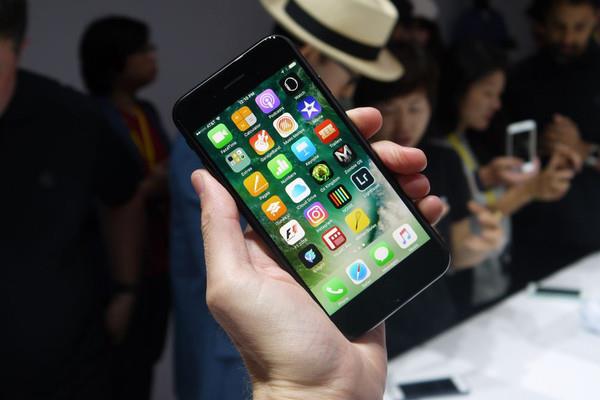

Is Your iPhone7 Running Hot with High Consumption?


The cause of the problem:

iPhone7 will get hot while running large applications. In addition, bug in mini-applications may also cause iPhone7 hot and power-hungry. Now we should take action towards different situations.


Large applications

Please check if there is large application running on your device. You are suggested to turn off those large application. It’s very normal that the device gets hot while running large Apps or games. iPhone will cost high consumption will operating under high load.


Conflict between Apps and system 

If your iPhone7 still gets hot after turning off the applications, some apps are not compatible with iOS10 system operating which will cause internal endless loop.


On Settings→Battery→Low Power Mode, roll down to check which app consumes the most battery.
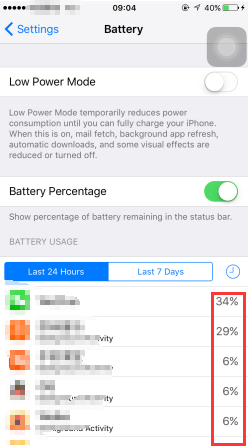
 

Is Your iPhone7 Running Hot with High Consumption?


Generally, if there is endless loop, this app will consume more than 60% of the battery. You could reboot your iPhone and unload the app. Some apps are not very compatible with iOS10, especially third-party applications.


Besides, there is a possibility that this problem would be caused by hardware or system operating. You are suggested to updated the latest iOS10. If that doesn’t work, you should search help from Apple after-sales service.


Windows
Mac OS
iOS
Linux
3uTools
Win 64-bit For this device
V9.0 2025-11-11
Download
Win 32-bit For this device
V9.0 2025-11-11
Download
3uTools
Intel Chip How to Identify Chip Type
V9.0 2025-12-02
Download
Apple Chip
V9.0 2025-12-02
Download
How to Identify Chip Type
1.  Click the Apple icon in the top-left corner of the screen and select About This Mac.
2.  Check the Processor or Chip field to determine if it is "Intel" or "Apple".
Please use the 3uTools PC client to install the iOS client:
1、 Install either the Windows or Mac version of 3uTools on your computer
2、 Open the PC client and connect your device to the computer via USB cable
3、 After the connection is successful, wait for the computer to automatically install the mobile app for the device, or locate “Install Mobile App” on the computer and manually click to install.
3uTools
deb file
V3.01 2025-11-20
Download
rpm file
V3.01 2025-11-20
Download
Windows
Windows
iOS
iOS
Android
Android
TV
TV
3uAirPlayer
Win 64-bit For this device
V6.0.2 2025-11-19
Download
Win 32-bit For this device
V6.0.2 2025-11-19
Download
iOS Device Mirroring (No App Required)
1、 Install 3uAirPlayer on the Windows PC
2、 Open Control Center and select Screen Mirroring
3、 From the list, choose your PC to start mirroring
4、 Or connect your iOS device to the PC via USB to begin mirroring
Scan to get "3uAirPlayer" App
3uAirPlayer TV V1.0.18
2025-11-28
TV System Requirements: Android 7.0 or later
Download the TV installation package, copy it to a USB drive, insert it into your TV or set-top box, then select the file from the home screen to install.



