
TUTORIALS

Do Not Disturb Mode Should be More Flexible in iOS

07/19/2017

5395

It would be very terrible for many users if iPhone wakes them up at midnight. Thus, at this case, “Do Not Disturb” mode is especially important. After setting the schedule and locking the screen, we would not be disturbed by any phone call, message or other notifications.
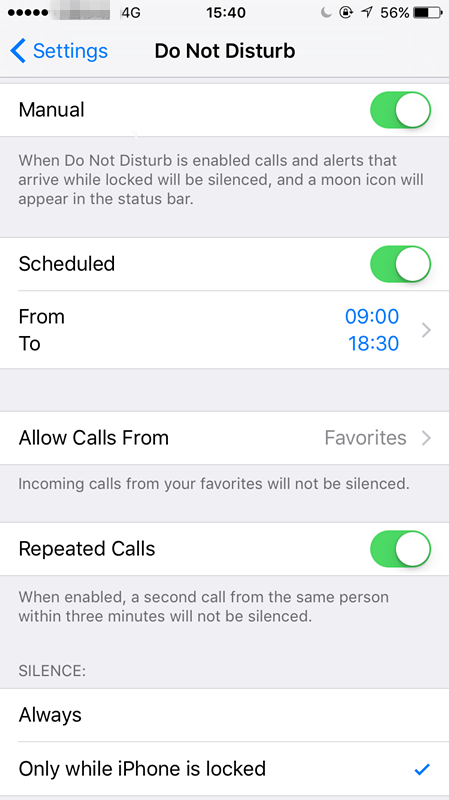

Do Not Disturb Mode Should be More Flexible in iOS


“Do Not Disturb”schedule is not complicated to set up. We can choose the start and end time, if we don’t modify manually, the schedule will be 365 days a year by default. But in fact, many iPhone users hope that Apple could offer more completed options.

For example, different people have different work and rest time, so the simple schedule time settings would make them miss some calls or messages. Plus, they would be waken up at weekends.


Thus, it will improve user experience to add more flexible settings options. Except for working days and weekends, jet lag may be an consideration for those users who are always away for working or traveling. 


Windows
Mac OS
iOS
Linux
3uTools
Win 64-bit For this device
V9.0 2025-11-11
Download
Win 32-bit For this device
V9.0 2025-11-11
Download
3uTools
Intel Chip How to Identify Chip Type
V9.0 2025-12-02
Download
Apple Chip
V9.0 2025-12-02
Download
How to Identify Chip Type
1.  Click the Apple icon in the top-left corner of the screen and select About This Mac.
2.  Check the Processor or Chip field to determine if it is "Intel" or "Apple".
Please use the 3uTools PC client to install the iOS client:
1、 Install either the Windows or Mac version of 3uTools on your computer
2、 Open the PC client and connect your device to the computer via USB cable
3、 After the connection is successful, wait for the computer to automatically install the mobile app for the device, or locate “Install Mobile App” on the computer and manually click to install.
3uTools
deb file
V3.01 2025-11-20
Download
rpm file
V3.01 2025-11-20
Download
Windows
Windows
iOS
iOS
Android
Android
TV
TV
3uAirPlayer
Win 64-bit For this device
V6.0.2 2025-11-19
Download
Win 32-bit For this device
V6.0.2 2025-11-19
Download
iOS Device Mirroring (No App Required)
1、 Install 3uAirPlayer on the Windows PC
2、 Open Control Center and select Screen Mirroring
3、 From the list, choose your PC to start mirroring
4、 Or connect your iOS device to the PC via USB to begin mirroring
Scan to get "3uAirPlayer" App
3uAirPlayer TV V1.0.18
2025-11-28
TV System Requirements: Android 7.0 or later
Download the TV installation package, copy it to a USB drive, insert it into your TV or set-top box, then select the file from the home screen to install.




