 NEWS
NEWS
iOS 11 Makes Setting Up New Devices Super Easy
 06/20/2017
 3189
3189
In iOS 11, Apple is implementing a new "Automatic Setup" feature, which is designed to make it much quicker to get a new device ready to go right out of the box.
As seen in the video below, Automatic Setup transfers over your preferences, Apple ID and Wi-Fi info, preferred settings, and iCloud Keychain passwords, streamlining the setup process for new iPads and iPhones.
With iOS 11 installed, during the setup process, there's a new option to transfer settings from an existing device (which also needs to be running iOS 11). The two devices need to be held close to one another, and when nearby, you'll get instructions to pair them.
Pairing involves using the camera of the old device to scan an Apple Watch-style pairing image on the new device. After that, you'll be prompted to enter the passcode of the old device, which also becomes the passcode on the new device, and then the devices will need to remain near each other during the transfer.
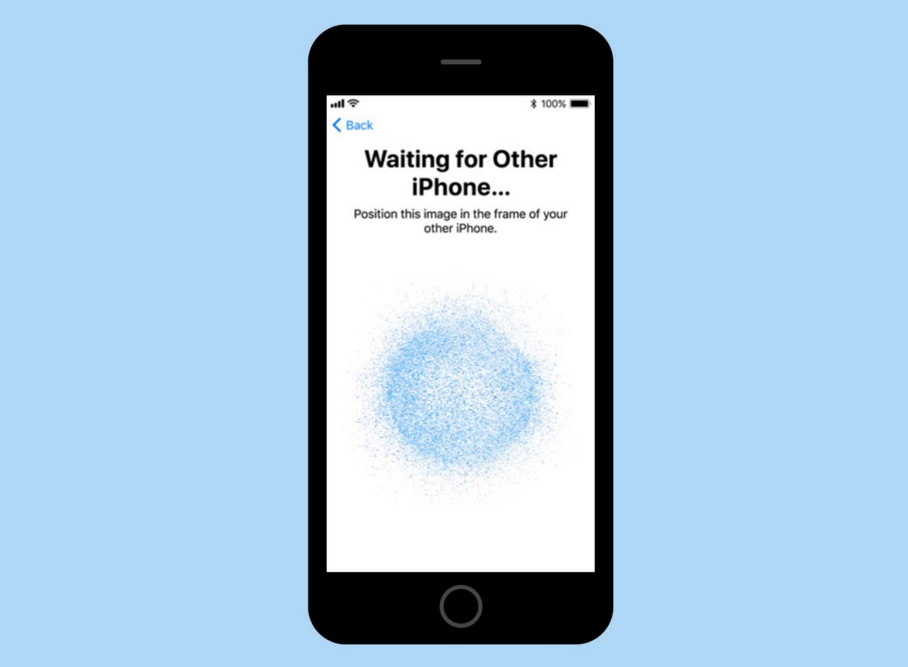
The process sounds a bit complicated when explained, but it's straightforward with clear instructions that are simple to follow and it takes just a couple of minutes to complete.
After the two devices are paired and the settings are transferred, there's also a new simplified setup process for activating Touch ID and then enabling settings like Find My iPhone, location, and analytics all at once instead of individually. After that, you can set up Apple Pay and Siri, and then your device is ready to go.
Whether setting up a device as new or importing an iCloud backup, Automatic Setup in iOS 11 is quicker than the traditional setup method, provided you have an existing device on hand.
iOS 11 is limited to developers right now, but it will be provided to public beta testers later this month. For more on iOS 11, make sure to check out our full iOS 11 roundup.
Source: macrumors










