 NEWS
NEWS
Amazon’s Alexa Calling Feature Works From Your iPhone, Too.
 05/15/2017
 4102
4102
The new Alexa Calling feature added to the Amazon Echo, explaining how to set the service up and use it. Once you set up Alexa Calling in the app, you’re able to make and receive calls with your Echo, Echo Dot, and the upcoming Echo Show just by saying, “Alexa, make a call” or “Alexa, call Jeff Gamet.” What I’m going to do now, though, is show you how you can use that same functionality when you’re away from your Echo device using the Alexa app on your iPhone.
If someone calls your Echo, it also rings your Alexa app on your iPhone. This is, in part, because you’ve linked your smartphone’s number with the Alexa Calling feature. You’ll hear a ringing sound, or feel a vibration from your iPhone. A notification on your lock screen will tell you that you have a call in the Amazon Alexa app. Unlock your iPhone, and then you can answer the call. You’ll see a familiar screen for the call with buttons to switch to speaker phone, end the call, or mute your microphone.
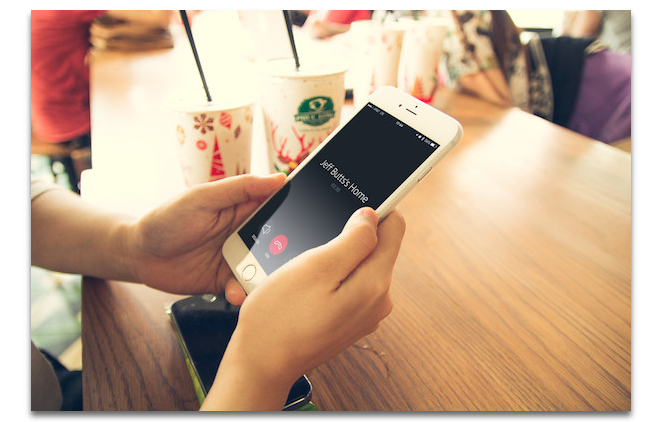
You can also receive voice and text messages from Alexa Calling on your iPhone. You’ll get a notification of the incoming message, and just have to visit your Alexa app on your iPhone to retrieve it. The app supports sending text and voice messages, too. Text messages are transcribed, but that particular feature doesn’t work very well yet.
When you really want to call someone using Alexa Calling, it’s easy to do from the app. Just open the app, tap the text bubble at the bottom of your screen, and choose the contact you want to call. You’ll have the option to send them a message or place a call, just as easy as that.
Source: macobserver










