
NEWS

Apple Stops Signing iOS 10.2.1 & iOS 10.3

04/11/2017

5537

Bad news for those looking to downgrade their devices to iOS 10.2.1 or iOS 10.3 as Apple has closed the signing window a while back. iOS 10.2.1 & iOS 10.3 no longer being signed by Apple – iOS 10.3.1 is the way to go now.


Whenever Apple releases a new firmware version for iPhone and iPad users, users have the option to downgrade back to the older software using iTunes. But this is only possible for an extremely limited period of time, after which you have to stick with the latest publicly available iOS release. Today though, Apple has flipped the switch and stopped signing iOS 10.2.1 and iOS 10.3. This means you can no longer downgrade your iOS device to the aforementioned firmware versions no matter what you do.
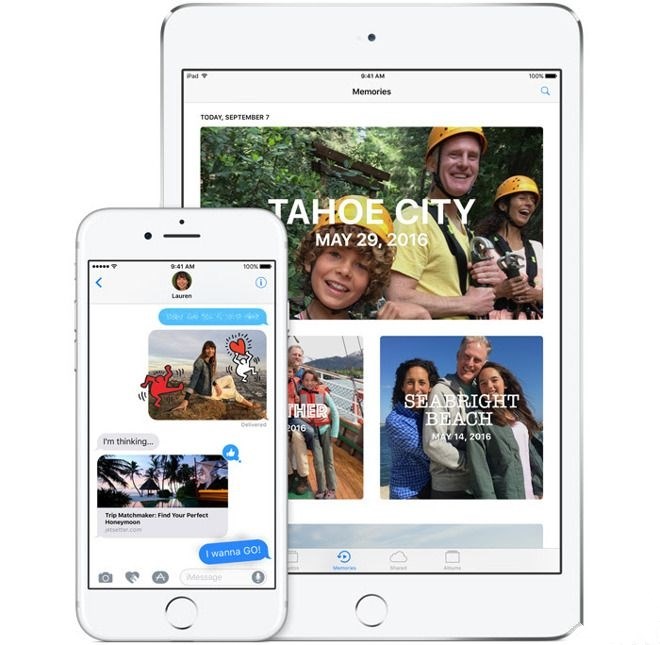

Apple Stops Signing iOS 10.2.1 & iOS 10.3


But, of course, you might have your own reasons for sticking to older firmware, such as battery life related issues. Or maybe you are hoping that an iOS 10.2.1 jailbreak may arrive in due course. That’s completely understandable, and waiting has, thus far, proven to be fruitful for a lot of people out there. Maybe you’ll get lucky in the time to come as well. But keep in mind one thing: there is absolute silence from the world of jailbreaking, so don’t hold your breath for a new solution for Apple’s latest firmware release just yet.


Still, if there is an update from the jailbreaking front, we will definitely inform our readers about it, so stay tuned for more in the days to come.


Source: wccftech


Windows
Mac OS
iOS
Linux
3uTools
Win 64-bit For this device
V9.0 2025-11-11
Download
Win 32-bit For this device
V9.0 2025-11-11
Download
3uTools
Intel Chip How to Identify Chip Type
V9.0 2025-12-02
Download
Apple Silicon
V9.0 2025-12-02
Download
How to Identify Chip Type
1.  Click the Apple icon in the top-left corner of the screen and select About This Mac.
2.  Check the Processor or Chip field to determine if it is "Intel" or "Apple".
Please use the 3uTools PC client to install the iOS client:
1、 Install either the Windows or Mac version of 3uTools on your computer
2、 Open the PC client and connect your device to the computer via USB cable
3、 After the connection is successful, wait for the computer to automatically install the mobile app for the device, or locate “Install Mobile App” on the computer and manually click to install.
3uTools
deb file
V3.01 2025-11-20
Download
rpm file
V3.01 2025-11-20
Download
Windows
Windows
iOS
iOS
Android
Android
TV
TV
3uAirPlayer
Win 64-bit For this device
V6.0.2 2025-11-19
Download
Win 32-bit For this device
V6.0.2 2025-11-19
Download
iOS Device Mirroring (No App Required)
1、 Install 3uAirPlayer on the Windows PC
2、 Open Control Center and select Screen Mirroring
3、 From the list, choose your PC to start mirroring
4、 Or connect your iOS device to the PC via USB to begin mirroring
Scan to get "3uAirPlayer" App
3uAirPlayer TV V1.0.18
2025-11-28
TV System Requirements: Android 7.0 or later
Download the TV installation package, copy it to a USB drive, insert it into your TV or set-top box, then select the file from the home screen to install.




