 TUTORIALS
Casting Driver Error in TikTok LIVE Studio When Using 3uAirPlayer? Complete Fix Guide
 03/10/2026
 226
226
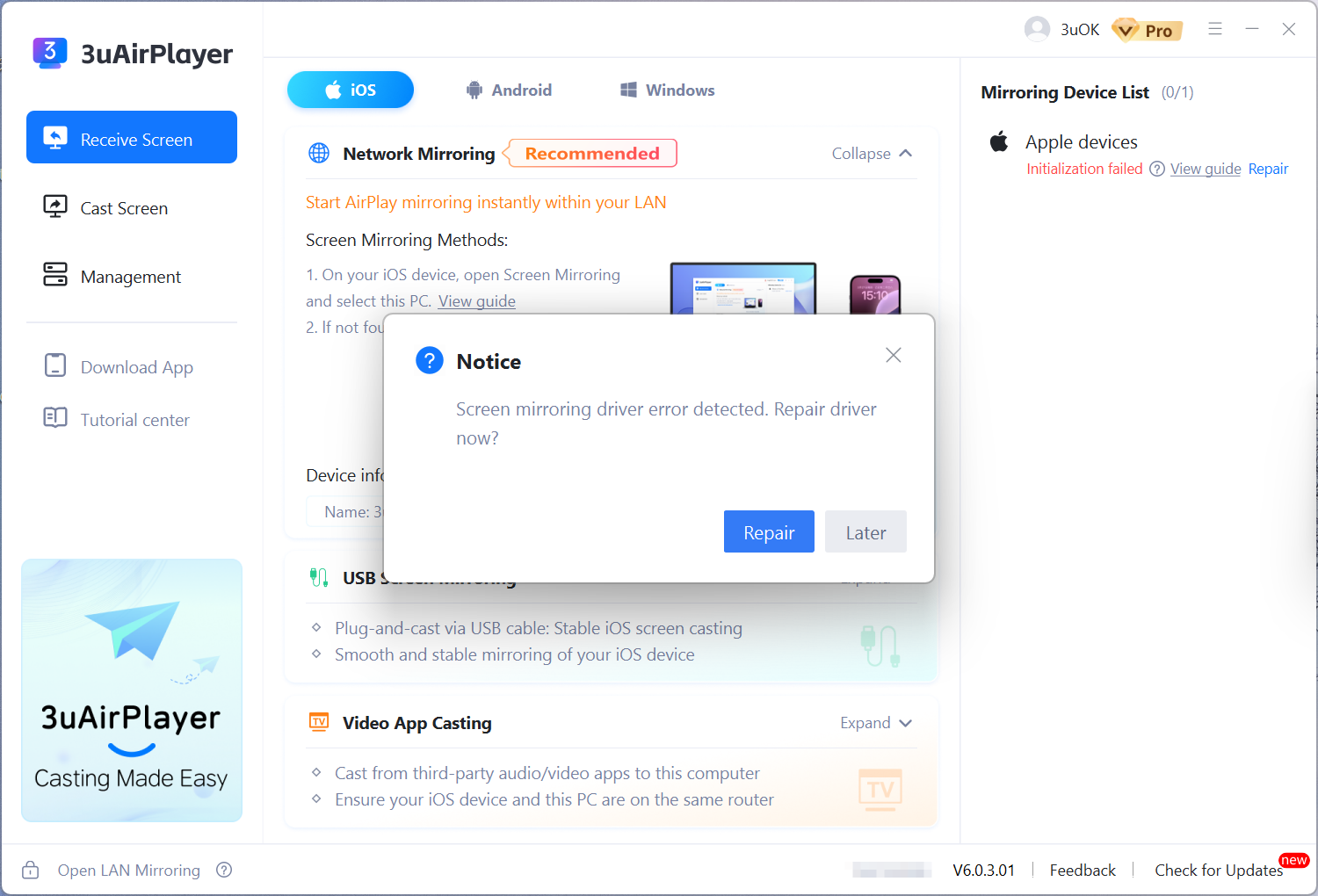
When using 3uAirPlayer screen casting with streaming software, some users may see repeated messages such as “Casting driver error detected”.
This issue is usually caused by:
· USB driver conflicts
· Streaming software occupying the camera or driver
· Conflicts between streaming tools and the 3uAirPlayer driver
Follow the solutions below to resolve the problem.
Solution 1: Remove Conflicting Sources and Repair the Driver
(Example shown using Streamlabs Desktop)
1. Remove the Conflicting Capture Source
Some streaming software may add its own iPhone screen capture source, which conflicts with the 3uAirPlayer driver.
Steps:
1. Open Streamlabs Desktop.
2. In the Sources panel, locate any source related to iPhone screen capture or mobile casting.
3. Click the Delete (trash icon) to remove it completely.
This prevents the streaming software from occupying the same driver used by 3uAirPlayer.
2. Repair the 3uAirPlayer Driver
Follow these steps to reinstall or repair the driver.
Step A
1. Disconnect the USB cable between your phone and computer.
2. Reconnect the cable.
3. When 3uAirPlayer prompts a Repair Driver option, click Repair.
4. Restart your computer after the repair is complete.
Step B
After the computer restarts:
1. Open 3uAirPlayer.
2. Connect your phone using a USB cable.
3. If the device list shows “Install driver before casting”, click Install Driver.
Step C
Suppose a message appears such as: “Connection timed out. Please restart the device.”Click OK and wait for the phone to restart. After the restart, casting should work normally.
3. Configure the Virtual Camera in Streaming Software
After casting successfully starts, configure the virtual camera.
Steps:
1. Open your streaming software.
2. Add a Camera / Video Capture Device source.
If 3uAirPlayer camera does not appear:
· Restart 3uAirPlayer
· Restart the streaming software
· Reopen the camera device list
You should see options such as:
· 3uAirPlayer 1
· 3uAirPlayer 2
For a single device, select 3uAirPlayer 1.
If the camera appears but no video is displayed, enable the Virtual Camera feature in 3uAirPlayer, then select the camera again.
Solution 2: Use a Streaming Tool With Better Driver Compatibility
If the issue persists, the streaming software may have low compatibility with the casting driver.
Switching to a more compatible streaming tool is recommended. The most stable option is OBS Studio.
Use OBS Studio With 3uAirPlayer
Steps:
1. Download and install OBS Studio from the official website.
2. Open OBS and click the + button in the Sources panel.
3. Select Video Capture Device.
4. Choose 3uAirPlayer Virtual Camera.
5. Click OK.
OBS has stronger driver compatibility, which helps avoid conflicts with virtual camera drivers.
Summary
If your streaming software keeps showing a casting driver error, try the following fixes:
1. Remove conflicting mobile casting sources in your streaming software
2. Repair the 3uAirPlayer driver
3. Restart both 3uAirPlayer and the streaming software
4. Reconfigure the virtual camera
5. Use OBS Studio if compatibility issues persist
Following these steps should resolve most driver conflict problems and allow stable screen casting for live streaming.









