 TUTORIALS
3uAirPlayer USB Connection Timeout — Fix iPhone “Unlock and Trust” Issue
 03/04/2026
 10316
10316
3uAirPlayer: Fix the “Connection Timed Out — Please Restart iPhone, Unlock and Trust” Popup (USB Connection Guide)
Applicable scenario:
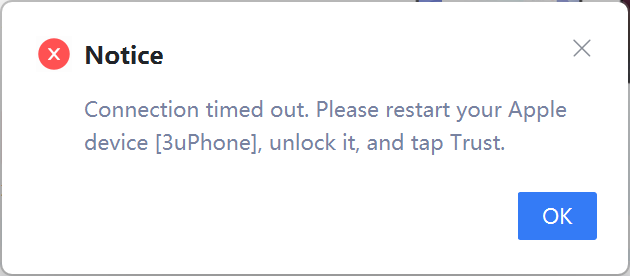
When connecting an iPhone to a computer via USB while using 3uAirPlayer, the pop-up “Connection timed out. Please restart iPhone, unlock it, and tap trust” repeatedly appears, and screen casting cannot proceed normally.
Follow the three methods below to troubleshoot step by step. Start with Method 1 (simplest and highest success rate).
Method 1: Restart iPhone + Reconnect USB (Recommended First)
Core principle: Resolves temporary iOS system lag or abnormal USB connection cache. This is the most basic and effective troubleshooting step.
Steps:
a. Unlock the iPhone and ensure the screen is on and not locked (to allow the Trust prompt to appear).
b. Gently unplug the USB cable. Do not pull forcefully to avoid damaging the device or cable connector.
c. Restart the iPhone:
• Press and hold the Power button (or Power + Volume Down)
• Slide to restart
• If the device is frozen, press and hold Power + Volume Down to force restart (works on all iPhone models)
d. After the iPhone restarts, unlock it again and keep the screen on.
e. Reconnect the USB cable and ensure both ends are firmly plugged in (no looseness on either side).
f. When the iPhone displays “Trust This Computer?”, tap Trust immediately. Then open 3uAirPlayer on the computer and start casting again to check whether the pop-up persists.
Note: If the Trust prompt does not appear after reconnecting, try another known-good USB cable (preferably the original Apple cable) to rule out cable damage.
Method 2: Uninstall Driver + Restart Computer (For 3uAirPlayer Connection Issues)
Core principle: Abnormal or conflicting USB drivers on the computer may cause iPhone connection timeouts and prevent 3uAirPlayer from recognizing the device. You can uninstall the driver directly within 3uAirPlayer — no need to use Windows Device Manager.
Steps:
a. Disconnect the iPhone from the computer and keep 3uAirPlayer open on the PC.
b. Click the Settings button in the upper-right corner of 3uAirPlayer.
c. In Settings, locate Driver Management (used to manage 3uAirPlayer-related USB drivers).
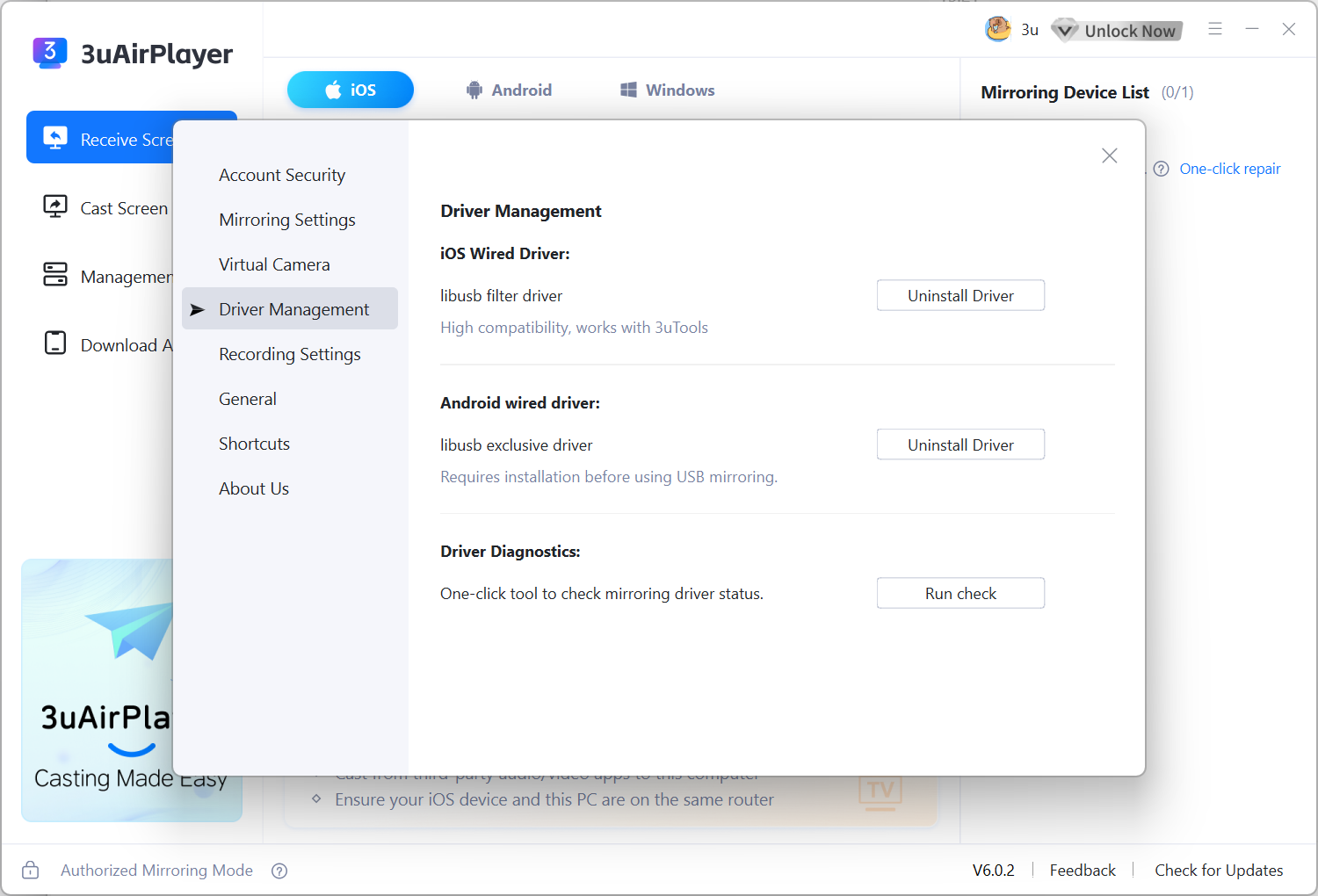
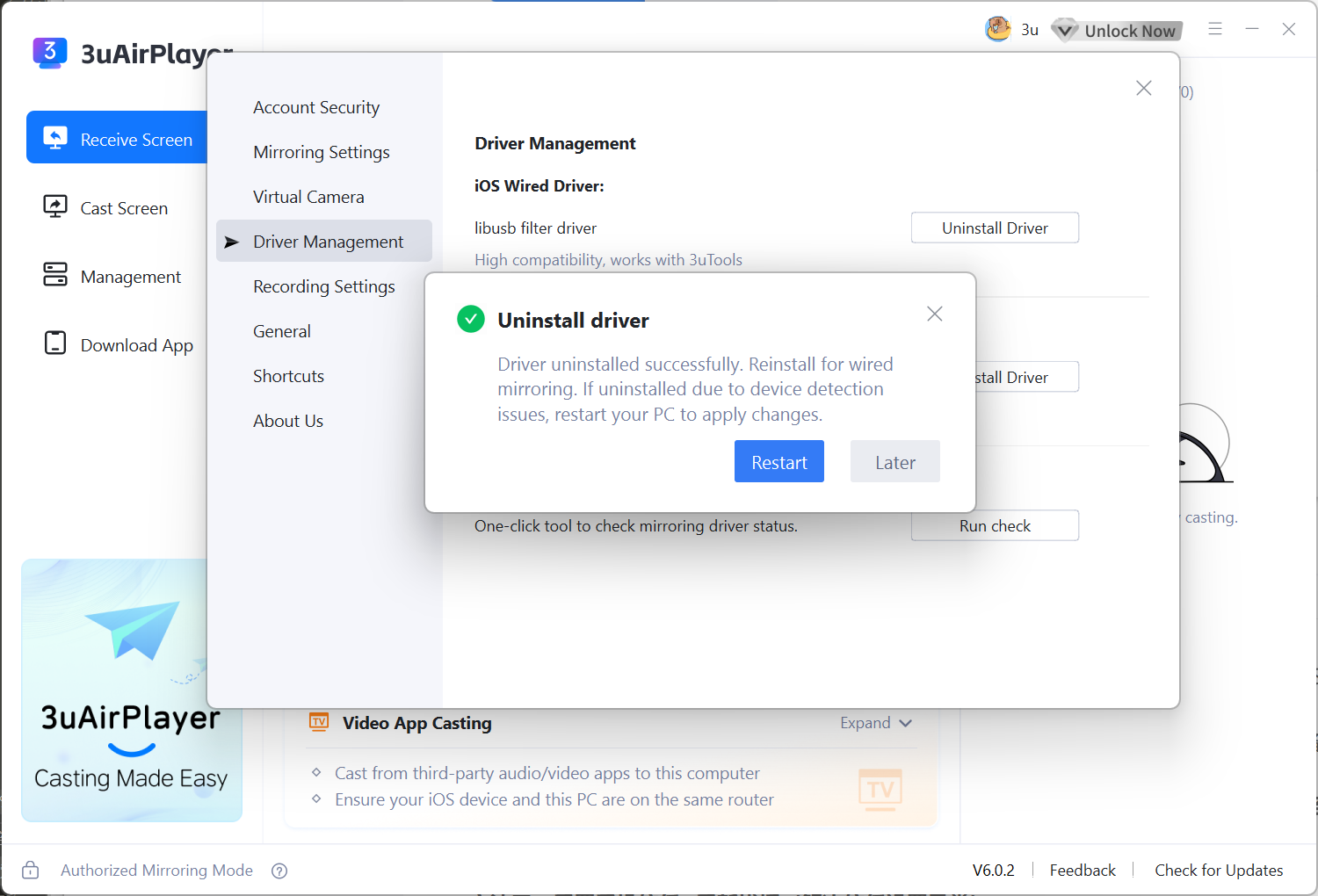
d. Click Uninstall Driver, then click OK in the confirmation dialog and wait for the process to complete.
e. After uninstalling, restart the computer (required to reset the driver fully).
f. Once the computer restarts, unlock the iPhone and keep the screen on, then reconnect the USB cable. 3uAirPlayer will automatically reinstall the appropriate USB driver.
g. When the iPhone shows Trust This Computer?, tap Trust. 3uAirPlayer will automatically detect the connected iPhone. Start casting again.
Note: If you cannot find Driver Management or Uninstall Driver, update 3uAirPlayer to the latest version (driver management has been optimized in recent releases), then repeat the steps above.
Method 3: Reset Trust Settings on iPhone + Reconnect
Core principle: If the device was previously trusted but the trust cache became invalid or corrupted, resetting location & privacy settings will restore the trust authorization.
Steps:
a. Disconnect the iPhone from the computer. Unlock the iPhone and open Settings.
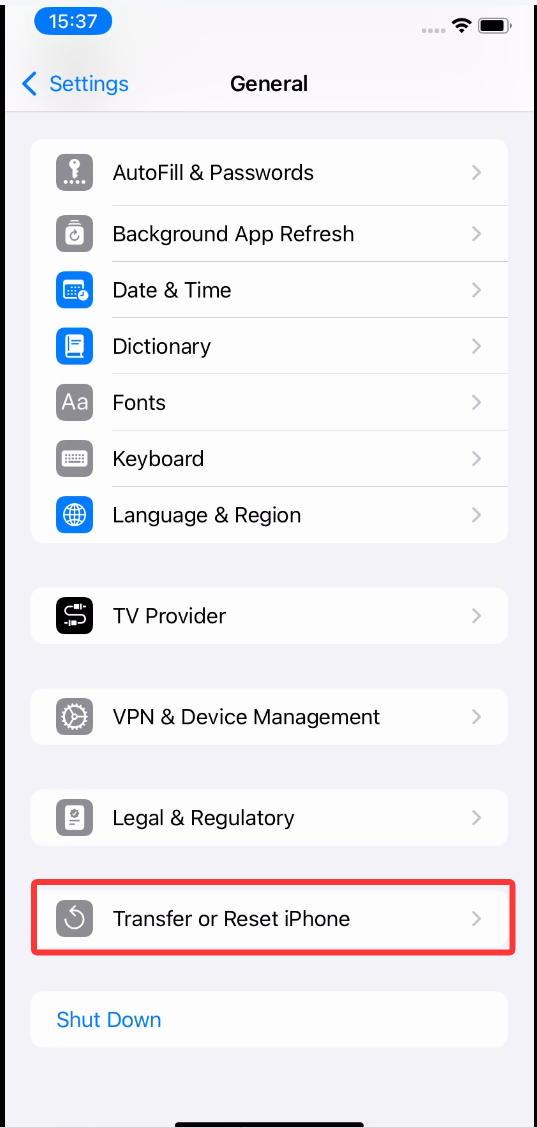
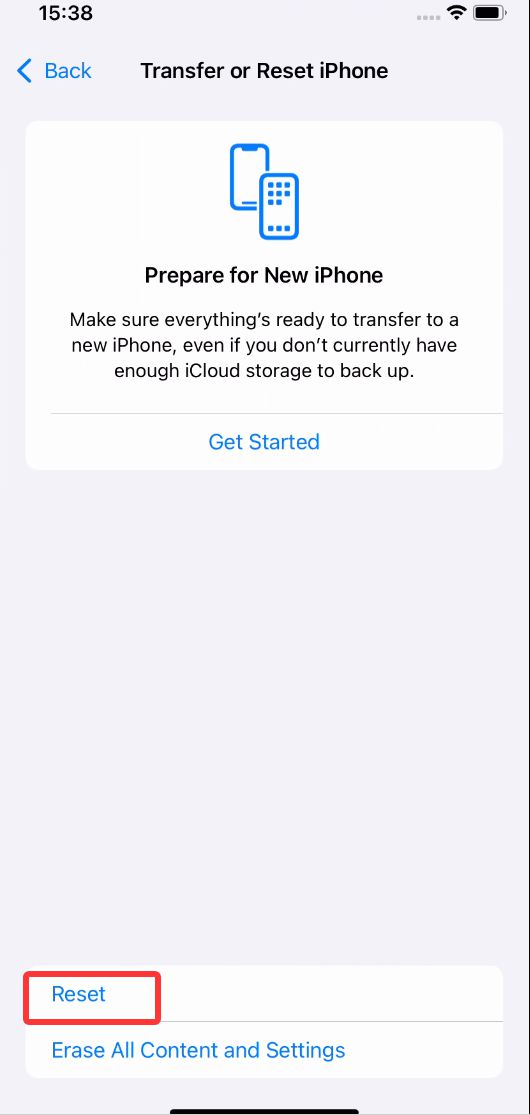
b. Navigate to: Settings → General → Transfer or Reset iPhone → Reset
c. Tap Reset Location & Privacy, then enter the device passcode to confirm. (This only resets trust settings and will NOT delete photos, contacts, or other data.)
d. After the reset completes, exit Settings and keep the iPhone unlocked with the screen on.
e. Reconnect the USB cable and ensure it is firmly inserted. The "Trust This Computer?" prompt should appear again.
f. Tap Trust immediately. Wait 1–2 seconds for the connection to establish, then open 3uAirPlayer and start casting normally.
Additional Notes
• During all operations, keep the iPhone unlocked and the screen on. A locked screen may prevent the Trust prompt from appearing and cause connection timeouts.
• If the pop-up still appears after trying all three methods:
a. Try connecting to a different computer to rule out PC driver or system issues.
b. Ensure the computer is running the latest version of 3uAirPlayer (older versions may have compatibility issues).
• USB cables or ports that have not been used for a long time may be oxidized. Clean the connectors and try again.









