 TUTORIALS
How to Fix “Bonjour Service Missing” in 3uAirPlayer
 03/03/2026
 9141
9141
If the 3uAirPlayer main interface shows “iOS mirroring failed (Bonjour service missing)” and clicking Repair Now does not work, you can manually install the Bonjour service by following the steps below.
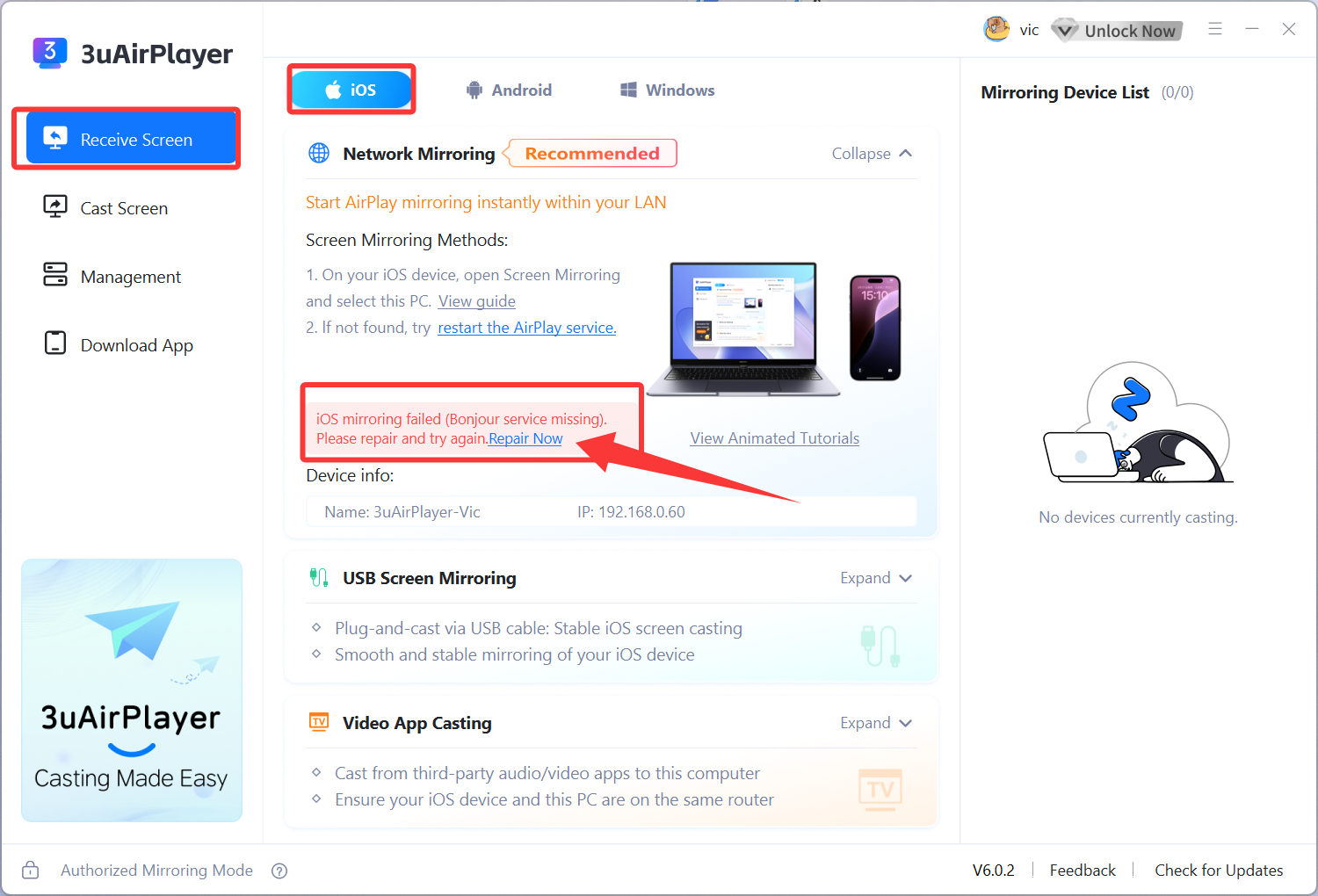
Step 1: Exit 3uAirPlayer completely
Make sure 3uAirPlayer is fully closed to avoid interference during the installation process.
Step 2: Open the 3uAirPlayer installation directory
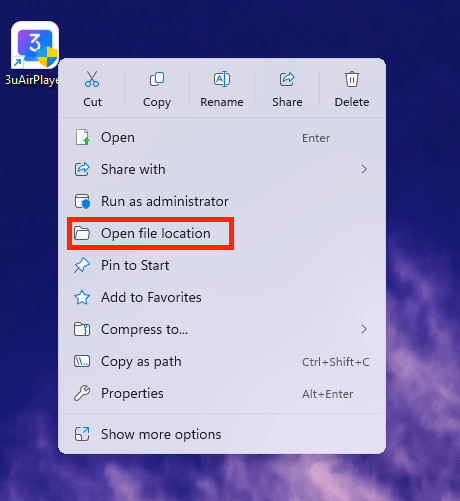
a. Locate the 3uAirPlayer icon on your desktop and right-click it.
b. From the context menu, select Open file location to enter the installation directory.
Step 3: Locate the Bonjour installer
In the installation directory:
a. Open the files folder.
b. Then open the Bonjour folder.
You will see two installer files:
a. Bonjour64.msi — for 64-bit systems
b. Bonjour.msi — for 32-bit systems
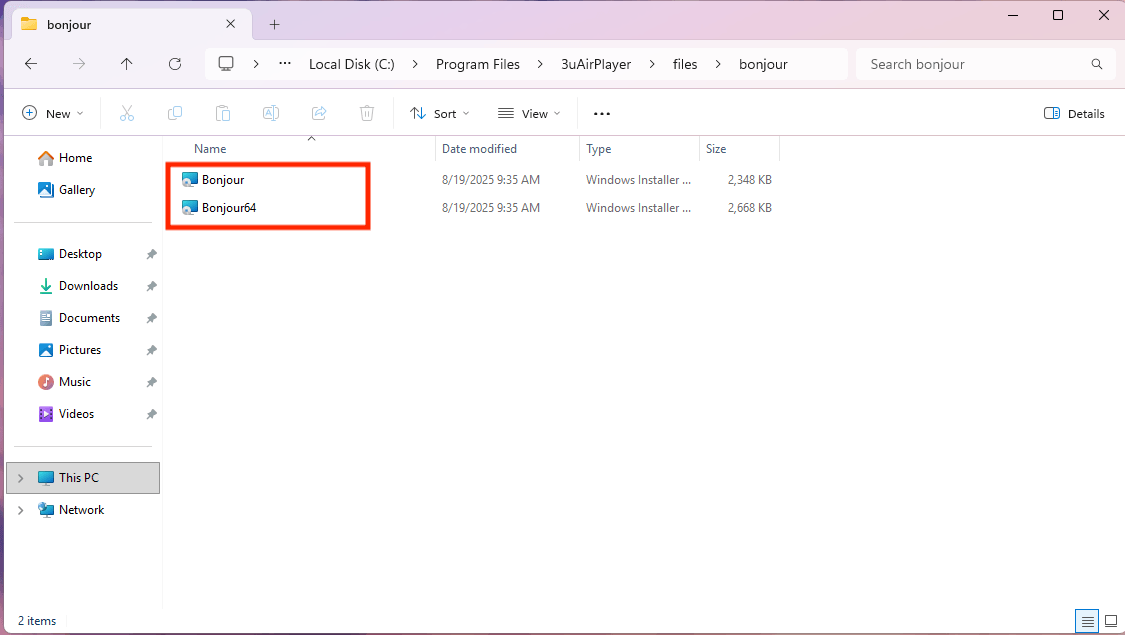
Choose the installer that matches your system type (you can check via This PC > Properties), then double-click it to start the installation.
Step 4: Install the Bonjour service
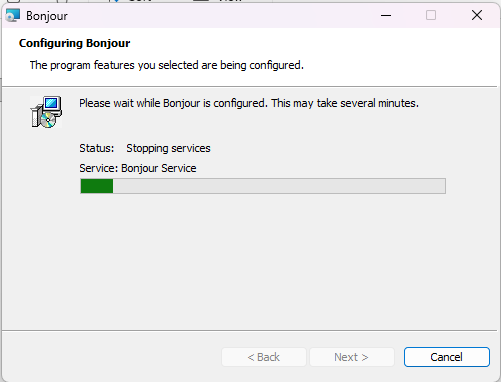
After double-clicking the installer, the Configuring Bonjour window will appear.
Follow the setup guide and keep the default settings to complete the installation. Once finished, close the installer.
Note: If the installation fails, it may be caused by network restrictions. Please temporarily disable your firewall, proxy, or VPN, then try installing again.
Step 5: Restart 3uAirPlayer
Relaunch 3uAirPlayer. The “Bonjour Service Missing” error should disappear, and you can cast from your Apple device normally.









