 TUTORIALS
How to Live Stream Using 3uAirPlayer (Beginner Guide)
 03/10/2026
 237
237
Many beginners who want to start mobile game streaming or device demonstrations are often intimidated by terms like “stream pushing” and “screen mirroring.” In reality, streaming with 3uAirPlayer is very simple.
The process only involves two core steps:
1. Mirror your phone/tablet screen to your computer.
2. Push that screen to your livestream platform.
No complicated configuration is required. Just follow the steps below and you can start streaming in about 10 minutes.
Applicable scenarios:
Mobile game streaming, mobile device demonstrations, online course sharing, etc.
Supported devices:
iOS / Android phones and tablets, Windows computers
Supported platforms:
All major livestream platforms such as Nimo TV, Douyu, Douyin (TikTok China), Bilibili, and others.
I. Preparation: Get These 3 Things Ready
Before starting, prepare the necessary devices and software to avoid interruptions during setup.
1. Hardware
You will need:
A phone or tablet (iOS or Android) for screen mirroring
A Windows computer (for the software and livestreaming)
Optional: USB data cable (wired connection is more stable)
2. Network Requirements
Wireless mirroring: The phone and computer must connect to the same Wi-Fi network. A 5 GHz Wi-Fi network is recommended for lower latency.
Wired mirroring: Wi-Fi is not required. Simply connect using a USB cable.
3. Install the Software
Install the latest version of 3uAirPlayer on your computer.
Download it from the official website for safety: https://www.3u.com/airplayer
4. Prepare Your Livestream Platform
Before streaming:
●Register an account on your livestream platform (e.g., nimo)
●Complete identity verification (required by most platforms)
●Create a livestream room
You do not need to start the stream yet.
II. Step 1: Mirror Your Phone Screen to the Computer
This is the foundation of streaming. Make sure the computer can display your phone screen first.
3uAirPlayer supports both wireless and wired mirroring.
Recommendation for beginners: Try wireless mirroring first for convenience. Switch to wired mirroring if you need more stability.
(1) iOS Screen Mirroring (iPhone / iPad)
Wireless Mirroring (Recommended for beginners)
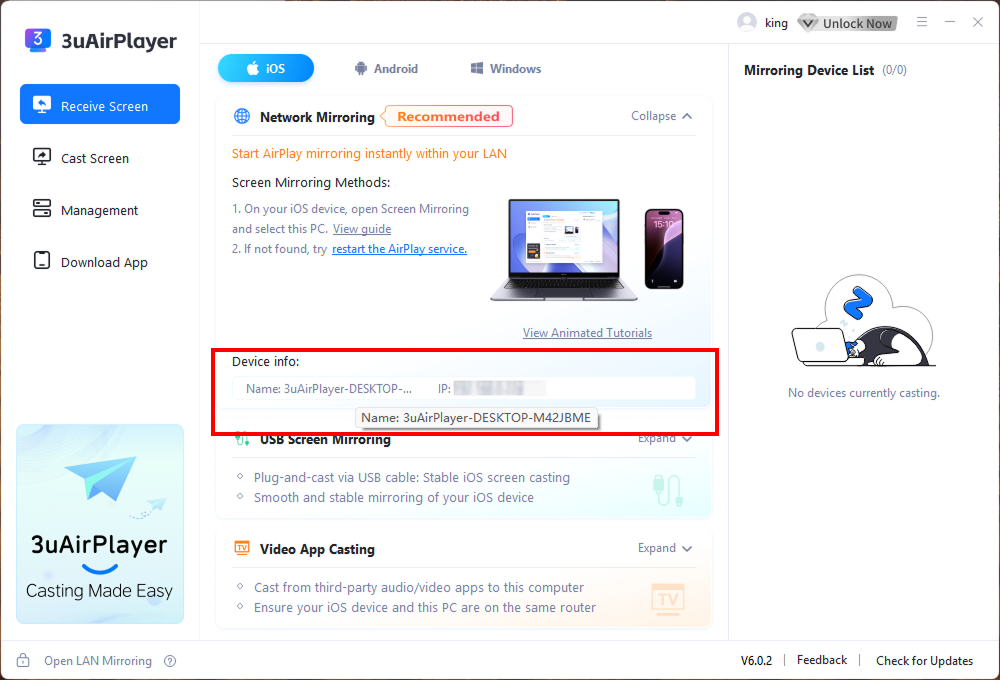
1. Open 3uAirPlayer on your computer. Select Receive Mirroring Screen. You will see the computer name and IP address (for example: DESKTOP-ABC123 or IP:X.X.X.X).
2. On your iPhone:
●Swipe down from the top-right corner (full-screen models)
●Swipe up from the bottom (older models)
This opens the Control Center.
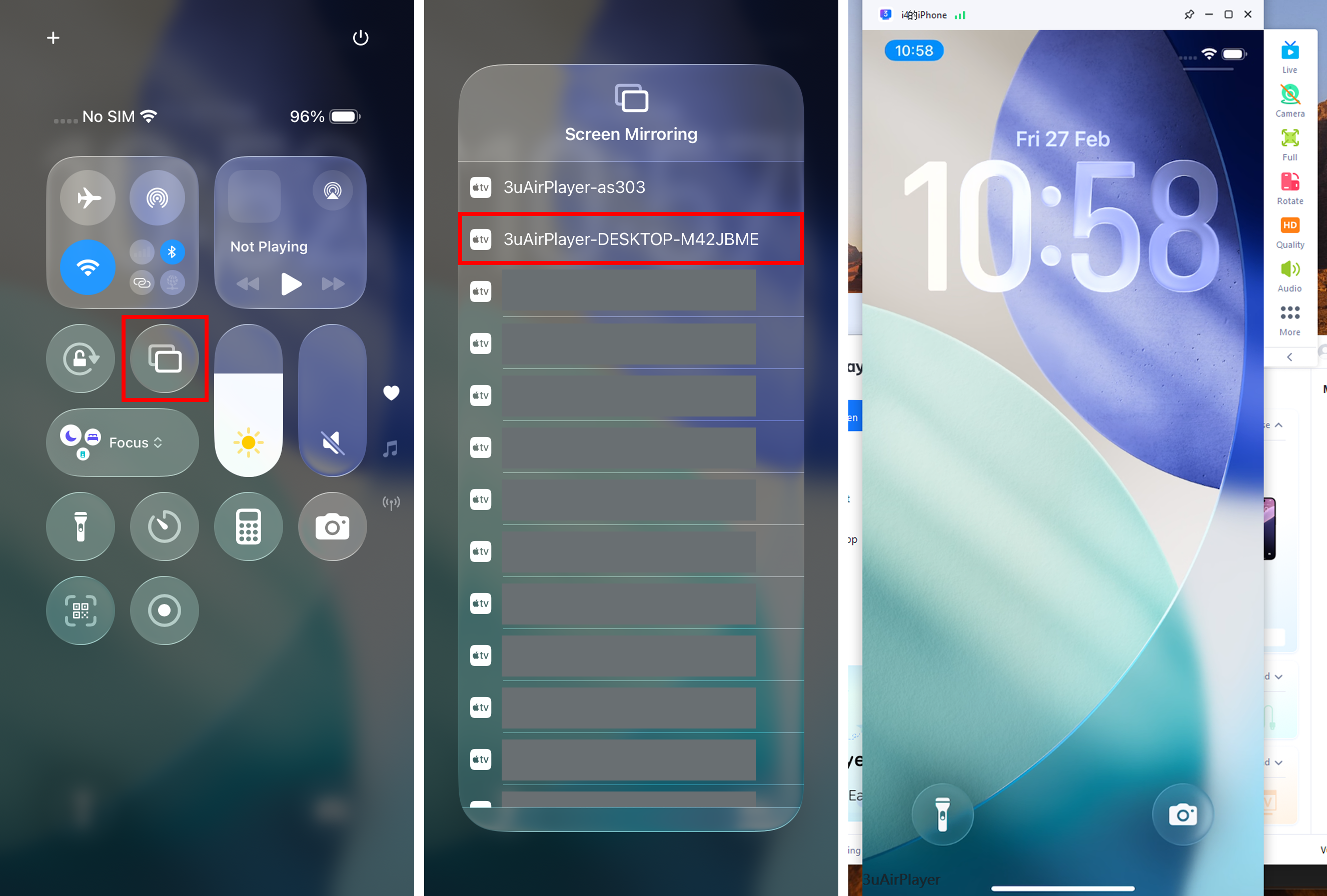
3. Tap Screen Mirroring (called AirPlay on older systems).
4. In the device list, select your computer name.
After a few seconds, the phone screen will appear on the computer, indicating that mirroring is successful.
During the first connection, the phone may ask “Trust this computer?”
Simply tap Trust.
Wired Mirroring (More Stable, Works Without Wi-Fi)
1. Connect the iPhone to the computer using the original USB cable.
2. The computer will automatically detect the device.
3. 3uAirPlayer will show “Wired connection successful.”
You do not need to open Control Center manually. The computer will display the phone screen automatically. This method is ideal for unstable networks, since it almost eliminates lag during livestreaming.
(2) Android Screen Mirroring (Huawei / Xiaomi / OPPO, etc.)
1. Connect the phone and computer to the same Wi-Fi network.
2. Open the 3uAirPlayer app on your phone.
3. Enter the mirroring code shown on the computer to start the connection.
Wired Connection for Android
Some Android phones require enabling Developer Mode and USB Debugging.
Steps:
1. Open Settings → About Phone
2 .Tap Build Number five times to enable Developer Mode
3. Go to Settings → System → Developer Options
4. Enable USB Debugging
Then connect the phone to the computer using a USB cable.
(3) Final Checks After Mirroring
After successful mirroring:
1. Ensure the computer screen fully displays the phone content without black screen or distortion.
2. If there is lag, close large apps running in the background on the phone.
3. If the screen orientation is incorrect: Click Rotate in 3uAirPlayer.
4. To enlarge the display: Click Full Screen.
Beginners can simply keep the default settings.
III. Step 2: Push the Mirrored Screen to Your Livestream Platform
This is the most important step. You need to obtain the stream URL and stream key from your livestream platform and enter them into 3uAirPlayer. Below is an example using Nimo TV. Other platforms follow very similar steps.
(1) Obtain Stream Information (Very Important)
The stream URL and stream key are like the address of your livestream room. If even one character is incorrect, the stream will fail.
Example: Nimo TV
1. Open the Nimo TV streaming client on your computer.
2. Log in and click Start Streaming in the upper-right corner.
3. Choose any category for example:
●Mobile Games
●Entertainment
The category does not affect the stream connection.
4. Scroll down to the Live Settings section.
5. Open Advanced Settings.
6. Enable Third-Party Streaming.
7. The page will display:
●Stream URL
●Stream Key
8. Click Copy for both values and paste them into Notepad.
Do not modify any characters or spaces.
Where to Find Stream Information on Other Platforms
Douyu
Douyu Live Companion → Start Streaming → Settings → Stream Settings → Enable Third-Party Streaming
Tiktok
Douyin Live Companion → Add Content → Settings → Stream Settings → Enable Third-Party Streaming
Bilibili
Bilibili Live Center → Start Streaming → Stream Settings → Custom Streaming
(2) Configure Streaming in 3uAirPlayer
1. Return to 3uAirPlayer.
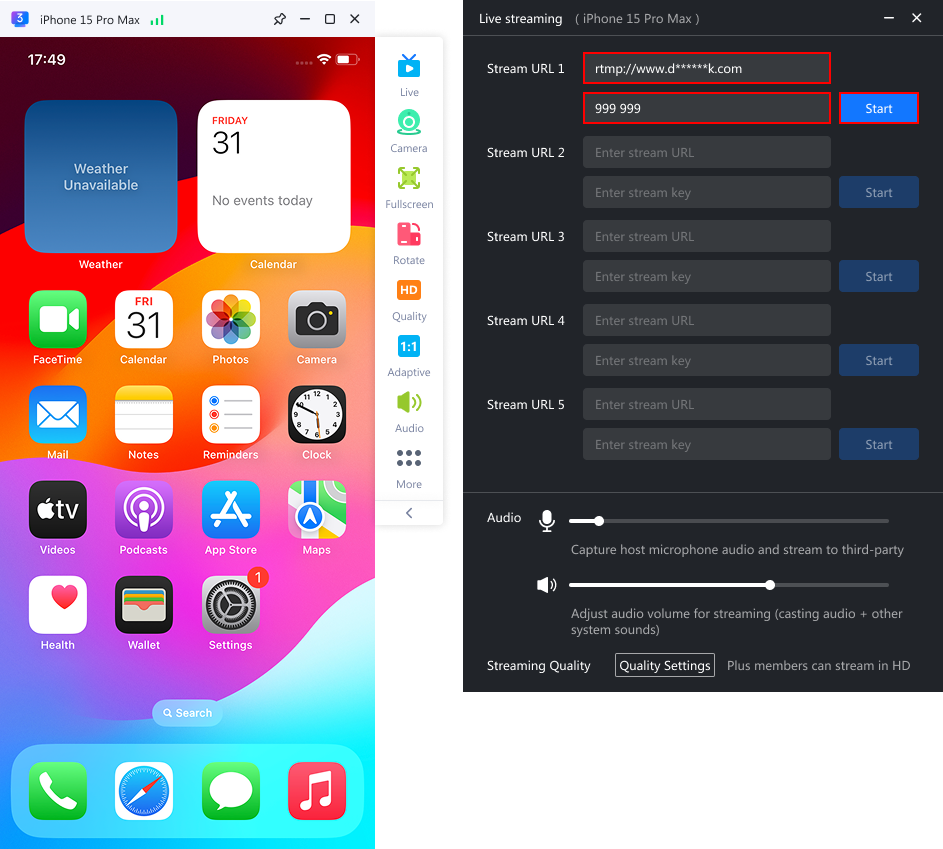
2. Find the Live Streaming section on the right panel.
3. Paste:
●Stream URL into Stream Address 1
●Stream Key into Live Code
4. Beginners can ignore:
●Stream Address 2–5
●Frame rate settings
●Quality adjustments
The default settings are sufficient.
Enable Microphone (If You Need Commentary)
If you plan to speak during streaming, make sure to:
✔ Enable Capture Host Microphone Audio
Adjust the volume slider to avoid sound being too low or distorted.
(3) Start Streaming
1. Click Start Streaming in 3uAirPlayer.
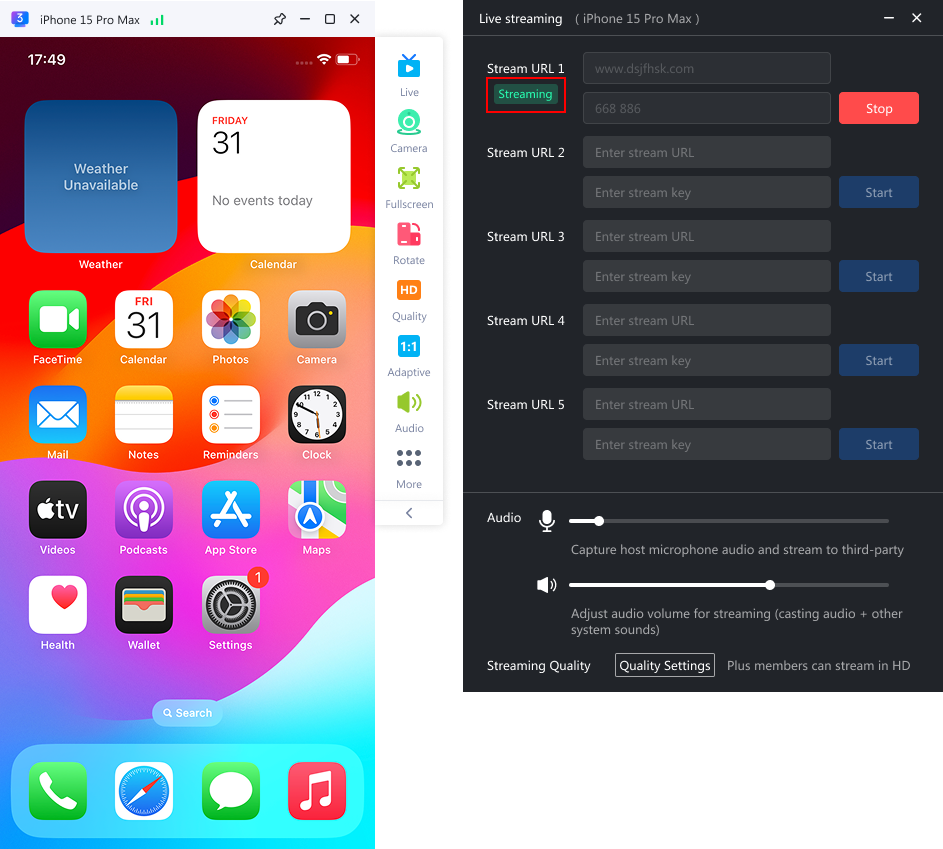
2. The interface will display “Streaming…”
Do not close 3uAirPlayer or the streaming client.
3. Return to the Huya client.
A prompt will appear:
“Video stream detected. Start live broadcast?”
Click Start Live.
4. Open your livestream page on the web or mobile app.
If you see the same screen as the mirrored phone display, everything is working correctly.
You can now start presenting your phone content.
IV. Troubleshooting (Most Problems Occur Here)
1. Cannot Find the Mirroring Device
Check:
●Phone and computer connected to the same Wi-Fi (for wireless)
●USB cable properly connected (for wired)
Restart 3uAirPlayer and reconnect.
For iOS devices, try turning Screen Mirroring off and on again.
2. Streaming Works but No Video Appears
This is the most common issue.
Usually caused by an incorrect stream URL or stream key.
Solution:
●Copy them again from the livestream platform
●Ensure there are no extra characters or spaces
●Confirm the livestream room is not already live
Some platforms cannot accept third-party streams once the room is already live.
3. Lag or High Latency
Try the following:
●Switch to USB wired mirroring
●Close background programs on the computer
●Restart the Wi-Fi router
●Move closer to the router
4. No Audio During Streaming
Check:
●Capture microphone audio is enabled in 3uAirPlayer
●Phone and computer volumes are not muted
●Increase microphone volume in the livestream platform settings
5. Blurry Mirroring Screen
In 3uAirPlayer settings:
●Change Resolution to HD or Ultra HD
Also ensure the phone display resolution is set to maximum: Settings → Display → Resolution
V. Advanced Tips (Optional)
1. Stream to Multiple Platforms
You can stream to multiple platforms simultaneously.
Enter additional platform information into:
●Stream Address 2–5
Click Start Streaming once to broadcast to all platforms.
2. Record the Livestream
While streaming, click Record in 3uAirPlayer.
The livestream will be saved locally on your computer for editing or replay.
3. Hide Phone Notifications
To prevent viewers from seeing notifications:
Enable Focus Mode or Do Not Disturb Mode on your phone.
Quick Summary of the Workflow
1. Install 3uAirPlayer
2. Mirror phone screen to computer
3. Get stream URL and stream key from livestream platform
4. Enter them into 3uAirPlayer
5. Click Start Streaming
6. Click Start Live on the livestream platform
The first setup may take a little time, but once you get familiar with it, you can start streaming in under 5 minutes.









