
TUTORIALS

Recording Quality Settings After Activating 3uAirPlayer Membership

03/02/2026

62

If you still experience poor recording quality after activating your 3uAirPlayer membership, follow the steps below to adjust the recording quality settings.


Step 1: Open the recording quality settings


In the 3uAirPlayer recording interface, locate the quality selection area (for example, the “Original” dropdown) and click the dropdown menu.
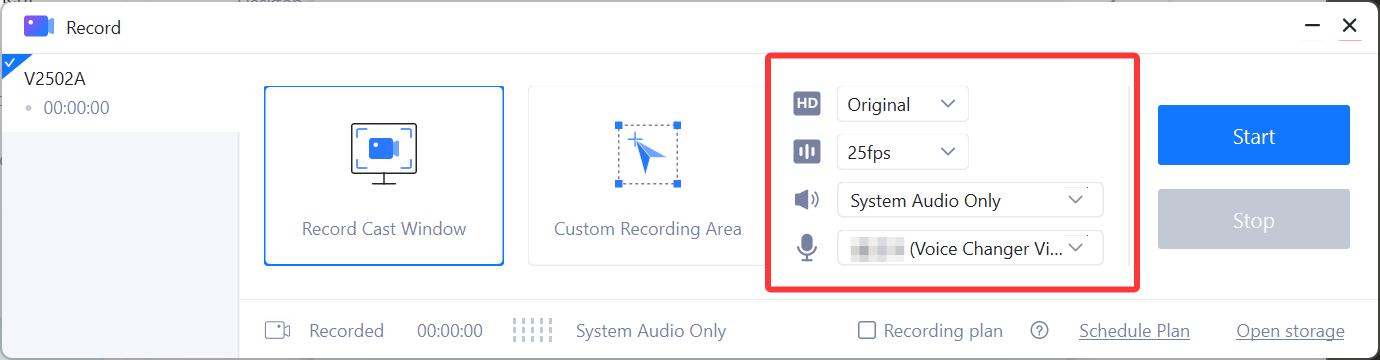
 

Recording Quality Settings After Activating 3uAirPlayer Membership


Step 2: Select a high-quality option


In the quality list that appears, select “Ultra HD” or “Original” (these high-quality options are unlocked after membership activation).


You can also check the frame rate setting and select 60 fps to improve smoothness and further optimize recording quality.


Step 3: Confirm the settings and start recording again


After completing the settings, click “Start Recording” to begin a new recording.


The recording will now follow the selected high-quality setting.

Windows
Mac OS
iOS
Linux
3uTools
Win 64-bit For this device
V9.02 2026-02-10
Download
Win 32-bit For this device
V9.02 2026-02-10
Download
3uTools
Intel Chip How to Identify Chip Type
V9.01 2025-12-31
Download
Apple Silicon
V9.01 2025-12-31
Download
How to Identify Chip Type
1.  Click the Apple icon in the top-left corner of the screen and select About This Mac.
2.  Check the Processor or Chip field to determine if it is "Intel" or "Apple".
Please use the 3uTools PC client to install the iOS client:
1、 Install either the Windows or Mac version of 3uTools on your computer
2、 Open the PC client and connect your device to the computer via USB cable
3、 After the connection is successful, wait for the computer to automatically install the mobile app for the device, or locate “Install Mobile App” on the computer and manually click to install.
3uTools
deb file
V3.01 2025-11-20
Download
rpm file
V3.01 2025-11-20
Download
Windows
Windows
iOS
iOS
Android
Android
TV
TV
3uAirPlayer
Win 64-bit For this device
V6.0.2 2025-11-19
Download
Win 32-bit For this device
V6.0.2 2025-11-19
Download
iOS Device Mirroring (No App Required)
1、 Install 3uAirPlayer on the Windows PC
2、 Open Control Center and select Screen Mirroring
3、 From the list, choose your PC to start mirroring
4、 Or connect your iOS device to the PC via USB to begin mirroring
Scan to get "3uAirPlayer" App
3uAirPlayer TV V1.0.18
2025-11-28
TV System Requirements: Android 7.0 or later
Download the TV installation package, copy it to a USB drive, insert it into your TV or set-top box, then select the file from the home screen to install.




