 TUTORIALS
NoSimAlert Hides those Annoying ‘No SIM Card Installed’ Alerts
 12/07/2018
 6764
6764
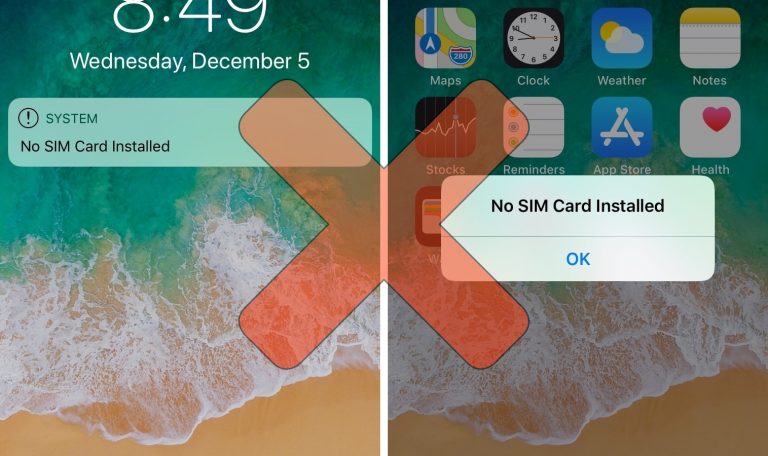
If you’ve got a stack of old, deactivated iPhones laying around without SIM cards, then you’ve probably become very familiar with iOS’ inherently annoying ‘No SIM’ alerts. Not only does iOS display “No SIM” in the Status Bar, but it feels the need to display Lock screenbanners and pop-up alerts to remind you of the obvious not just twice, but three times in a row.
As a jailbreak enthusiast and jailbreak tweak reviewer, I use deactivated and SIM-less iPhones all the time, and I’ve come to loathe these No SIM alerts. Fortunately, a jailbreak tweak called NoSimAlert by iOS developer SparkDev can help tremendously in this department.
As you can probably infer from the name of the tweak, NoSimAlert hides those pesky ‘no SIM card installed’ alerts and indicators from iOS’ forefront, giving you a clean and unhindered experience whether your iPhone has a SIM card installed in it’s SIM card tray or not.
While it’s just as easy to install a spare SIM card, this method isn’t always foolproof. For one, not everyone has an extra SIM card laying around. Furthermore, a non-unlocked iPhone will reject incompatible SIM cards, forcing you to take it back out again.
Given the circumstances, why not just install a jailbreak tweak like NoSimAlert to hide these pesky notifications and pop-ups? It’s quick and painless.
NoSimAlert doesn’t come with any options to configure, but it really doesn’t need any. The sole purpose of the tweak is played out from the moment you install it from Cydia, and it works just as advertised with no strings attached.
If you’re interested in trying NoSimAlert, then you can download it for free from SparkDev’s beta repository in Cydia. If you’re not already using SparkDev’s beta repository, then be sure to check out our comprehensive list of third-party repositories and the included notes encompassing how to add them to Cydia. NoSimAlert works on all jailbroken iOS 10 and 11 devices.
Source: idb










