NEWS

Apple Now Allowing AirPods Charging Cases to Be Engraved With Emojis

01/06/2020

3022

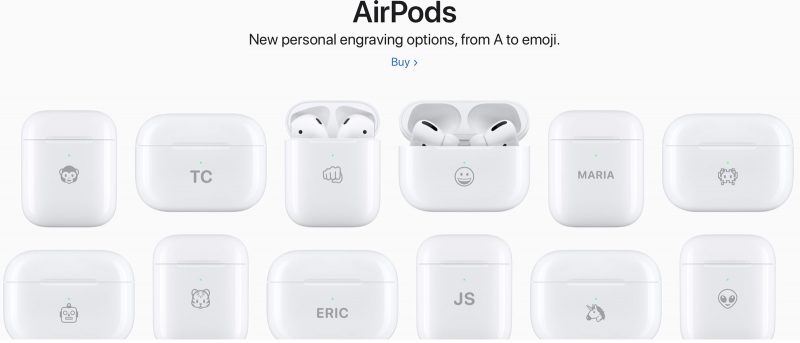
Apple today added updated engraving options for the AirPods Charging Case, allowing customers who purchase ‌AirPods‌ to choose to engrave emoji characters on their devices. 

‌AirPods‌ have always been able to be engraved, but the engravings were limited to text and there was no option to add an emoji character. Apple is highlighting the engraving options on its main site and when customers visit one of the ‌AirPods‌ product pages. 

Apple Now Allowing AirPods Charging Cases to Be Engraved With Emojis
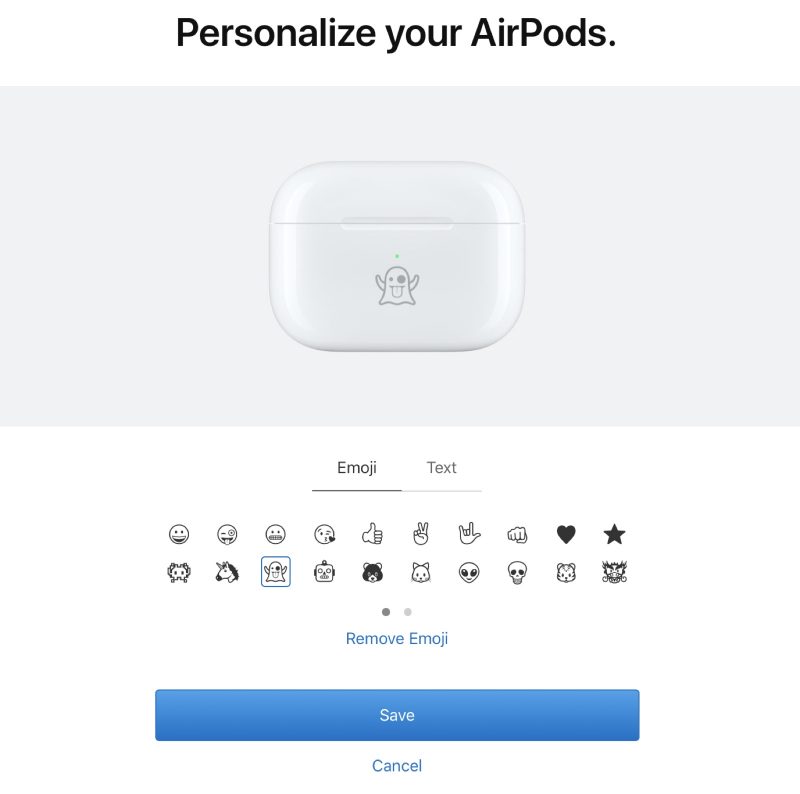
Customers who choose to personalize their ‌AirPods‌ during the purchase process can choose from several emoji characters, though not all emojis are available. Options like smiling face, face with tongue out, and thumbs up are available, as are multiple animals. 
Apple Now Allowing AirPods Charging Cases to Be Engraved With Emojis


There's a ghost, unicorn, bear, skull, dragon, poop, snake, and others, including the animals from the Chinese zodiac. Customers can choose text or an emoji, but not both as the emoji is done in a larger style. Apple has also tweaked the text that can be added to the ‌AirPods‌, bumping up the size. 

Customization options with emoji are available for all ‌AirPods‌ models and apply to the Charging Case for each order. 


Source: Macrumors

Windows
Mac OS
iOS
Linux
3uTools
Win 64-bit For this device
V9.0 2025-11-11
Download
Win 32-bit For this device
V9.0 2025-11-11
Download
3uTools
Intel Chip How to Identify Chip Type
V9.0 2025-12-02
Download
Apple Chip
V9.0 2025-12-02
Download
How to Identify Chip Type
1.  Click the Apple icon in the top-left corner of the screen and select About This Mac.
2.  Check the Processor or Chip field to determine if it is "Intel" or "Apple".
Please use the 3uTools PC client to install the iOS client:
1、 Install either the Windows or Mac version of 3uTools on your computer
2、 Open the PC client and connect your device to the computer via USB cable
3、 After the connection is successful, wait for the computer to automatically install the mobile app for the device, or locate “Install Mobile App” on the computer and manually click to install.
3uTools
deb file
V3.01 2025-11-20
Download
rpm file
V3.01 2025-11-20
Download
Windows
Windows
iOS
iOS
Android
Android
TV
TV
3uAirPlayer
Win 64-bit For this device
V6.0.2 2025-11-19
Download
Win 32-bit For this device
V6.0.2 2025-11-19
Download
iOS Device Mirroring (No App Required)
1、 Install 3uAirPlayer on the Windows PC
2、 Open Control Center and select Screen Mirroring
3、 From the list, choose your PC to start mirroring
4、 Or connect your iOS device to the PC via USB to begin mirroring
Scan to get "3uAirPlayer" App
3uAirPlayer TV V1.0.18
2025-11-28
TV System Requirements: Android 7.0 or later
Download the TV installation package, copy it to a USB drive, insert it into your TV or set-top box, then select the file from the home screen to install.