NEWS

Apple Watch Fall Detection Saves New Jersey man After Tumbling off Cliff and Breaking his Back

10/23/2019

2442

Apple Watch Fall Detection Saves New Jersey man After Tumbling off Cliff and Breaking his Back


Apple Watch‘s fall detection feature has likely saved another life. This time, Apple’s wearable auto dialed 911 after a young couple hiking in New Jersey fell off a cliff and landed on the rocks in a river below.


As reported by Business Insider, James Prudenciano and his date Paige Paruso were out hiking in Hartshorne Woods Park in New Jersey last week.


James said that it was getting dark and was tough to see. They started sliding down what they thought was a short drop off but as it happened were actually sliding down a serious cliff headed for the Navesink River.


“We got to the bottom and that’s when it was life or death,” Prudenciano told News 12. “I looked down and I noticed it was a straight drop to rocks and water.”


Both James and Paige fell into the river with James hitting a rock and fracturing his back in three places. Fortunately, Paige wasn’t seriously injured.


At the time, James thought it was the end… “I was screaming that I’m going to die because I really felt I was going to die,” he said in an interview with News 12. “There was no way out of this for me. I literally said my last goodbyes.”


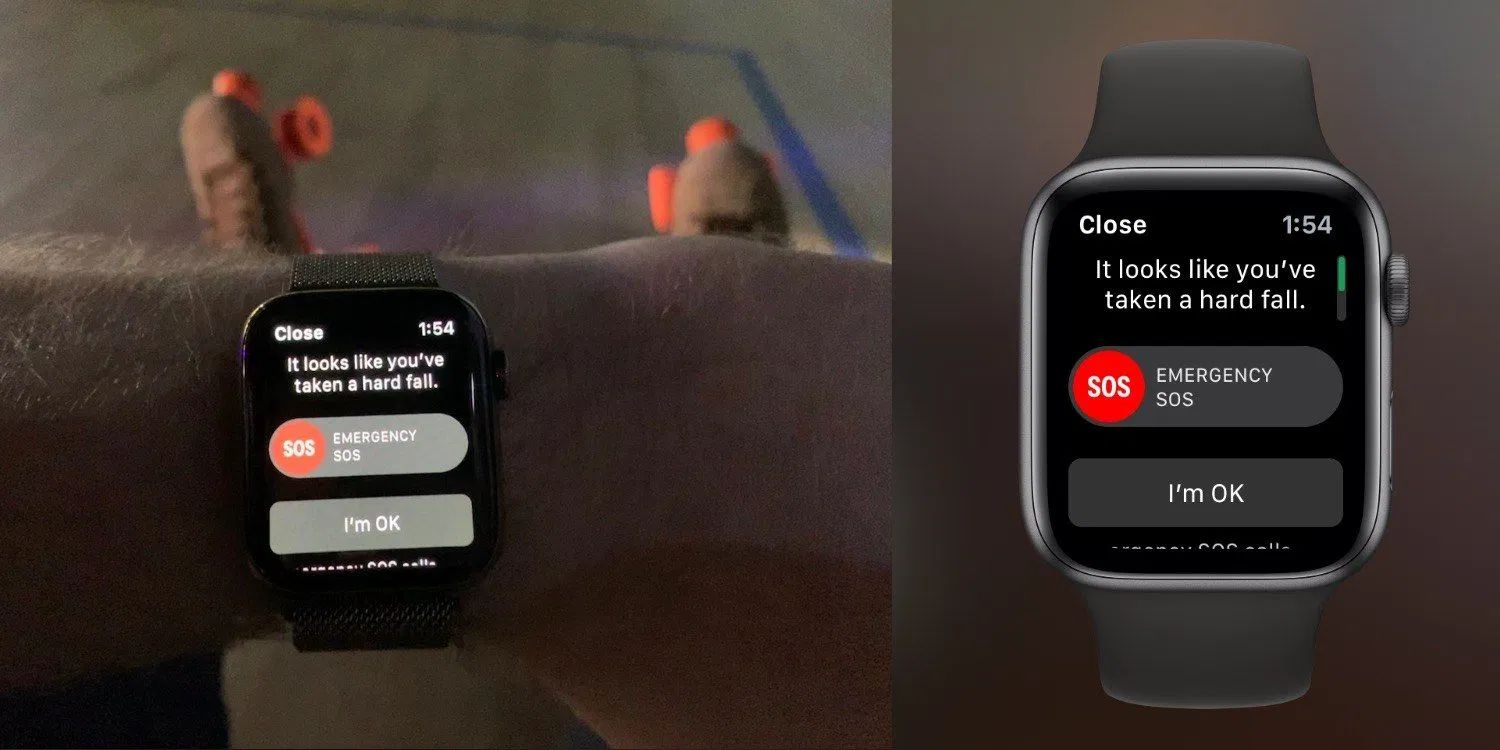
Luckily he was wearing his Apple Watch Series 4. It automatically detected his hard fall and called 911. James and Paige were rescued by boat and taken to the hospital.


Very notably, since James is only 28, fall detection would have been set to off by default. So him turning that feature on manually really paid off. 


Source: 9to5mac

Windows
Mac OS
iOS
Linux
3uTools
Win 64-bit For this device
V9.0 2025-11-11
Download
Win 32-bit For this device
V9.0 2025-11-11
Download
3uTools
Intel Chip How to Identify Chip Type
V9.0 2025-12-02
Download
Apple Chip
V9.0 2025-12-02
Download
How to Identify Chip Type
1.  Click the Apple icon in the top-left corner of the screen and select About This Mac.
2.  Check the Processor or Chip field to determine if it is "Intel" or "Apple".
Please use the 3uTools PC client to install the iOS client:
1、 Install either the Windows or Mac version of 3uTools on your computer
2、 Open the PC client and connect your device to the computer via USB cable
3、 After the connection is successful, wait for the computer to automatically install the mobile app for the device, or locate “Install Mobile App” on the computer and manually click to install.
3uTools
deb file
V3.01 2025-11-20
Download
rpm file
V3.01 2025-11-20
Download
Windows
Windows
iOS
iOS
Android
Android
TV
TV
3uAirPlayer
Win 64-bit For this device
V6.0.2 2025-11-19
Download
Win 32-bit For this device
V6.0.2 2025-11-19
Download
iOS Device Mirroring (No App Required)
1、 Install 3uAirPlayer on the Windows PC
2、 Open Control Center and select Screen Mirroring
3、 From the list, choose your PC to start mirroring
4、 Or connect your iOS device to the PC via USB to begin mirroring
Scan to get "3uAirPlayer" App
3uAirPlayer TV V1.0.18
2025-11-28
TV System Requirements: Android 7.0 or later
Download the TV installation package, copy it to a USB drive, insert it into your TV or set-top box, then select the file from the home screen to install.