 NEWS
NEWS
Apple Watch’s Own Built-In Apps Can Be Deleted in watchOS 6
 06/19/2019
 3449
3449
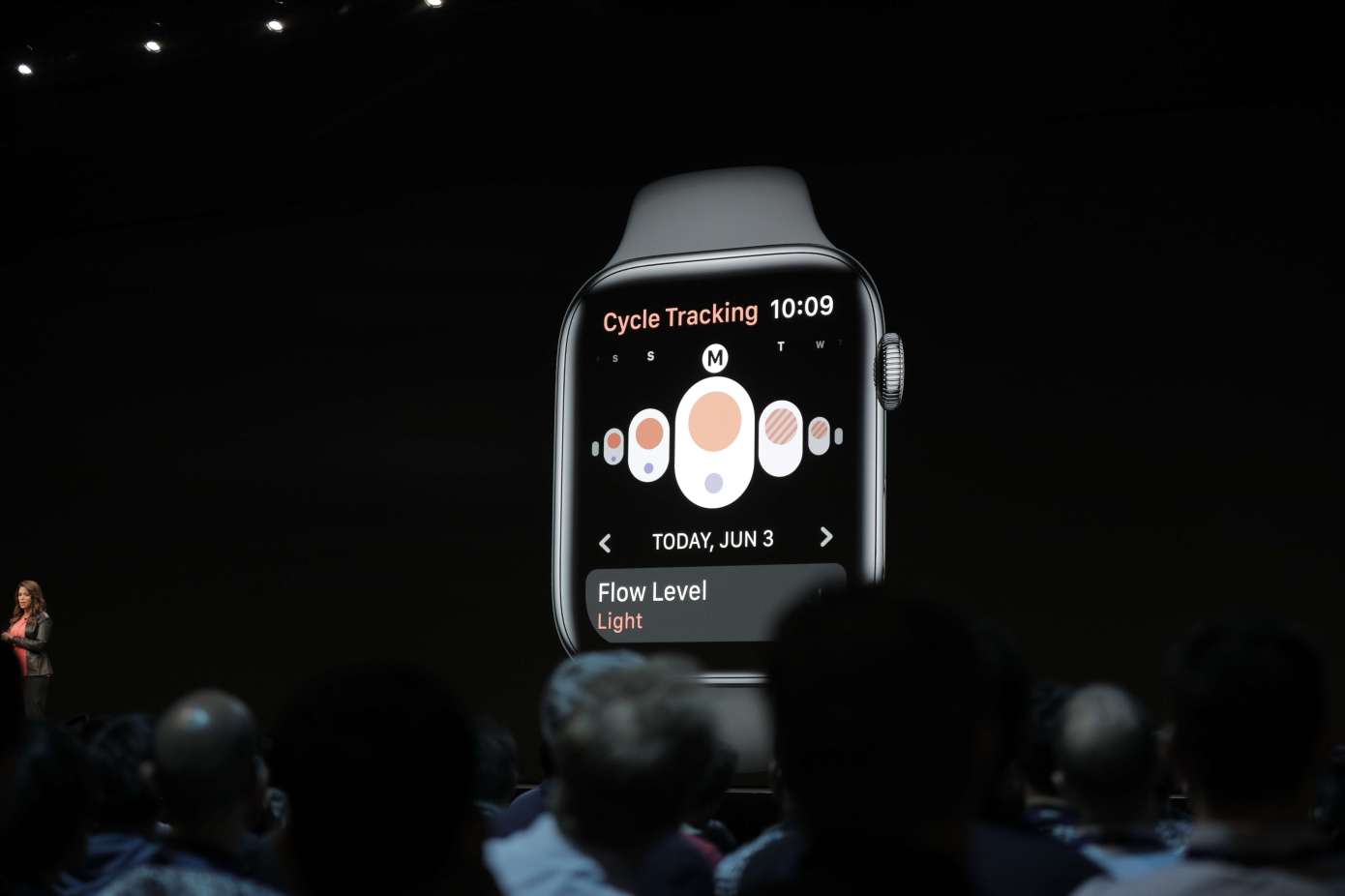
Good news for Apple Watch owners who don’t want to clutter up their Watch with unused apps. With the release of the new watchOS 6 operating system later this year, Apple will allow Apple Watch device owners to remove many more of the built-in, first-party apps from their smartwatch — including previously unremovable apps like Alarm, Timer, Stopwatch, Remote, Camera Remote, Radio and others, as well as health apps like ECG, Breathe, Noise and Cycle Tracking.
Currently, Apple Watch owners can easily remove the third-party apps they install from the App Store. They can either press and hold on the app to make it wiggle, then tap the “X” that appears to delete it, or they can go into the Apple Watch app settings and toggle off the switch that says “Show on Apple Watch.”
Additionally, users can opt to remove many of the built-in apps from their iPhone, which also then removes its Apple Watch counterpart.
But the dedicated Watch apps (like Timer or Radio) couldn’t be removed from the Watch because they had no iOS counterpart to uninstall.
That will change with the launch of watchOS 6 due out later this fall.
This week, Apple gave these previously unremovable apps their own App Store listings (see chart below).
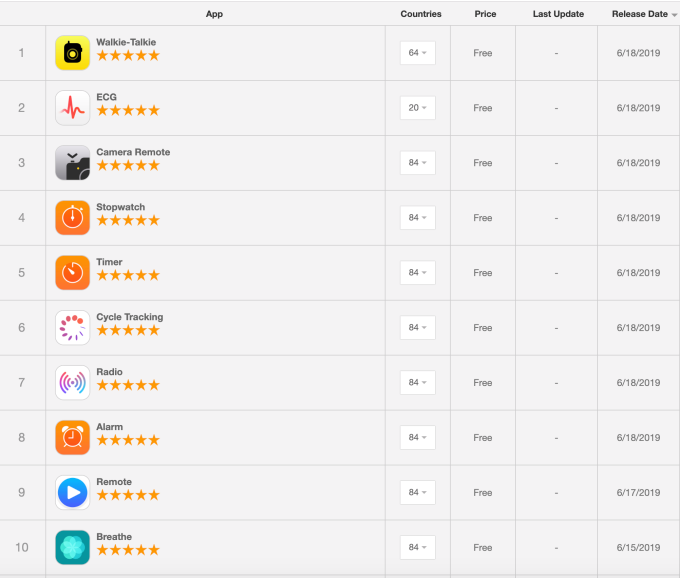
This means these apps will also now be deletable, as the user can opt to reinstall them from the App Store if they change their mind later. To delete these apps, the Watch owner can press and hold then hit the “X” to remove them, as they could with third-party apps before.*
Not all of the built-in iOS and watchOS can be removed, however. Some, like Heart Rate and Messages, will remain.
The move to make more of the default Watch apps deletable will likely go over well with Apple Watch owners, as it did when Apple made some of its built-in iOS apps removable several years ago with the release of iOS 10. (Remember how great it was to delete Stocks?)
After all, not everyone wants to use the full set of default apps that come with Apple Watch.
Some people don’t get into the whole self-care vibe, like what’s offered by the Apple Watch Breathe app, for example. Meanwhile, only women will have use for the newly launched Apple Watch Cycle Tracking app.
This change to the apps follows news from Apple’s Worldwide Developer Conference (WWDC) earlier this month, where the company announced how watchOS 6 will bring an on-device App Store to the Apple Watch for the first time. This will allow the Watch apps to act more independently from their iOS counterparts. They no longer have to be bundled with the iPhone/iPad app. In fact, developers don’t even have to create an iOS version, if there’s no need.
* This process doesn’t work in the current watchOS 6 beta, but was described to us by sources familiar with the plan as to how these apps will become “deleteable.”
Source: TechCrunch









