 NEWS
NEWS
Say Goodbye to Procrastination and Hello to iOS 13’s New Reminders app
 06/11/2019
 3801
3801
The Reminders app in iOS 13 and iPadOS has received a substantial facelift along with meaningful functional improvements and productivity boosts making this oft-overlooked app a lot easier to use when creating, organizing and track your reminders on the go.
Aside from a fresh coat of paint, Reminders now features color coding and natural language processing so you can quickly zero in on the right reminder and type as you go. Thanks to Siri and a new toolbar above the keyboard, you’ll see personalized suggestions and be able to enter stuff like reminder dates, times, locations, flags and photos with a tap.
From Dark Mode support to color coding to tasks and grouped lists, this is the best version of Reminders to date. The app looks awesome in Dark and Light modes, typography has been improved while bolder headings make navigation a lot easier. On iPad, Reminders takes way more advantage of the bigger display than before.
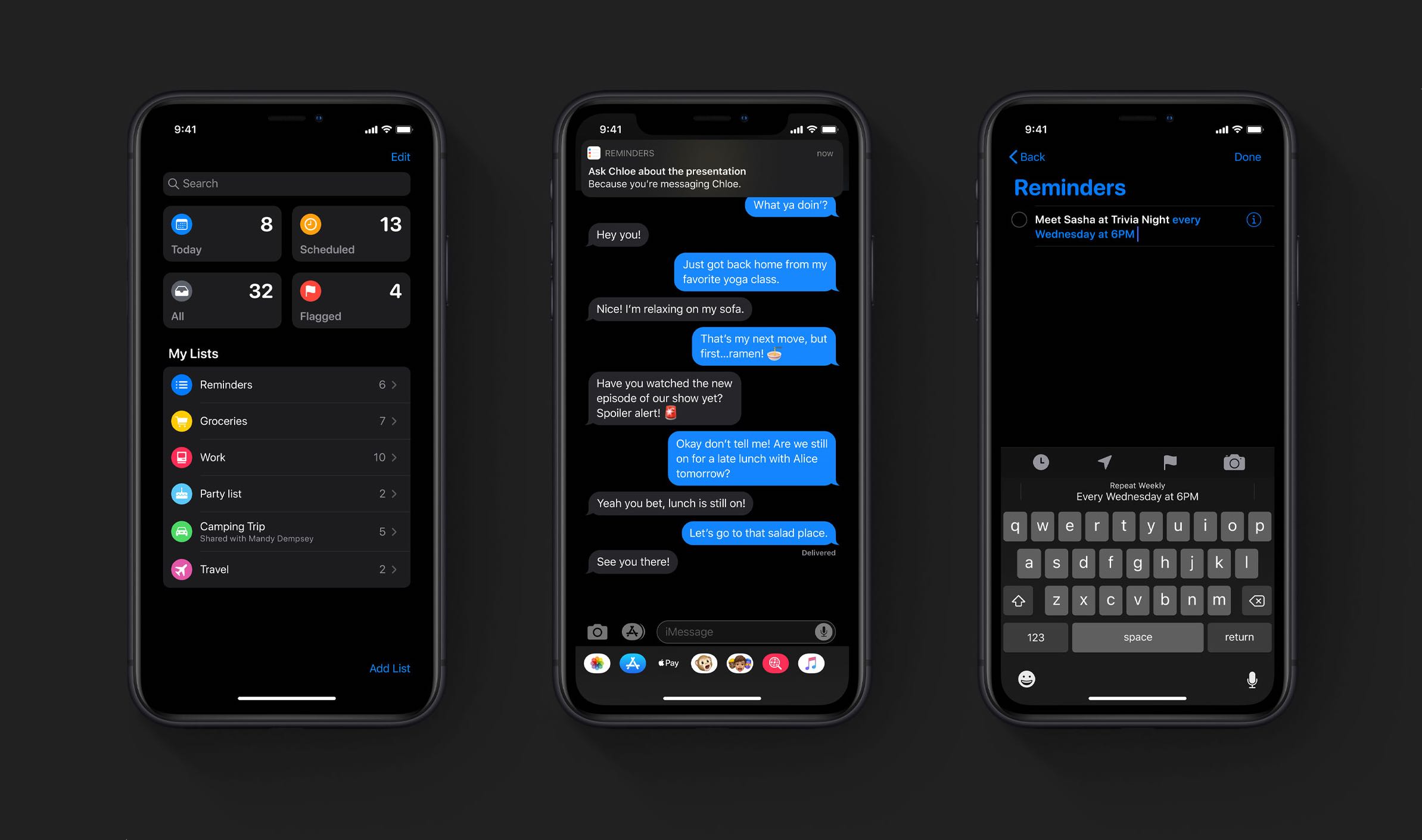
The app is now more like Notes in terms of attachment support — to make your reminders more informative and useful, you can now add photos, scanned documents and even web links to them. Moreover, Reminders introduces support for tasks and lets you group smaller tasks into a larger reminder or group multiple lists together.
Just type
Start typing away like you were talking to a real person and the new natural language input parser in Reminders will intelligently figure out what you mean. Using descriptive sentences is no problem for Siri intelligence at all — in most cases, the personal assistant understands what you mean and automatically provides relevant suggestions.
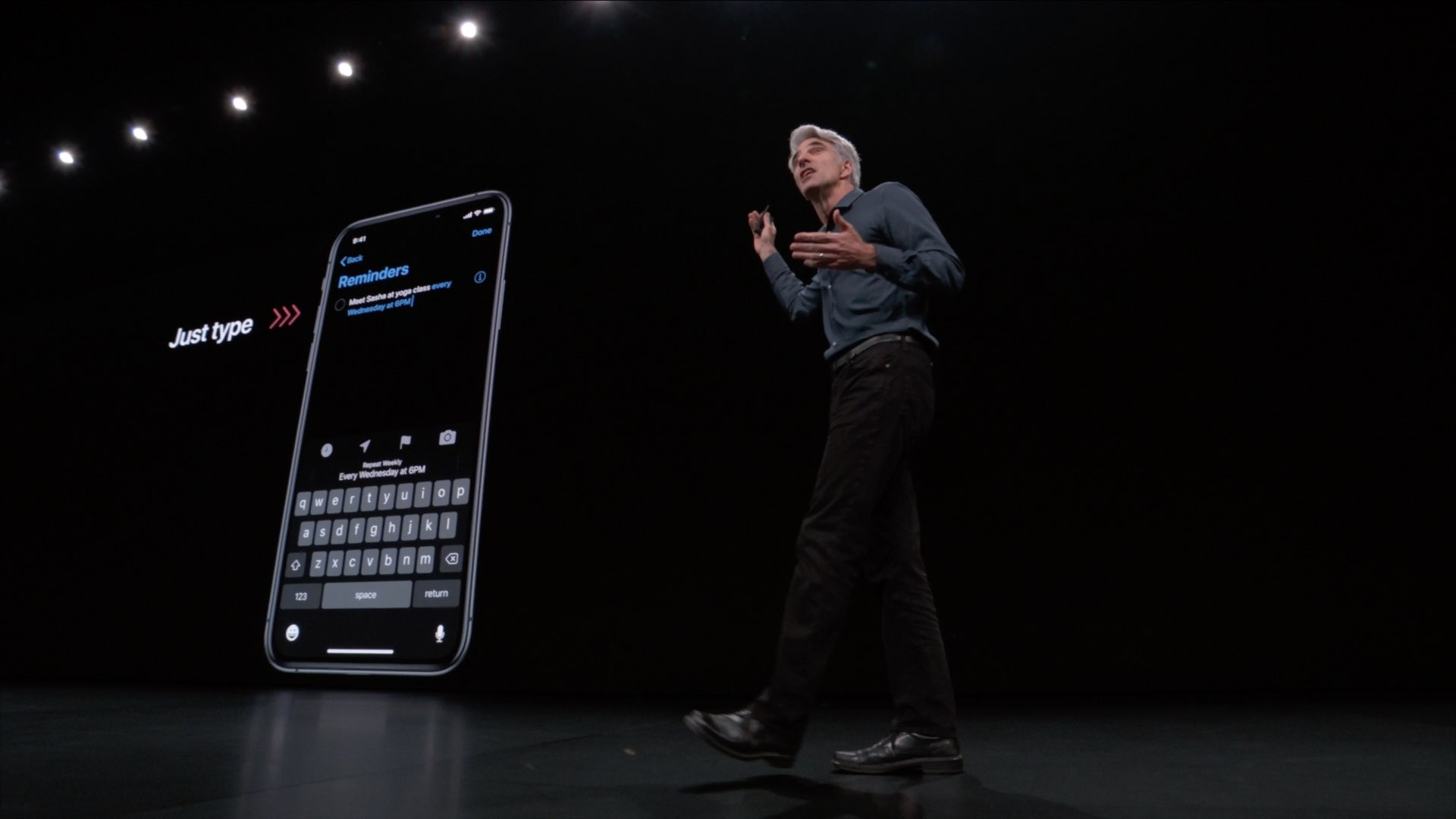
If you’ve ever used the same feature in Fantastical, you’ll feel right at home.
Quick toolbar
The stock QuickType keyboard has received its fair share of updates in both iOS 13 an iPadOS, and one of the improvements is something they’re calling quick toolbar, basically an additional row right above word suggestions. We actually saw that first in Notes last year. In iOS 13, the quick toolbar is going places and is now available within the Reminders app.
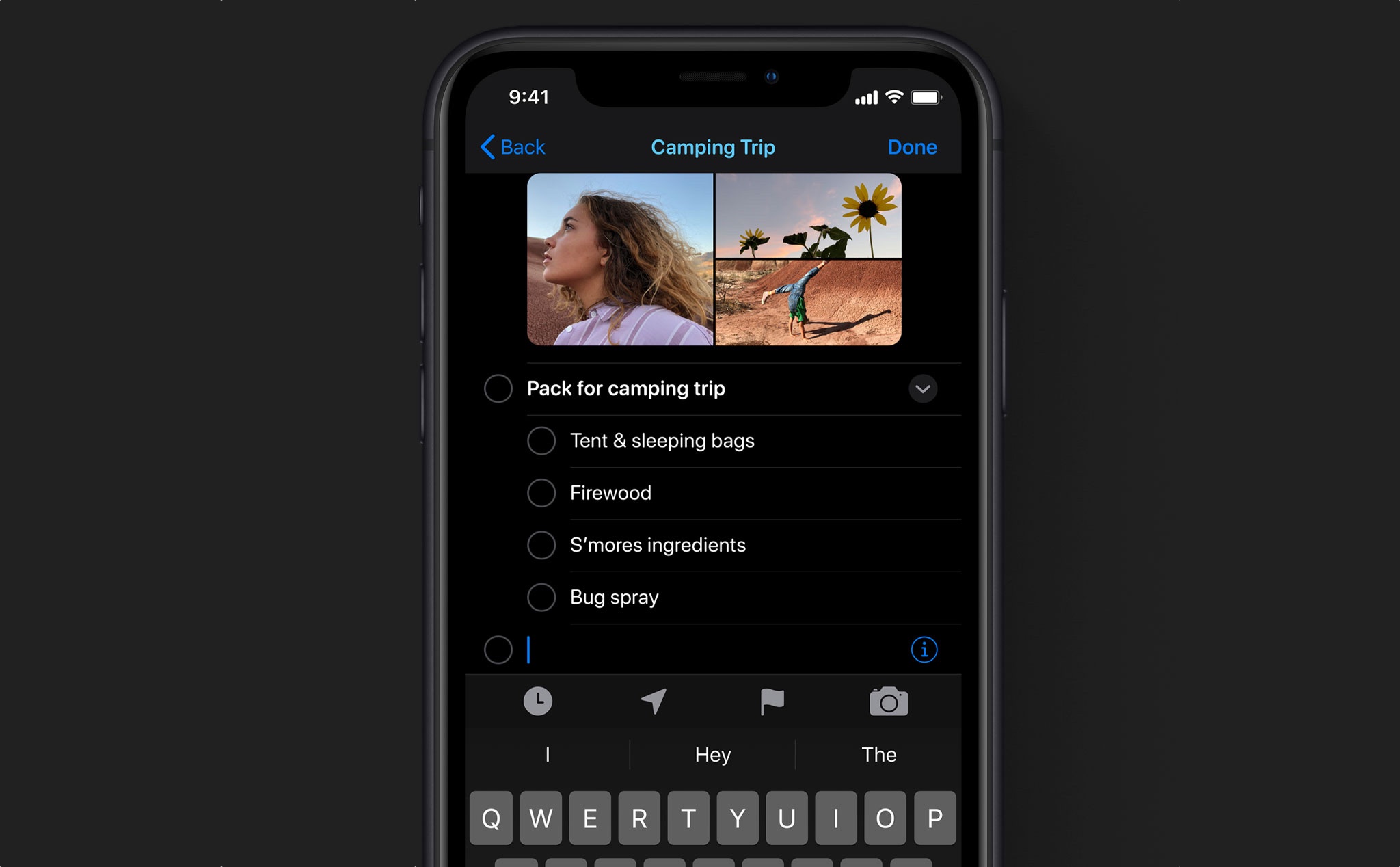
To help you enter reminder or task details efficiently without having to tap your way through a bunch of nested menus, you simply tap the icons in the quick toolbar corresponding to times, dates, locations and more. For instance, a tap of an icon could flag an event and a tap of another icon could bring the attachments browser.
Messages integration
The Reminders app now plays nice with Messages.

Aside from detecting reminders in Messages conversations, you can now tag a person in your contacts in a reminder. The next time you use Messages, the app may nudge you to strike a conversion with that person or it may suggest something you talked about.
Smart lists
Reminders now supports iTunes-like smart lists.
You just enter a few parameters and these lists will automatically organize existing and future reminders, grouping them by Flagged, Scheduled and Today. You can then quickly access these sections by tapping their corresponding color-coded tiles.
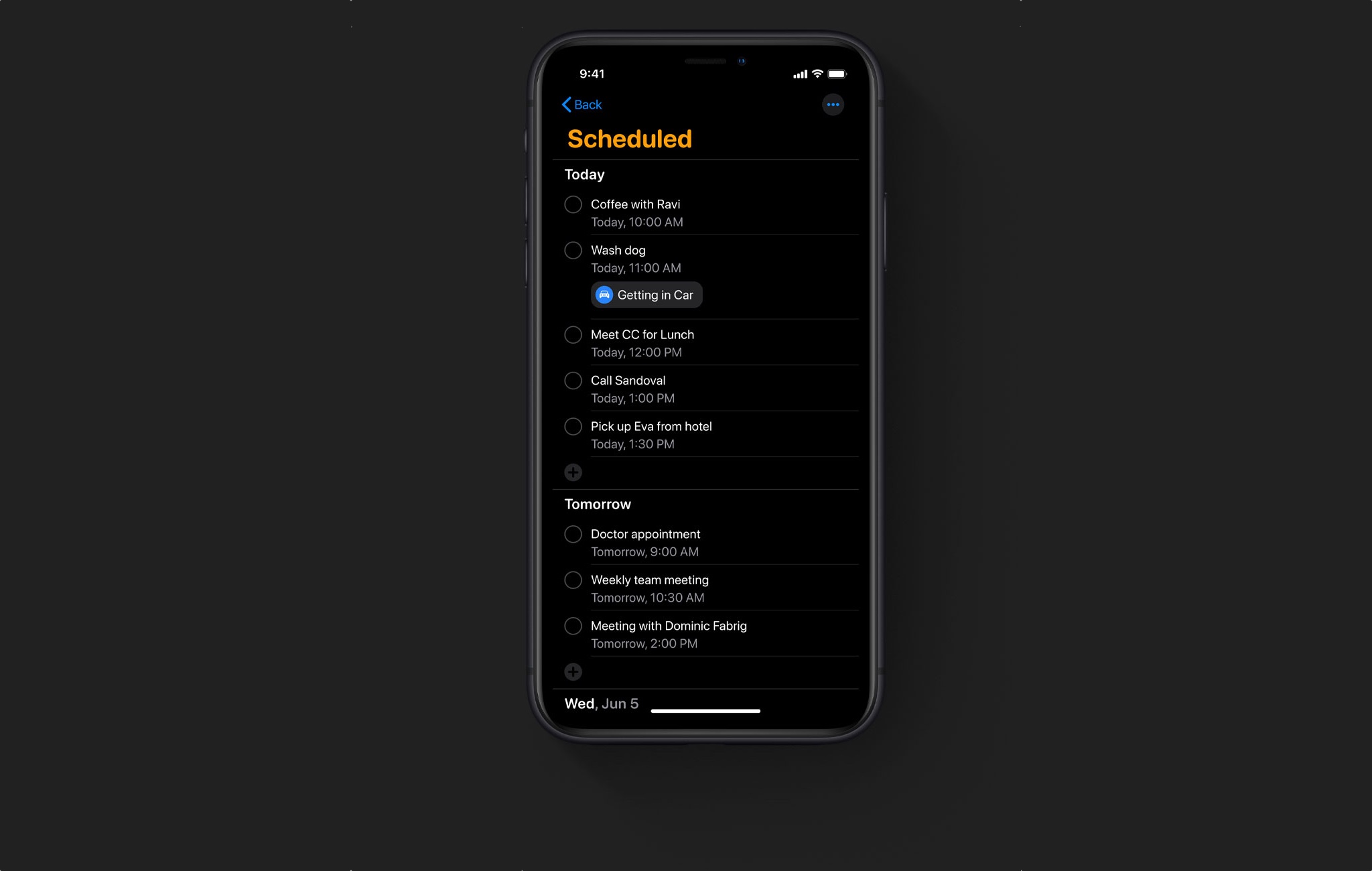
Needless to say, new toggles and switches in Settings → Reminders let you make the app your own by customizing the appearance of your personal or shared iCloud lists by choosing from a dozen predefined colors and as many as 60 expressive symbols.
Tidbits
Siri in iOS 13 brings personalized suggestions to more apps, including Podcasts, Safari and Maps. As for Reminders, the assistant is now able to detect reminders in Messages, as well as events in third-party apps, allowing you to quickly add them with a tap.
Source: idownloadblog










