NEWS

Last Chance to Downgrade to iOS 12.0.1 for Potential Jailbreakability

11/08/2018

2950

Last Chance to Downgrade to iOS 12.0.1 for Potential Jailbreakability


Apple officially released iOS 12.1 to the public last week, and if history is anything to go by, then that means the Cupertino-based tech giant will soon close the gates for downgrades to iOS 12.0.1.


Apple generally closes the signing window for older firmware approximately 14 days after a new version is released, give or take a day. That said, if you’ve been thinking about downgrading back to iOS 12.0.1, then you should probably get a move on.


As prominent hackers in the jailbreak community like pwn20wnd and s1guza have made blatantly clear in recent memory, staying on the lowest possible firmware version dramatically improves your odds of being able to jailbreak in the future.


Electra and unc0ver are the latest publicly-available jailbreak tools, but they only support iOS 11.0-11.4 beta 3. Alternative exploits and jailbreak tools are allegedly underway that could bring jailbreak support to iOS versions 11.4 through 12.0.1, but this doesn’t include Apple’s latest iOS 12.1 release.


Given the circumstances, if you’re currently using iOS 12.1 on your iPhone or iPad and have any intention of jailbreaking, then you should seriously consider downgrading to iOS 12.0.1 as soon as possible. If you’re already on iOS 11.4 or 11.4.1, then stay where you are.


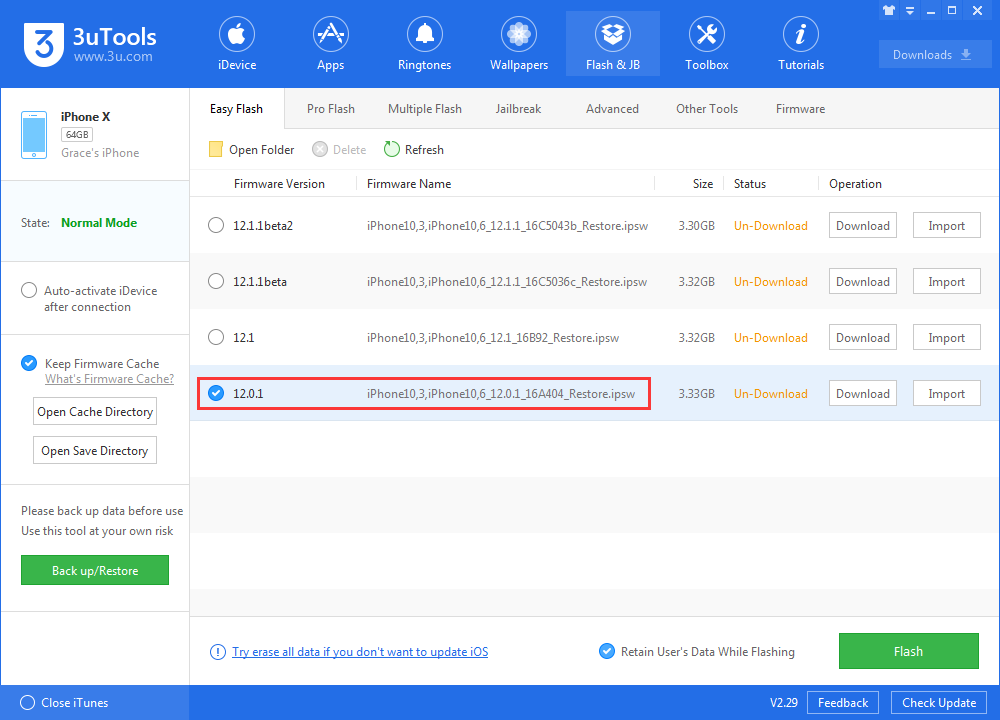
On 3uTools, iOS 12.0.1 is still being signed for all supported devices. Remember to back up your data beforehand.

Last Chance to Downgrade to iOS 12.0.1 for Potential Jailbreakability


Windows
Mac OS
iOS
Linux
3uTools
Win 64-bit For this device
V9.0 2025-11-11
Download
Win 32-bit For this device
V9.0 2025-11-11
Download
3uTools
Intel Chip How to Identify Chip Type
V9.0 2025-12-02
Download
Apple Silicon
V9.0 2025-12-02
Download
How to Identify Chip Type
1.  Click the Apple icon in the top-left corner of the screen and select About This Mac.
2.  Check the Processor or Chip field to determine if it is "Intel" or "Apple".
Please use the 3uTools PC client to install the iOS client:
1、 Install either the Windows or Mac version of 3uTools on your computer
2、 Open the PC client and connect your device to the computer via USB cable
3、 After the connection is successful, wait for the computer to automatically install the mobile app for the device, or locate “Install Mobile App” on the computer and manually click to install.
3uTools
deb file
V3.01 2025-11-20
Download
rpm file
V3.01 2025-11-20
Download
Windows
Windows
iOS
iOS
Android
Android
TV
TV
3uAirPlayer
Win 64-bit For this device
V6.0.2 2025-11-19
Download
Win 32-bit For this device
V6.0.2 2025-11-19
Download
iOS Device Mirroring (No App Required)
1、 Install 3uAirPlayer on the Windows PC
2、 Open Control Center and select Screen Mirroring
3、 From the list, choose your PC to start mirroring
4、 Or connect your iOS device to the PC via USB to begin mirroring
Scan to get "3uAirPlayer" App
3uAirPlayer TV V1.0.18
2025-11-28
TV System Requirements: Android 7.0 or later
Download the TV installation package, copy it to a USB drive, insert it into your TV or set-top box, then select the file from the home screen to install.