 NEWS
NEWS
Apple Says its T2 Chip can Prevent Hackers from Eavesdropping through your MacBook Mic
 11/01/2018
 2374
2374
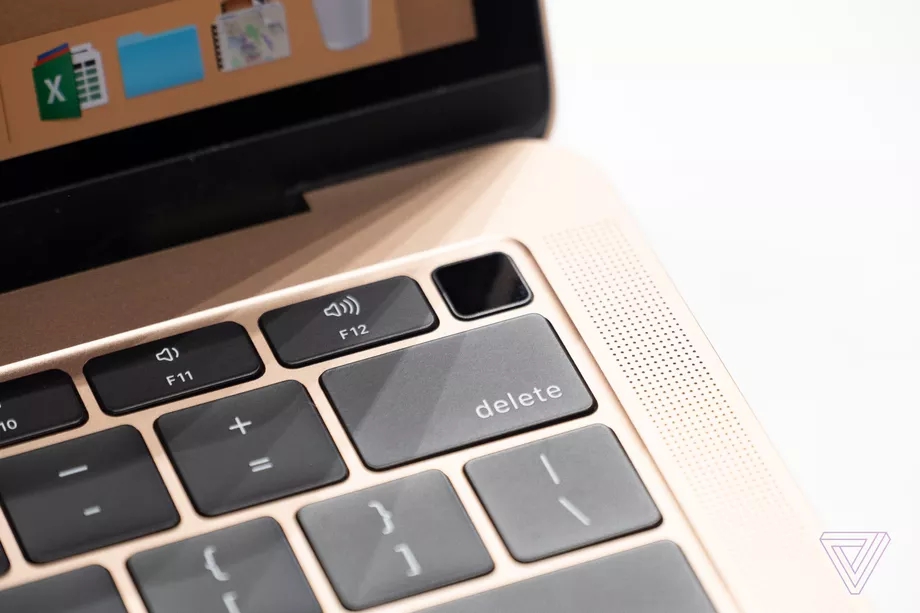
One of Apple’s latest custom chips, the security-focused T2, has made its way to the newly updated MacBook Air, as well as the updated Mac mini. In a new security documentpublished today, and reported on first by TechCrunch, Apple is giving us a glimpse at some of the chip’s capabilities, specifically its ability to prevent hackers from eavesdropping through your laptop microphone.
The T2 chip was first introduced in late 2017 with the iMac Pro, and it provides Apple with a secure way to store sensitive biometric data like fingerprints and the ability to encrypt and decrypt the built-in solid state drive. It will also give users a way to lock the boot process of the device, among other complex security tasks. The T2 chip has since been built into the mid-2018 MacBook Pro, which Apple says allows that machine to respond to verbal “Hey Siri” requests without requiring you to press a button.
One feature of the chip, detailed for the first time in the security guide, is a “hardware disconnect” that disables the microphone whenever the MacBook Pro or Air’s lid is closed. “This disconnect is implemented in hardware alone, and therefore prevents any software, even with root or kernel privileges in macOS, and even the software on the T2 chip, from engaging the microphone when the lid is closed,” the document reads. Apple says the camera does not contain a hardware disconnect option via the T2 chip because having the lid closed will obscure its field of view naturally.
As TechCrunch notes, the idea that Macs are largely hack-proof has been thoroughly debunked in recent years, as a number of high-profile and well-documented security threats have proven how vulnerabilities have gone largely undetected in Macs by the broader cybersecurity industry. The Fruitfly malware, which went undetected for years and only came to light last year, allowed hackers to gain complete control of a Mac, including the ability to remotely turn on its webcam, control the mouse and keyboard, take screenshots of the display, and even alert a third party to when the user was actively using the device.
So while the T2 chip won’t likely keep hackers at bay forever, it does have a rather clever hardware-specific defense against mic eavesdropping that can’t be tampered with using remote software controls. For those worried about government snooping or malicious third-party attacks, this is good news.
Source: the verge









