 NEWS
NEWS
Apple Watch Fall Detection Might get you Arrested
 09/26/2018
 2703
2703
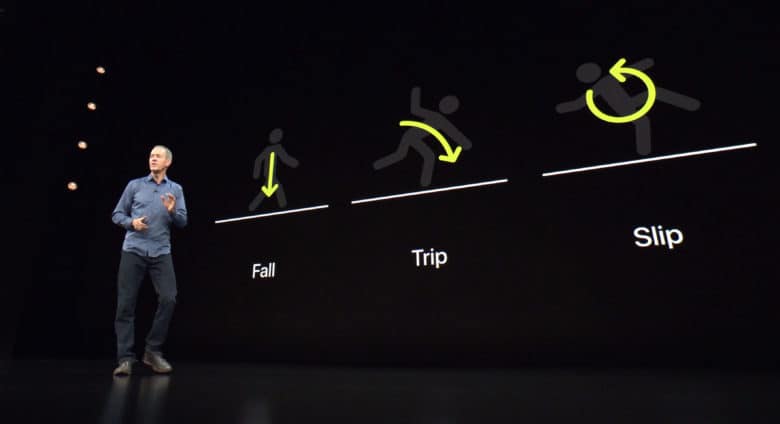
An Apple Watch Series 4 can detect if you’ve fallen and automatically call 911 to get your injuries tended to. Or get you arrested, depending on the circumstances.
That’s the warning of privacy watchdogs, who point out that 911 calls invite in more than just emergency medical personnel.
When the latest Apple Watch detects a “significant, hard fall,” you get a tap on the wrist, an alarm sounds, and an alert is displayed. You can tell your Watch you fell but you’re OK, or you can tell it you didn’t fall at all.
If you do nothing, your Watch will automatically call 911 and notify your emergency contact.
But what if you fall in a place where you’re carrying out some illegal activity?
How Apple Watch fall detection can go wrong
Elizabeth Joh, a law professor at the University of California at Davis, pointed out on Twitter: “Consider: your watch (accidentally) alerts the police to check on you: 4th Amend. community caretaking exception means they can enter your home w/o a warrant. Plain view means they may seize contraband/evidence of a crime. Nice work, guys.”
In short, a plaintiff can’t argue that the police illegally searched their home if their Apple Watch called 911.
There have been requests for Apple to modify this feature to just call the user’s emergency contact and leave it up to them to call 911. Given Apple’s strong stance on privacy, it’s possible Cupertino will make the change.
At present, fall detection is disabled by default unless you’re over 65. And even then it can be deactivated.
Source: cult of mac










