 NEWS
NEWS
AR Quick Look brings augmented reality to Safari in iOS 12
 07/24/2018
 2692
2692
Online shopping will get a lot more interactive this fall when iOS 12 launches, thanks to the new feature AR Quick Look. Instead of relying on user-installed apps, AR Quick Look makes it easy to view AR capable images right from within Safari.
Daniel Beauchamp, head of augmented and virtual reality at Shopify, outlined ways Shopify will be implementing these changes this fall in a Medium post.
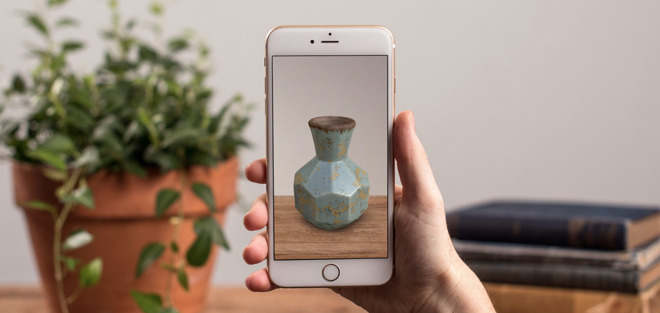
ARKit debuted as part of iOS 11, allowing developers to easily add AR experiences into their apps. We saw countless shopping applications jump on board, but still required would-be shoppers to download the apps first. Now with iOS 12, AR can be experienced from the browser, no additional apps necessary.
Web developers creating any type of website will now be able to add images to their site and link it to a usdz file. A format Apple created in partnership with Pixar alongside ARKit 2.0.
Whenever an embedded image is linked to a usdz file, an icon will appear in the top right corner of the image, letting users know it will be able to be viewable in AR. This could apply to any object, though shopping sites are going to be one of the most prominent targets of this feature.
Since iOS 12 support usdz files in a variety of ways, users are actually able to easily share these images as well. If they find a particular object online that the like, they can copy and share the usdz AR image in a message or email to another iOS user to view in their own living room.
Shopify is adding support for these image types this fall, as will many other online retailers.
If you are currently running the iOS 12 beta, you can test this feature out for yourself by visiting an already AR-equipped Shopify store and viewing any of the products.
Source: appleinsider









