 NEWS
NEWS
AirPods to Add Support for ‘Live Listen’ Feature With iOS 12
 06/06/2018
 2780
2780
Apple’s AirPods are gaining support for Live Listen as part of iOS 12. This feature was originally introduced in 2014 as a way for hearing aids to tap into the iPhone microphone…
In the past, Live Listen has been reserved for hearing aids certified through the Made for iPhone hearing aid program. With iOS 12, however, AirPods will join the club with support for the feature.
With Live Listen, iPhone owners will be able to use their iPhone essentially as a directional microphone. For instance, you can put your iPhone somewhere and walk away, with the audio being recorded by your iPhone played back live to your AirPods.
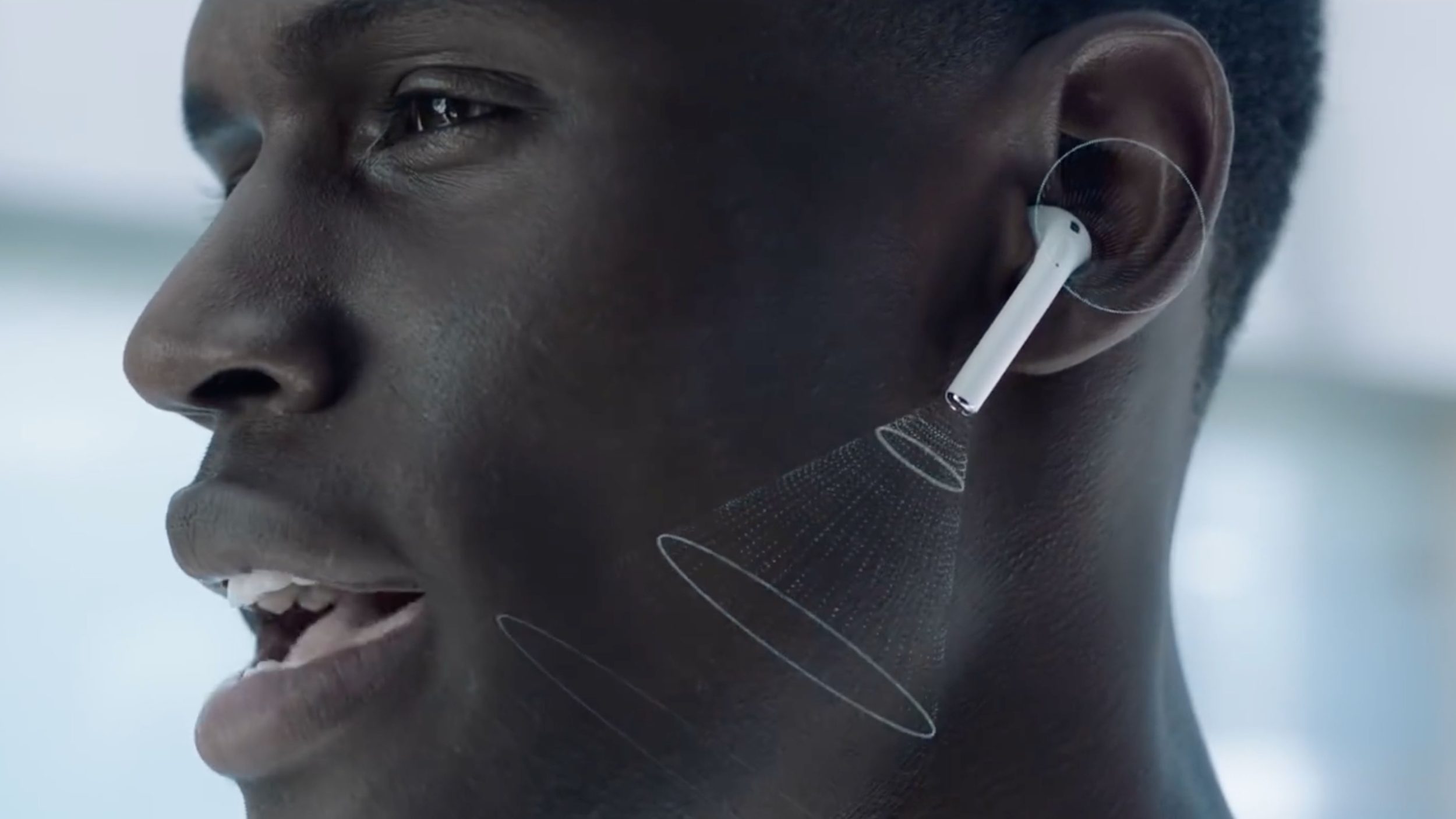
After enabling the feature in the iPhone’s settings, users will be able to use their phones effectively as a directional mic. This means you can have AirPods in at a noisy restaurant with your iPhone on the table, for example, and the voice of whomever is speaking will be routed to your AirPods.
Now, with support for AirPods, Live Listen has an entirely new reach. The feature turns the AirPods into a viable product for those with hearing problems, Furthermore, support on AirPods gives Live Listen more publicity that could lead to broader adoption down the road form more.
Here’s how Apple describes its Live Listen feature:
With Live Listen, your iPhone, iPad, or iPod touch becomes a remote microphone that sends sound to your Made for iPhone hearing aid. Live Listen can help you hear a conversation in a noisy room or hear someone speaking across the room.
Of course, this is not to say that AirPods can now serve as a fully functioning hearing aid replacement, but it does give the wireless earbuds a new accessibility focus like we called for last year.
Source: 9to5mac









