 NEWS
NEWS
WebKit Code References Suggest Dark Mode Coming to macOS 10.14
 04/23/2018
 3701
3701
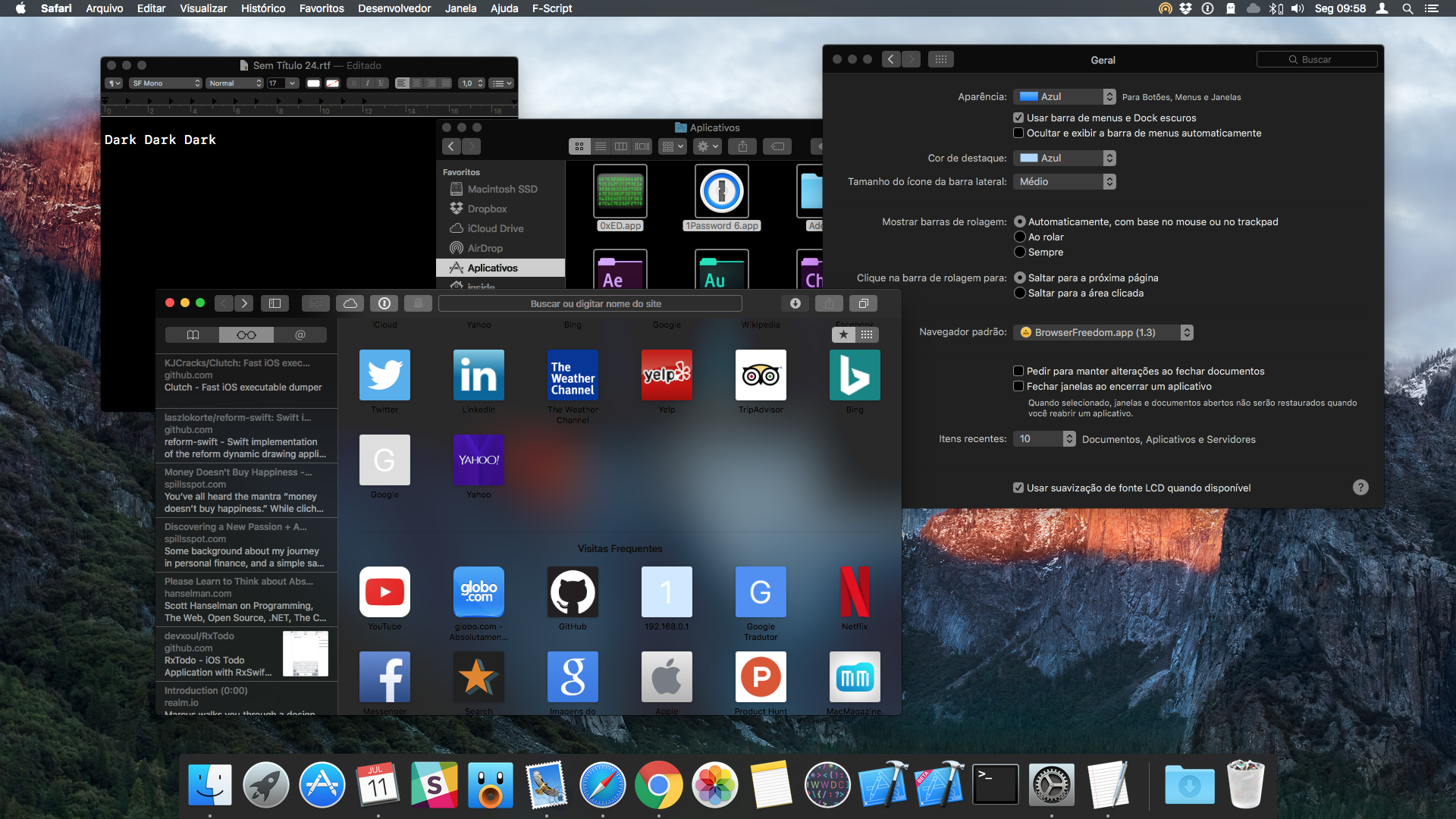
Apple seems to be finally adding a Dark Mode to macOS with the next release of the OS. The WebKit engine update as of March points to the company working on a system-wide dark mode for macOS 10.14. The WebKit engine is used by Safari browser on both iOS and macOS.
Apple did add a dark mode to macOS with Yosemite in 2014 but the implementation is half-baked. With Sierra, a comprehensive dark mode for system apps was discovered but Apple never released it to the public. Now, with macOS 10.14, Apple might just finally get around to introducing an official system-wide.
New code implemented in March seems to suggest that macOS will get some sort of system-wide dark mode on 10.14. The code in question is designed to adapt WebKit’s rendering of a website based on the effective appearance of the application. Appearances are the way through which macOS can change the look of UI components like buttons and lists based on assets provided by the system.
It is always possible that Apple decides to not unveil a system-wide dark mode as a part of macOS 10.14 if it deems the feature is not ready or half-baked.
A system-wide dark mode has been long requested by both macOS and iOS users, though Apple has been reluctant to implement it despite there being signs of the company working on it. Perhaps Apple is hitting some usability issues with the dark mode which is why it has not made them official for both its OSes.
This is what happens when you build WebKit without the OS version checks and implement effectiveAppearance on NSApplication to return the dark appearance (notice the button and pop up). Dark Mode ® pic.twitter.com/svWS48FCge
— Guilherme Rambo (@_inside) April 21, 2018
Source: 9to5mac









