 NEWS
NEWS
Apple Says a Processing Error Led it to Send Developers Wrong App Install and Ad Spend Details
 02/08/2018
 2792
2792
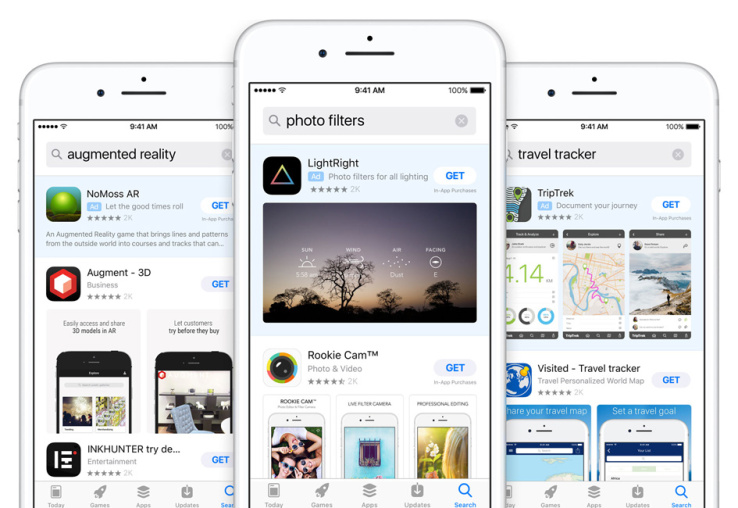
Yesterday, we noted and reported on how Apple was sending developers emails with install and ad spend details for other developers’ apps. Today, Apple has sent out a note to developers to say that a processing error caused the problem, and that in the future it will only send alerts by email, but that developers will have to log in to their accounts to see any actual numbers or other details.
Louis D’hauwe, one of the developers we spoke to yesterday, shared a note from Apple apologising for the error, which appeared confined only to some developers using the company’s new Search Ads Basic tier of advertising:
Update from Apple: pic.twitter.com/F7rcbxO2M5
— Louis D'hauwe (@LouisDhauwe) February 7, 2018
The company said that to avoid any problems like this in the future, developers will need to sign into their accounts to view their dashboards with details. Yesterday’s snafu revealed details about apps using the Search Ads Basic service, including how many installs each app was getting, the cost-per-install, and the total spend.
As we pointed out yesterday, not only may developers not want to share sensitive information like this with other developers, but they may be particularly unhappy if the data was shared with direct competitors.
Search Ads Basic was launched only a couple of months ago, in December 2017, and is aimed at both smaller developers and those who are just starting out with search ads. Apple has a second tier of service that is aimed at bigger ad buys, with more data points and priced at a cost-per-impression rate rather than cost-per-install.
Both products underscore a couple of interesting trends around Apple and the App Store.
With millions of apps now on the market across both web and native formats, discoverability remains a challenge for many developers, and hoping for virality or publicity in other forms alone to promote an app will not be enough for most. Coupled with that, in a landscape rife with dodgy “growth hack” networks, Apple has seized the moment to provide something that it can control more itself, and make a little revenue from it to boot. Its carrot: installs gained from these ads are weighted more heavily than other installs from other promotional means, as Apple considers them “high quality.”
Getting the security for developers right around those ads and ad services should and will be considered part and parcel of whether Apple truly is delivering on that quality assurance.
Source: techcrunch









