 NEWS
NEWS
Concept Replaces MacBook Pro’s Touch Bar With Apple Pencil Dock
 08/16/2021
 3597
3597
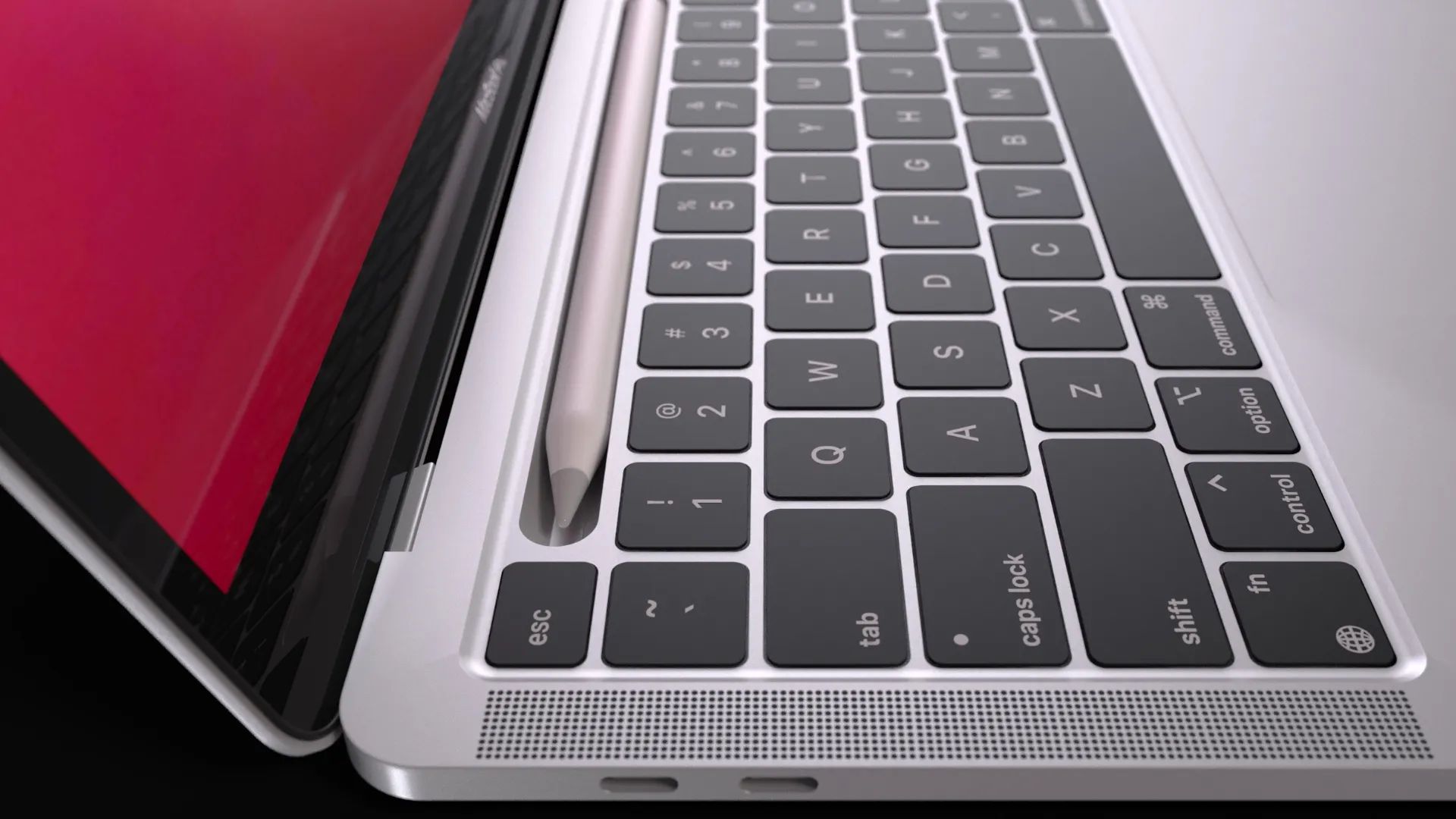
Rumors suggest that Apple will ditch the MacBook Pro’s Touch Bar in its new entry. While we still have to wait and see whether this will happen, a new concept imagines the Touch Bar replaced as an Apple Pencil case inside the computer.
Before you say it’s crazy, early this week, the US Patent & Trademark Office published a new patent for Apple, as reported by Patently Apple, that creates exactly that.
“The present invention relates to incorporating an Apple Pencil that is removably mounted to a MacBook keyboard. While the Pencil is in its retainer it could act as a mouse to move a cursor. Uniquely, a high-end lighting system is built-into the retainer and the Apple Pencil wherein the Pencil can replace the top F-Key row with the functional key symbols illuminated on Apple Pencil with full functionality.”
As for the function keys, the patent says that “while the input tool is positioned in the recessed retainer, the user can provide input to the input tool in addition to providing input via the keyboard. The input provided through the input tool can be used, for example, to trigger a function of a key of a conventional keyboard that is missing from the keyboard (#704) or that duplicates a function of the keyboard.”
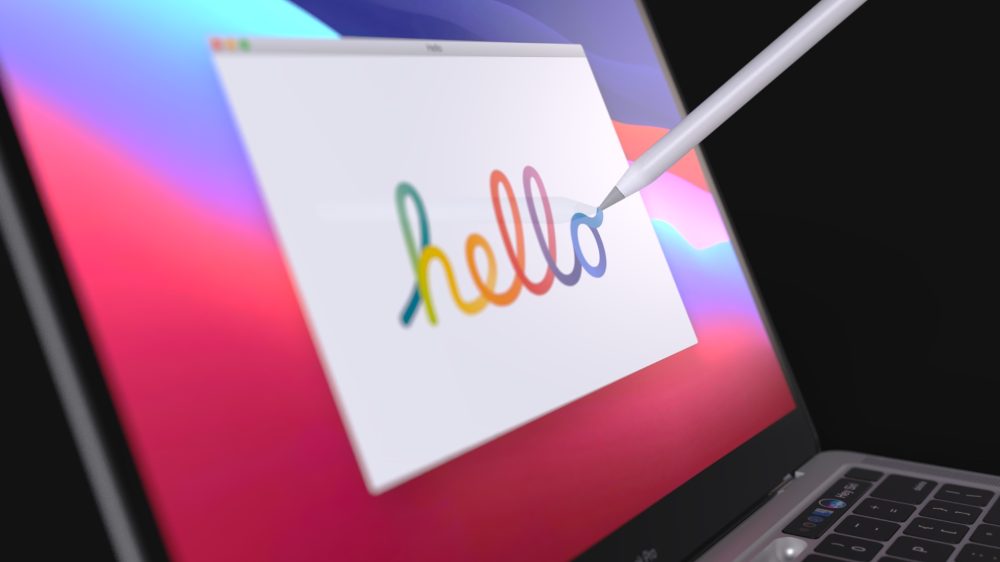
With that, designer Sarang Sheth created a 3D model of what this patent would look like if it turns out to be true.
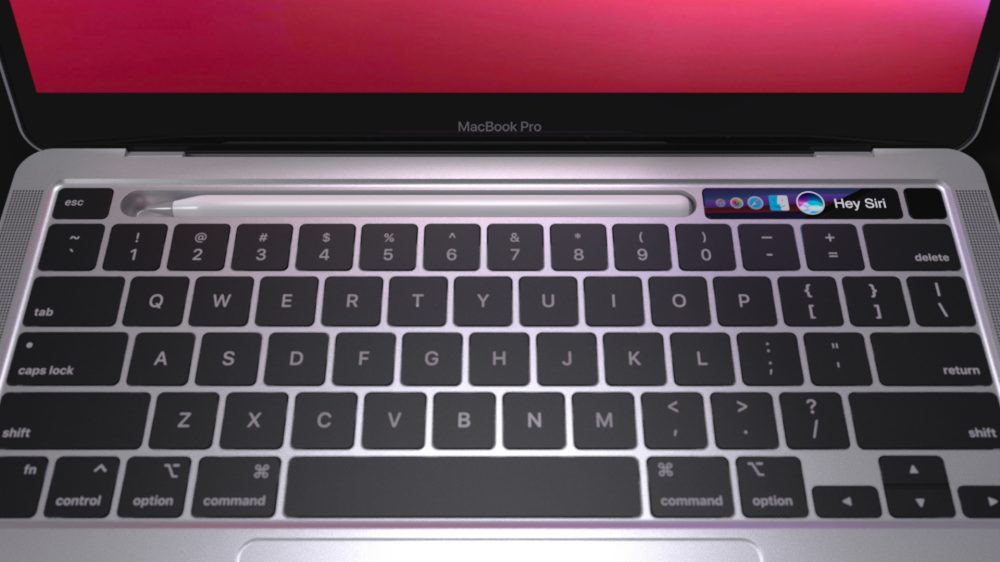
As you can see in the images, this new MacBook Pro would, of course, have touch gestures with the Pencil while would still maintain a fraction of a Tuch Bar for Siri and quick access to other apps.
While a touchscreen Mac is a dream that people insist that eventually will happen, it’s something Apple has been denying for quite some time. When alive, Steve Jobs explained why he didn’t think a touchscreen Mac would be a great idea:
“Touch surfaces don’t want to be vertical. It gives great demo, but after a short period of time you start to fatigue, and after an extended period of time your arm wants to fall off. It doesn’t work, it’s ergonomically terrible.”
By the end of 2020, Craig Federighi also corroborated that even with a colorful macOS Big Sur, it’s not in Apple’s plans a Mac with touchscreen support.
“The Big Sur aesthetic borrows from the iPhone and iPad – buttons are bigger, with more space, which numerous commentators pointed out would make them perfect for manipulating with your fingers – but not because of some secret plan to change the way the Mac works,” Federighi says.
“I gotta tell you when we released Big Sur, and these articles started coming out saying, ‘Oh my God, look, Apple is preparing for touch’. I was thinking like, ‘Whoa, why?’
“We had designed and evolved the look for macOS in a way that felt most comfortable and natural to us, not remotely considering something about touch.
“We’re living with iPads, we’re living with phones, our own sense of the aesthetic – the sort of openness and airiness of the interface – the fact that these devices have large retina displays now. All of these things led us to the design for the Mac, that felt to us most comfortable, actually in no way related to touch.“
Source: 9to5mac









