 NEWS
NEWS
LG’s upcoming Android Wear 2.0 Watches Reportedly Copy Apple Watch’s Digital Crown
 01/18/2017
 3120
3120
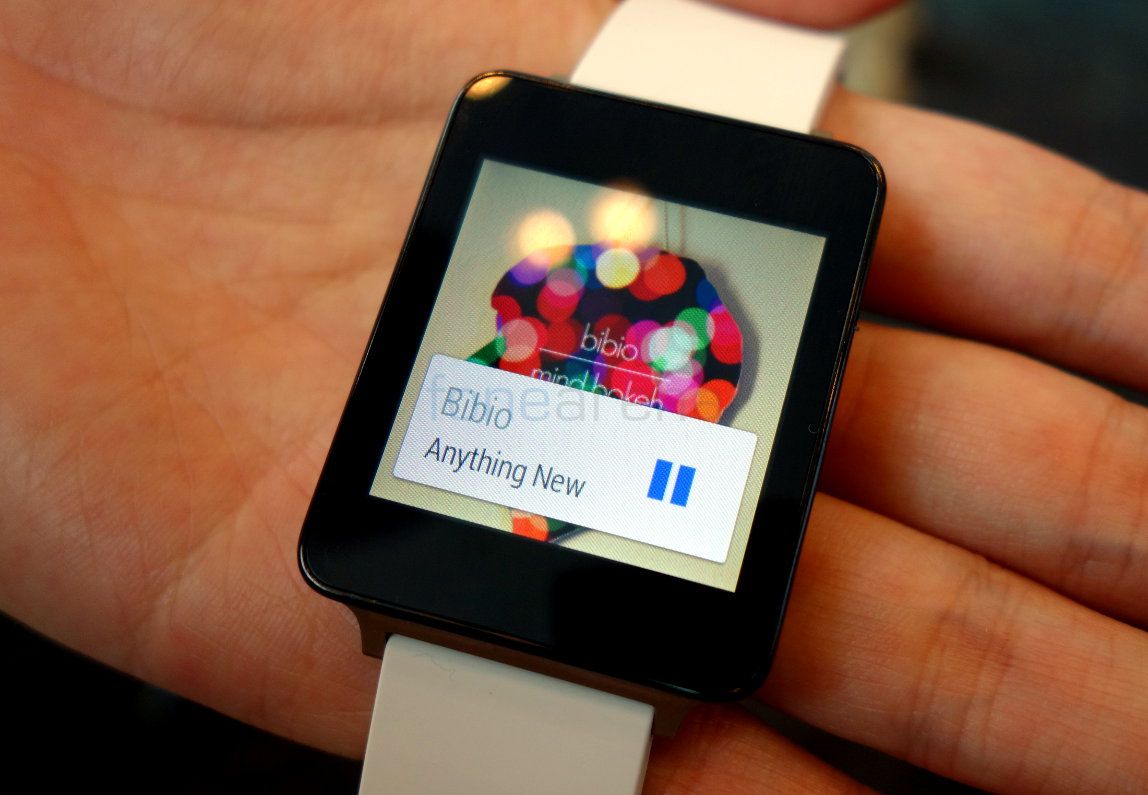
New details on LG’s upcoming Android Wear-powered smartwatches leaked earlier today and it appears the company is getting set to introduce a rotating hardware button that mimics the style and functionality of the Apple Watch’s Digital Crown.
The circular hardware button is designed and positioned to look like a traditional watch crown, but like the Apple Watch, will reportedly be used to navigate UI elements on the upcoming LG wearable’s display.
The leak, which we reported earlier today, also includes details of iOS compatibility for the device alongside a touch display that will support handwriting recognition:
Along with iOS compatibility, the two watches also share another commonality with the Apple Watch: a digital crown button that serves to facilitate navigation. The displays are touch sensitive as well, and boast handwriting recognition.
While Samsung has used a rotating bezel design on some of its wearables that is similar to the scrolling wheel-style navigation of Apple’s Digital Crown, this is the first example that we’ve seen of an Android Wear-competitor seemingly outright copying Apple’s feature that the company originally touted as one of the major innovations for Apple Watch.
Although the watches will be running Android Wear 2.0, which has already been previewed ahead of a launch expected next month, details are light on what exactly LG’s digital crown will be used for in terms of navigation.
While the Digital Crown is based on a traditional watch crown, Apple has heavily patented the design of its digital version of the component used for navigating the Apple Watch interface. There have also been recent patent application discoveries showing that the company has explored the idea of bringing similar Digital Crown functionality to other devices including iPhones and iPads. So it’s unclear if LG could run into legal issues if Apple decides the new feature infringes on its design patents for Apple Watch.
Source: 9TO5Mac









