NEWS

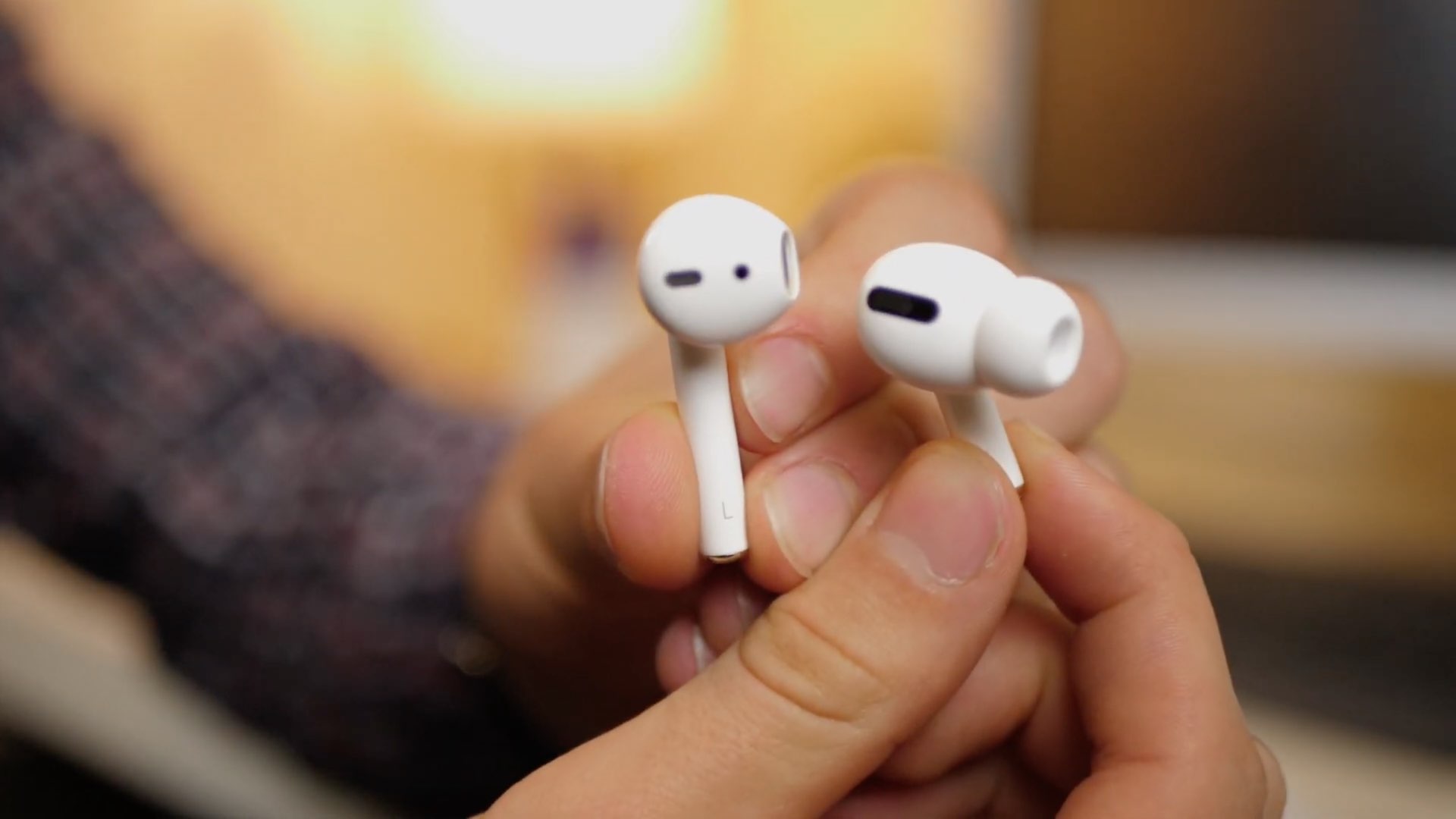
Apple Updates Second-generation AirPods and AirPods Pro to Firmware Version 3A283

09/15/2020

3246

Apple Updates Second-generation AirPods and AirPods Pro to Firmware Version 3A283

Apple last updated the firmware versions of the second-generation AirPods and the AirPods Pro earlier this year. Now, months later, both sets of truly wireless headphones are now running the same firmware version.


As noted first by MacRumors, Apple has updated the firmware version of both the second-gen AirPods and the AirPods Pro to version 3A283. For those keeping track, the second-generation AirPods were previously running firmware version 2D15. And the AirPods Pro were running firmware version 2D27.


As far as upgrading the firmware version of the AirPods/Pro is concerned, there’s no process to do this. The truly wireless headphones will handle the process automatically when they are connected to the iPhone, and the new firmware is available. However, if you want to try and force the update you can put the AirPods Pro in the charging case, connect the case to a charging source (wireless or wired), and then pair the AirPods Pro to your iPhone or iPad. That should kickstart the firmware update process.


You can check your AirPods/Pro firmware version at any time, though. Simply connect your truly wireless headphones, then open Settings –> General –> About –> AirPods and then read the number next to “Firmware version”.


The new firmware version is available now.


Source: iDB

Windows
Mac OS
iOS
Linux
3uTools
Win 64-bit For this device
V9.0 2025-11-11
Download
Win 32-bit For this device
V9.0 2025-11-11
Download
3uTools
Intel Chip How to Identify Chip Type
V9.0 2025-12-02
Download
Apple Chip
V9.0 2025-12-02
Download
How to Identify Chip Type
1.  Click the Apple icon in the top-left corner of the screen and select About This Mac.
2.  Check the Processor or Chip field to determine if it is "Intel" or "Apple".
Please use the 3uTools PC client to install the iOS client:
1、 Install either the Windows or Mac version of 3uTools on your computer
2、 Open the PC client and connect your device to the computer via USB cable
3、 After the connection is successful, wait for the computer to automatically install the mobile app for the device, or locate “Install Mobile App” on the computer and manually click to install.
3uTools
deb file
V3.01 2025-11-20
Download
rpm file
V3.01 2025-11-20
Download
Windows
Windows
iOS
iOS
Android
Android
TV
TV
3uAirPlayer
Win 64-bit For this device
V6.0.2 2025-11-19
Download
Win 32-bit For this device
V6.0.2 2025-11-19
Download
iOS Device Mirroring (No App Required)
1、 Install 3uAirPlayer on the Windows PC
2、 Open Control Center and select Screen Mirroring
3、 From the list, choose your PC to start mirroring
4、 Or connect your iOS device to the PC via USB to begin mirroring
Scan to get "3uAirPlayer" App
3uAirPlayer TV V1.0.18
2025-11-28
TV System Requirements: Android 7.0 or later
Download the TV installation package, copy it to a USB drive, insert it into your TV or set-top box, then select the file from the home screen to install.