 NEWS
NEWS
Apple Releases Support Advice for AirPods Pro Users with Crackling Audio
 05/07/2020
 2547
2547
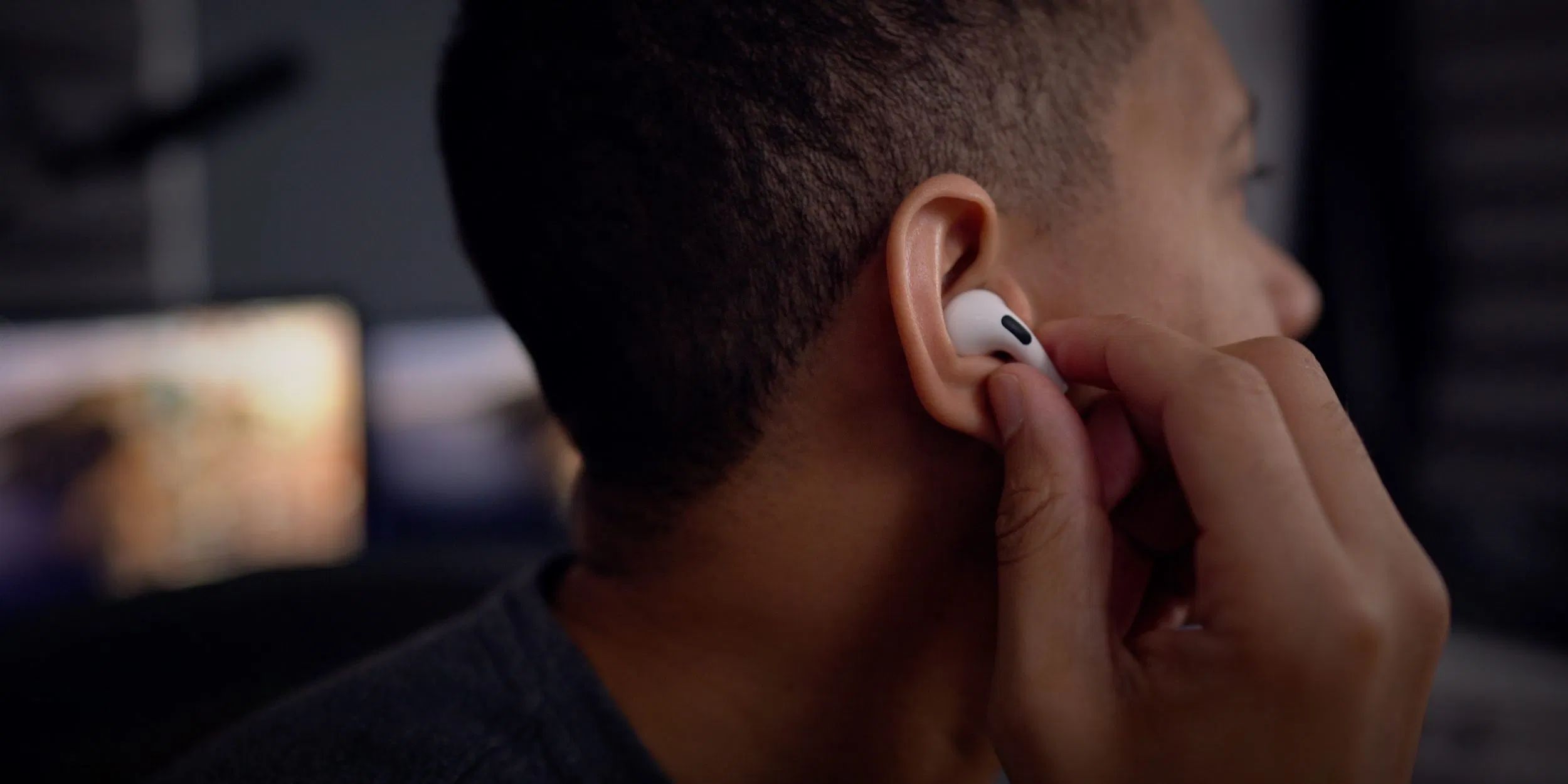
There has been a recent upswell in complaints from AirPods Pro owners that their earphones aren’t quite working as well as they did when they first got them. One such issue making waves on the Apple forums is that users are noticing crackling noises coming from their earbuds.
This week, Apple has released a couple of support articles that specifically mention troubleshooting steps to try, for users experiencing issues with Active Noise Cancellation or if they are hearing crackling/static noises.
If you are having issues with your AirPods Pro, try these remedies first. If the product continues to misbehave, we recommend contacting Apple Support online and pursuing device repair / replacement. The AirPods Pro launched in October 2019 and are therefore still covered under Apple’s manufacturer warranty.
In the first support article, Apple suggests steps if your AirPods Pro are making crackling or static sounds. Firstly, you should check that your connected iOS device or Mac is up to date.
Apple recently released new firmware for the AirPods Pro themselves, which will be automatically downloaded and installed when the AirPods are left connected to an Apple product for a little while.
Then, Apple suggests isolating problems relating to audio interference in the environment and trying out a different audio app. If problems persist, Apple says to contact their support teams — especially if the issues arise in “loud environments, with exercise, or while talking on the phone”. Based on the forum replies, Apple Support is liberally sending out replacement AirPod units which do not exhibit the issue.
For Active Noise Cancellation assistance, Apple again recommends updating your operating system to the latest version. Then, clean the mesh on the top of the AirPods Pro using a dry cotton swab. Apple says noise cancellation performance can be impacted if the mesh gets gummed up with earwax or other debris.
The cleaning steps should be useful if you have noticed a loss of bass response, or an increase in the amount of background noise (e.g. airplane sounds) that the Active Noise Cancellation setting fails to remove. If you clean the product and you still think you are experiencing worse than normal ANC, contact Apple Support.
Source: 9to5mac









