 NEWS
NEWS
Apple Watch Helps locate Mountain Biker After Unexpected Fall
 09/23/2019
 2949
2949
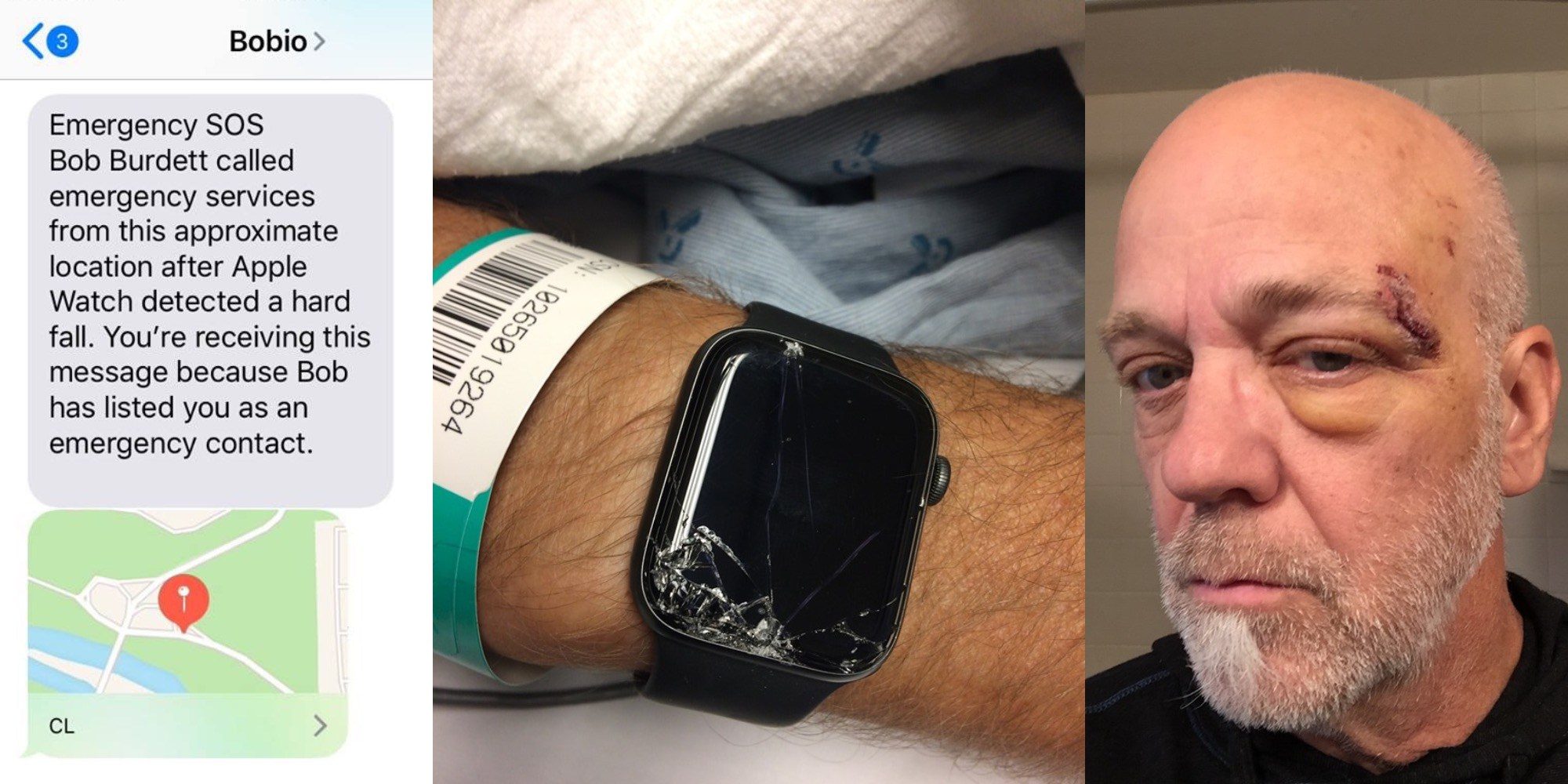
Fall detection on Apple Watch Series 4 (and now Series 5) has been credited with saving lives all over the world in the year since the feature was introduced. The latest real-world story is a great example of why people of all ages should consider turning on the feature.
Gabe Burdett shared his family’s experience in a Facebook post on Friday morning — a story that has quickly gone viral with nearly 200,000 shares and counting.
Gabe and his father Bob had plans to mountain bike together last weekend, but Gabe’s dad experienced a bad fall while biking before his son arrived. A text message automatically sent to his iPhone from his dad’s Apple Watch notified him about the accident.
Last Sunday while trying to meet up with my dad for some mountain biking in Riverside State Park (MTB in RSP), I get a text from dad’s Apple Watch letting me know it “detected a Hard Fall” with a map to his location. It was not far from our meeting spot.
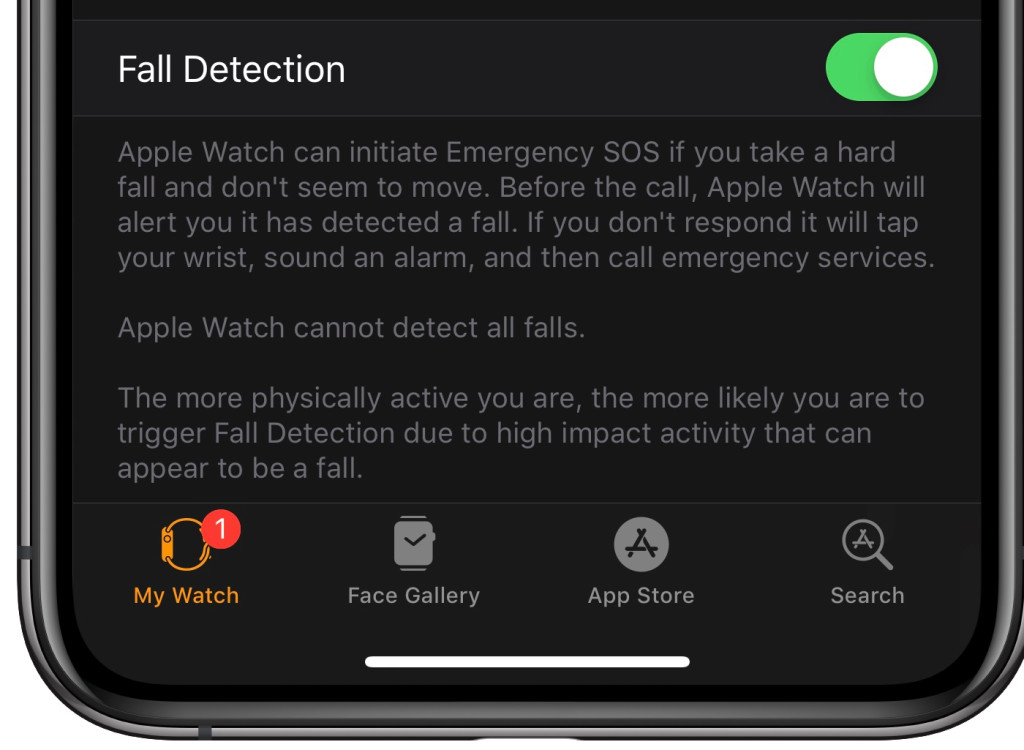
Apple Watch Series 4 and later include a built-in fall detection feature. It’s turned off by default if you’re under 65, but anyone can turn it on from the Watch app on the iPhone.
The feature works by intelligently detecting when a sudden fall occurs, automatically calling emergency services if the person doesn’t dismiss the alert within one minute of falling. If the person’s emergency contact information is filled out, that contact will be notified with a text message and a map of the watch’s location at the time of the fall.
That’s exactly what happened when Gabe’s father fell while wearing his Apple Watch. The feature worked exactly as intended, and Gabe’s dad was located and driven to the hospital before he had time to arrive at the site of the fall.
The Apple Watch even played a role in helping Gabe’s brother Casey arrive at the hospital when his dad arrived.
We drove straight there—but he was gone when we arrived. I get another update from the watch saying his location has changed with a map location of SHMC. Dad flipped his bike at the bottom of Doomsday, hit his head and was knocked out until sometime during the ambulance ride. The watch had called 911 with his location and EMS had him scooped up and to the hospital in under a 1/2 hr. The fire dept. took his bike back to the station. My brother was already driving by the hospital when the second update came in and was able to be with him right away.
As for his father, Gabe says he’s doing okay after the experience — one that could have been much scarier without the Apple Watch serving as an intelligent health guardian.
Dad is doing great, clear X-Rays and CT scan, but a little sore for sure! IF YOU OWN AN APPLE WATCH, set up your HARD FALL detection—it’s not just for when you fall off a roof or a ladder. Had he fallen somewhere on the High Drive trails or another remote area, the location would have clued EMS in on where to find him.
Amazing technology and so glad he had it!
Hopefully a brand new Apple Watch Series 5 is already on the way from Apple Park for Gabe’s dad. His story is certainly an amazing example of the Apple Watch at its best — and a reminder that the invisible Apple Watch feature can be there all along.
Source: 9to5mac










