 NEWS
NEWS
Apple Watch Series 5 Hands On: Always-On Display is Great, but Otherwise Not Much of an Upgrade
 09/11/2019
 4149
4149
Apple today announced and launched pre-orders for the Apple Watch Series 5, which is the company's latest wearable device. The new smartwatch features an always-on display, built-in compass, and more, and members of the media have begun sharing their opinions on Series 5 models after going hands-on at Apple Park. 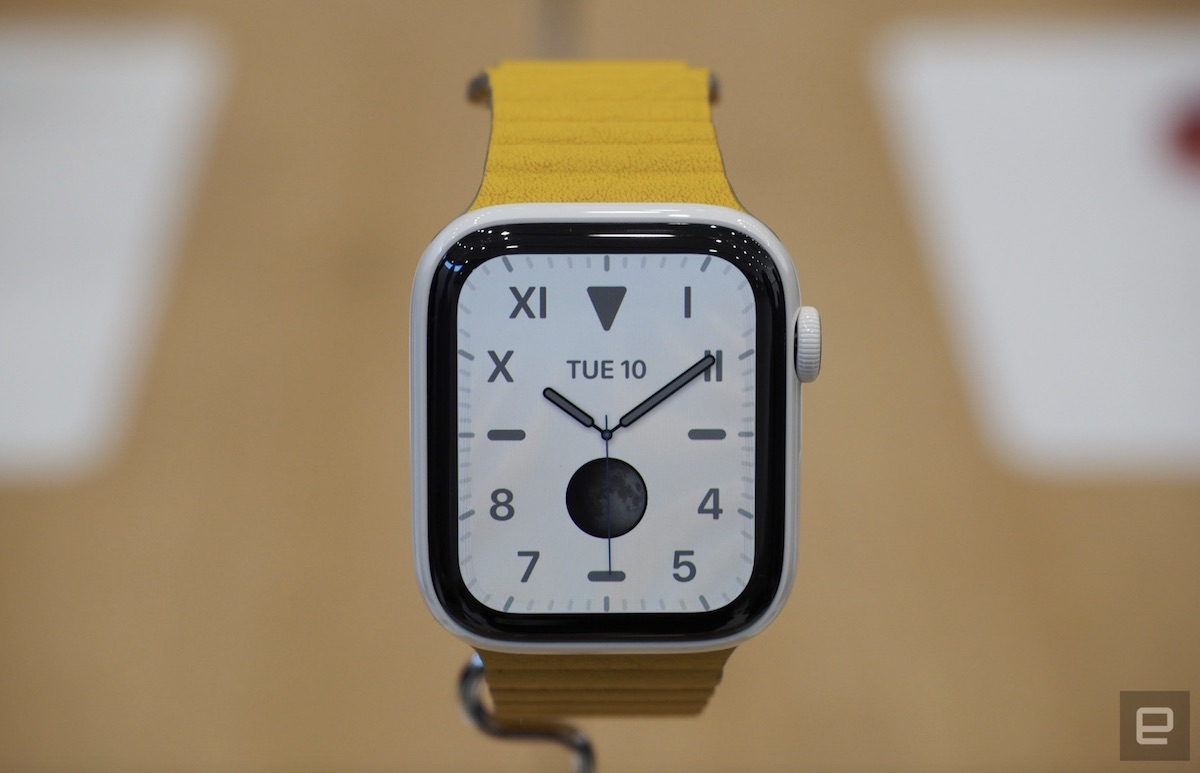
Engadget's Dana Wollman pointed out that the Series 5 is far less of a drastic upgrade compared to last year's Series 4 (which is now discontinued). The Series 5 continues to adopt the Series 4's larger display, 40mm and 44mm case sizes, and ECG testing.
Other than the much-touted always-on display, there isn't a whole lot that's new with Apple Watch Series 5.
Apple just unveiled the newest Apple Watch (we're up to the Series 5 now) and -- I mean this in the nicest way -- but there isn't much to see. Whereas last year's model, the Series 4, ushered in a new, larger screen and a built-in electrocardiogram test, the differences in the Series 5 are difficult to notice at a glance. Chief among them: an always-on display that's constantly visible at dim brightness, but that wakes up to a fuller brightness when you tap it.
Beyond that, this is the Apple Watch you know well by now, just with some new bands and finishes. There's the screen, available in the same two sizes (40mm and 44mm). The Digital Crown is where it's always been (the upper right edge). Below it is that rectangular button you'll use less frequently, though Apple did announce today that you can now use it for international emergency calls on cellular models (i.e., not just in the country where you purchased and activated it).
The Verge's Dieter Bohn also talked about how there is little difference between this year's Apple Watch and last year's, calling the Series 5 a "dead ringer" for the Series 4. Bohn was a fan of the always-on display and believes that this feature will "finally make the Apple Watch a competent time piece." 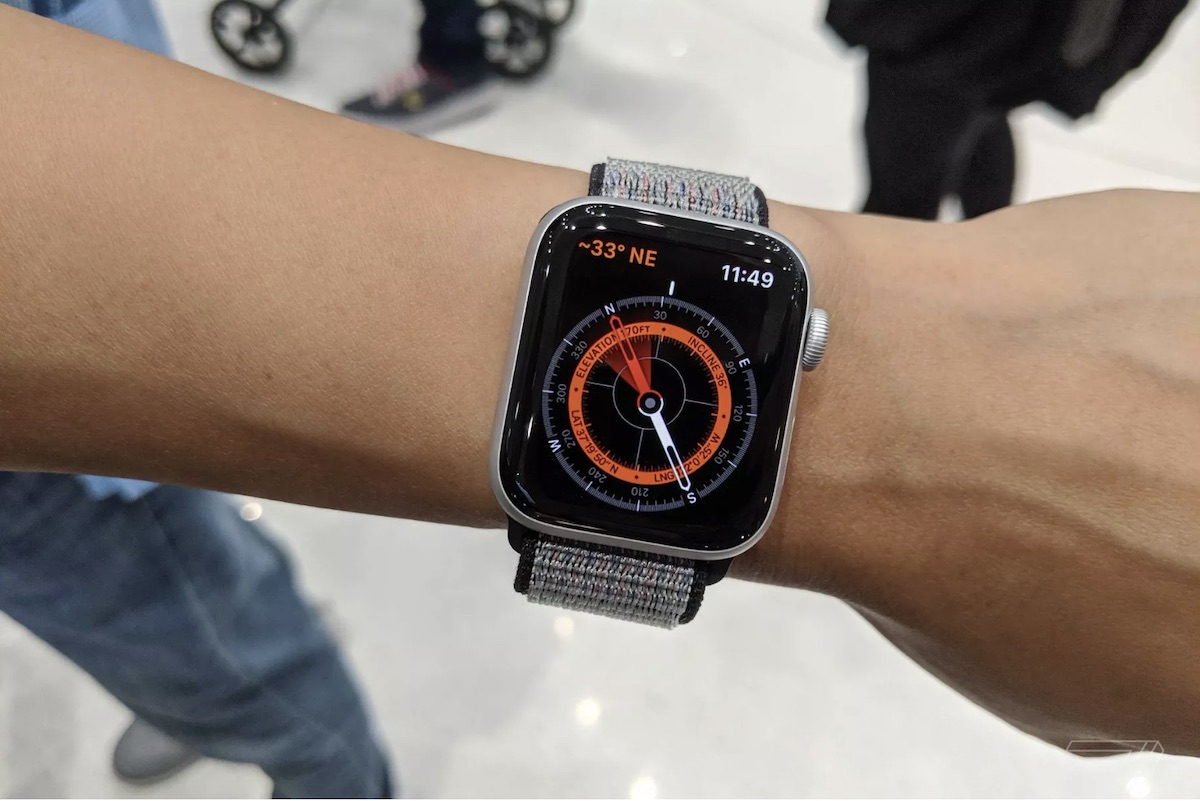
It works just as you’d expect — you can see the full watch face at a dimmer brightness all the time, and then at full brightness when you lift your wrist up. The watchfaces are even able to show all of their complications and data in the always-on mode.
You can also just slap your hand down on the watch face to immediately dim it, which is some thing I do all the time and is weirdly more satisfying to do on the Series 5 than earlier models, since it changes the mode instead of just turning off the screen.
If you're looking for more details about the Apple Watch Series 5, our full launch post has all of the information you'll need about the latest Apple wearable. You can also check out our posts on the iPhone 11, 11 Pro, 11 Pro Max, and new 10.2-inch iPad to catch up with the news from today's event.
Source: MacRumors










