 NEWS
NEWS
How to Protect Your Hearing with iOS 13 and watchOS 6
 09/09/2019
 2966
2966
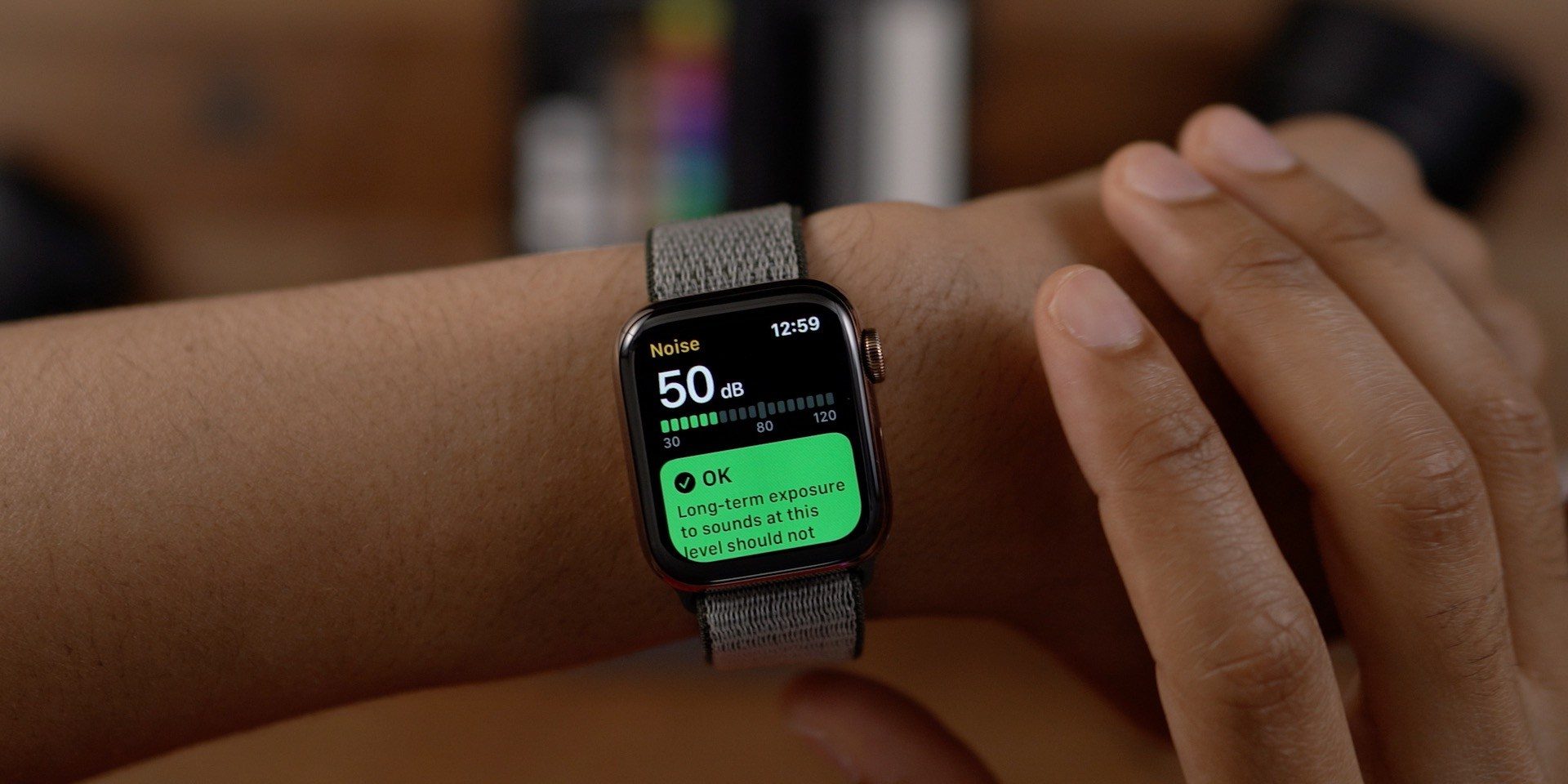
watchOS 6 and iOS 13 are just a few weeks away from being released to the public, and both updates include new features that you might not have even known you needed. With this year’s watchOS 6 release for Apple Watch and iOS 13 for iPhone, Apple is implementing a pair of new hearing features, designed to help you prevent exposing yourself to loud environments and headphones levels for extended periods of time.
Here’s how both of those new features work.
Headphone Audio Level
In iOS 13, you can now view audio levels from the headphones you use. Apple categorizes your headphone volume levels into two decibel levels: “OK” to “Loud.”
How can you find this data? On your iPhone running iOS 13, open the Health app and tap the “Search” tab along the bottom. You should then see a new “Hearing” option, tap that and look for “Headphone Audio Levels.”
In this section of the Health app, you can see detailed information about your headphone audio levels over the last hour, day, week, month, and year (when sufficient data is available). Apple then categorizes your headphone volume level into “OK” or “Loud.” Long-term exposure under 80 decibels is considered “OK” while “repeated, long-term export to sound at or above 80 decibels” could lead to hearing damage and is considered “Loud.”
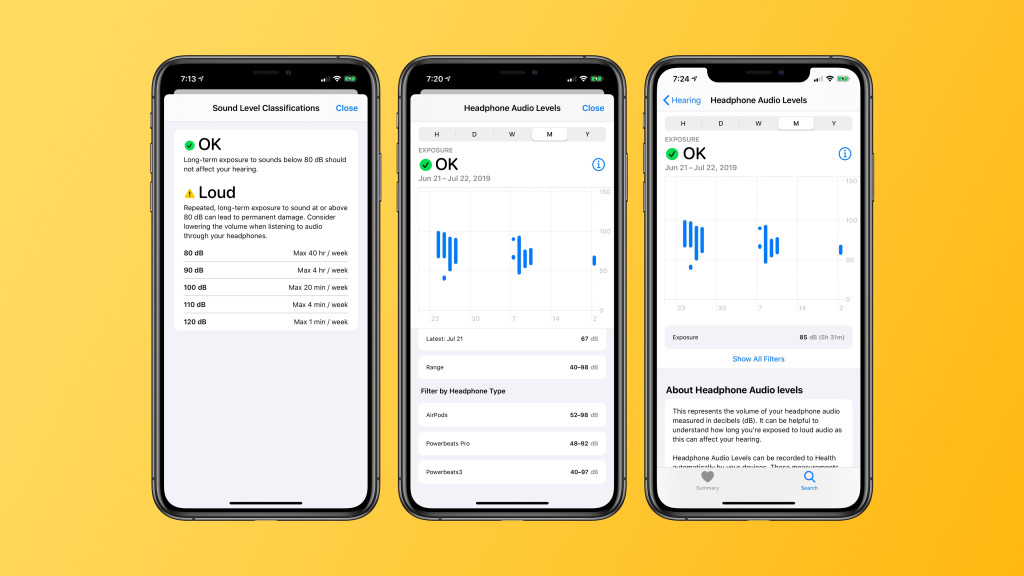
By tapping the “Show All Filters” button, you can also filter audio levels by headphone type, seeing which headphones promote the best listening habits and which are often louder than others. This interface also shows daily average, your volume range, and more.
Apple says that Headphone Audio Level works best with its Beats and AirPods products, but that levels can be estimated when using other headphones. Here’s how Apple explains the feature:
This represents the volume of your headphone audio measured in decibels (dB). It can be helpful to understand how long you’re exposed to loud audio as this can affect your hearing.
These measurements are most accurate when using Apple or Beats headphones. Audio played through other headphones or speakers connected via a wire can be estimated based on the volume of your device.
Noise app
Meanwhile, Apple Watch is also adding its own new feature for helping protect your hearing. The new watchOS Noise app is designed to alert you with your Apple Watch when you’re in a loud environment that could damage your hearing.
To setup this feature, you’ll want to open the Apple Watch companion app on your iPhone. From there, look for the new “Noise” option among the list of Apple-developed applications. By default, the Noise app will alert you when your environment sound level exceeds 90 decibels. You can adjust that to your liking, however.
At 90dB, the World Health Organization says the volume could damage your hearing after 30 minutes of exposure per day
80 decibels, Limit: About 5 hours / day
85 decibels, Limit: About 2 hours / day
90 decibels, Limit: About 30 minutes / day
95 decibels, Limit: About 10 minutes / day
100 decibels, Limit: About 3 minutes / day
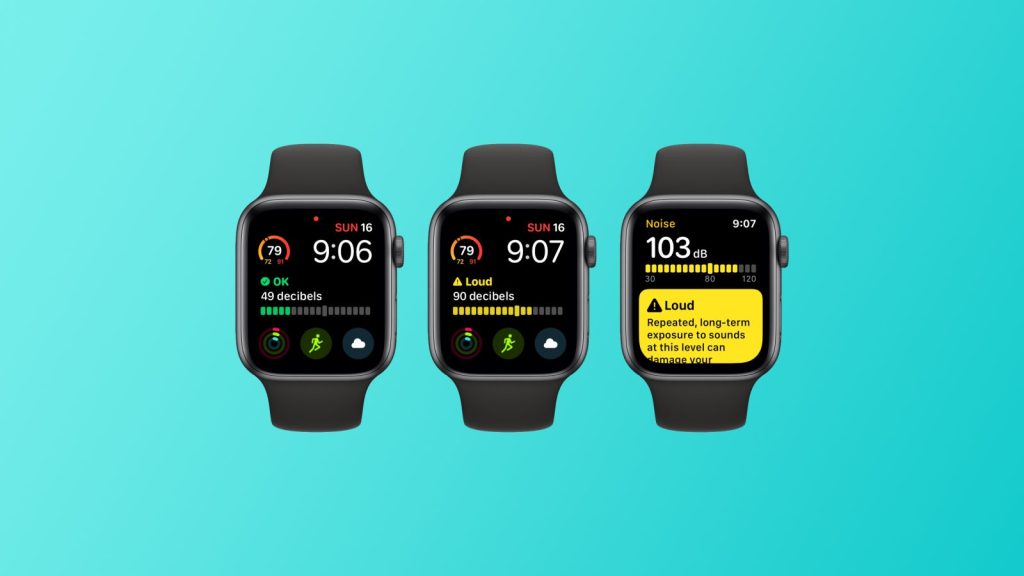
On your Apple Watch itself, the Noise app provides a live-updating bar graph that shows the noise level of your environment with an explanation of the sound levels. The app will either informing you sound levels are not harmful, or that you should consider using hearing protection.
There’s also a Noise app complication that offers live updates about the noise level of your environment. The complication will either indicate that the noise level is okay or too loud.
Wrap up
watchOS 6 and iOS 13 include a pair of notable features to help protect your hearing. The Headphone Audio Level feature aims to help you better protect your ears while using headphones, while the Noise app for watchOS is aimed at warning you preemptively when you’re in a loud environment.
Source: 9to5mac










