 NEWS
NEWS
Apple Watch ECG will be Limited by System Region Settings, can be Changed to Enable Use outside US
 10/30/2018
 4442
4442
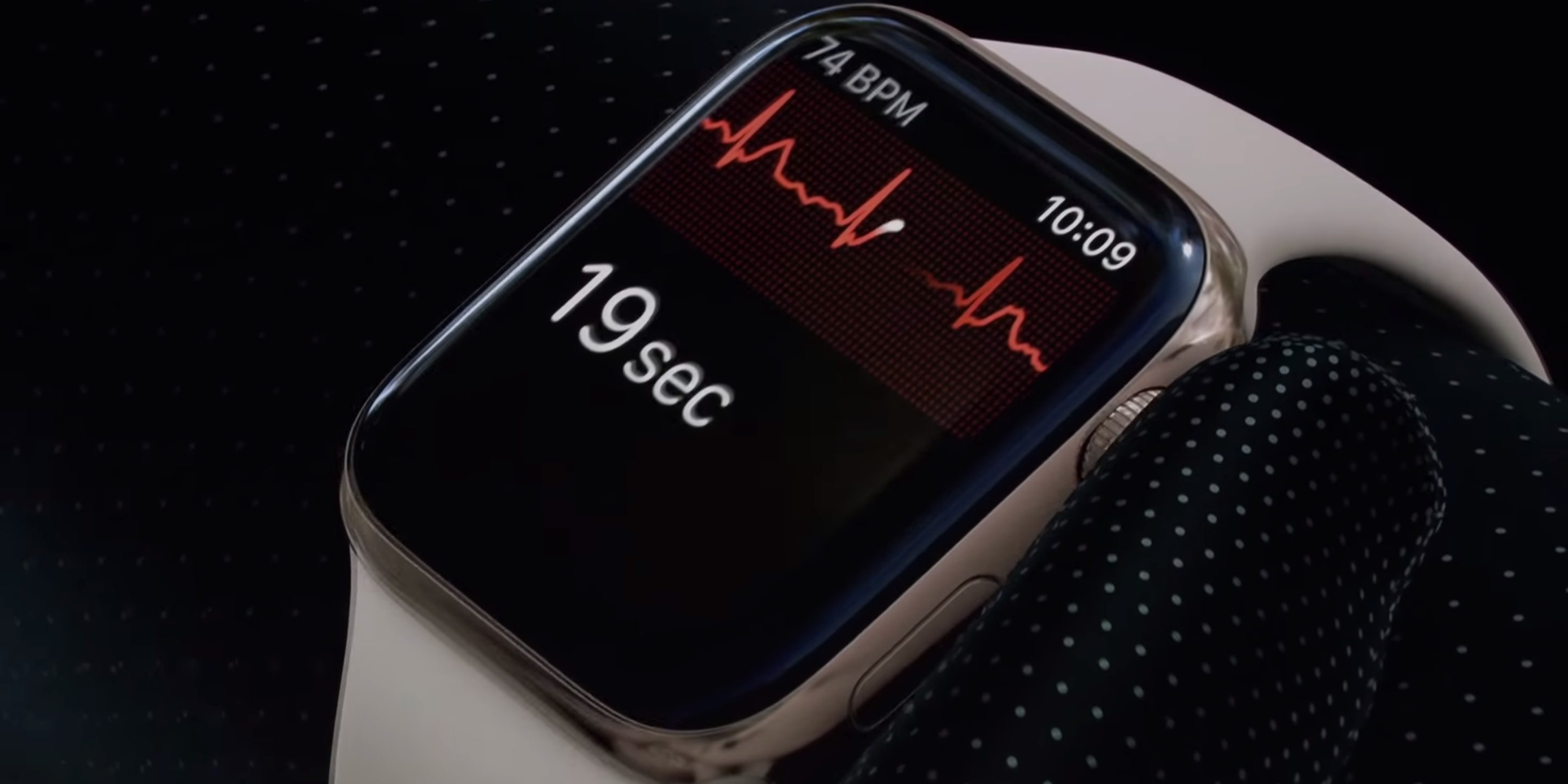
One of the new features of Apple Watch Series 4 is the ability to take an Electrocardiogram of the user’s heart through a series of new sensors on the back of the device and on the revised digital crown. Since this feature requires regulatory approval by health authorities, Apple Watch ECG will roll out to users in the United States first, where Apple was able to get clearance from the FDA.
This limitation is not enforced by hardware, and if you buy an Apple Watch Series 4 in any country, it includes the new sensors. Looking at code within iOS related to the ECG feature, we’ve been able to confirm that its limitation to the US will be based on the software region of the user’s devices (iPhone and Apple Watch).
That the Apple Watch ECG limitation is software-based is already a good sign, since software limitations are inherently easier to bypass when compared to hardware ones. By being based on the region, users will be able to get access to the feature by changing the region on their iPhone and Apple Watch, similar to how other features such as Apple News can be enabled on unsupported countries.
Keep in mind that region and language are two different configurations. I use my iOS devices in English as the language, but with the region set to Brazil, which is where I live. To get access to features limited to the US region, all you have to do is go into Settings > General > Language & Region > Region and select “United States”.
This does have some side-effects, such as changing the date and time format and other units, but if you really want to get access to a new feature before it becomes available in your region, it’s worth a try.
Also note that this information is based on analysis of pre-release software, it’s possible that Apple will change the method before the ECG feature gets released to the public, we’ll update this article accordingly.
Source: 9to5mac









