 NEWS
NEWS
WiBa Wireless Charging System Uses Qi Charging to Recharge iPhone X on the Move
 01/03/2018
 3193
3193
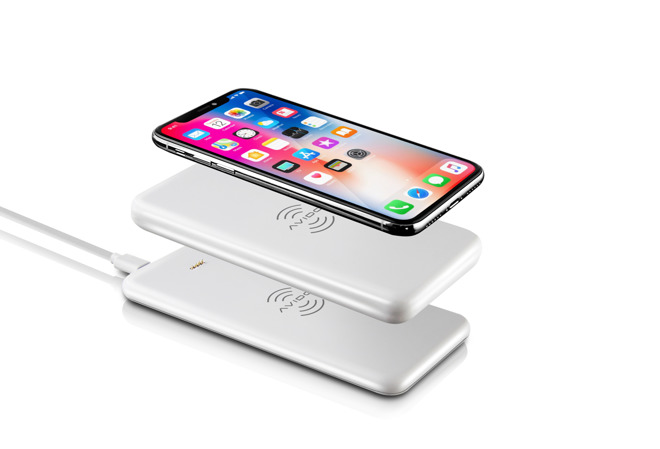
Accessories producer Avido has revealed its WiBa Wireless Power Bank and Charging Dock ahead of CES, with the Qi-compatible power bank able to wirelessly charge an iPhone X, iPhone 8, or iPhone 8 Plus on the move, and is capable of recharging itself via the accompanying dock.
The power bank element of the WiBa dual-charging wireless power system holds up to 5,000mAh, which can be used to recharge mobile devices and other Qi-enabled devices multiple times over the course of a day. On the side are a row of LED lights showing the available power level of the bank, with an additional USB port allowing the unit to provide power to devices that do not have wireless charging capabilities.
The WiBa charging dock can be used to recharge the power bank by placing the portable unit on top, though it can also be used as a conventional wireless charging pad with fast charging enabled. It is also possible to wirelessly recharge an iPhone X when the power bank is on top of the charging dock by placing it on top of the accessory stack.
When away from home, the power bank can be recharged without using the charging dock using its USB-C port and the quick charge-enabled AC adapter.
To help keep an iPhone in the right position on the power bank's wireless charger, the package also includes two slim metal plates, colored black and white, which can be attached to the back of a phone or case. Once affixed, the plates will attach to the power bank using magnets, preventing slippage during the charging process.
Avido plans to ship the WiBa dual-charging wireless power system this February, retailing at $99.95, but will first show off the accessory at the Consumer Electronics Show from January 9 to 12.
AppleInsider will be on the floor at the 2018 Consumer Electronics Show. Read AppleInsider this week and next for coverage of all the best Apple-compatible accessories and gadgets.
Source: Appleinsider










