
NEWS

Apple Puts Up WWDC 2017 Decorations at San Jose's McEnery Convention Center

06/02/2017

3763

In preparation for Apple's annual Worldwide Developers Conference, set to kick off next week, workers have begun putting up decorations around the McEnery Convention Center in San Jose, Calif.
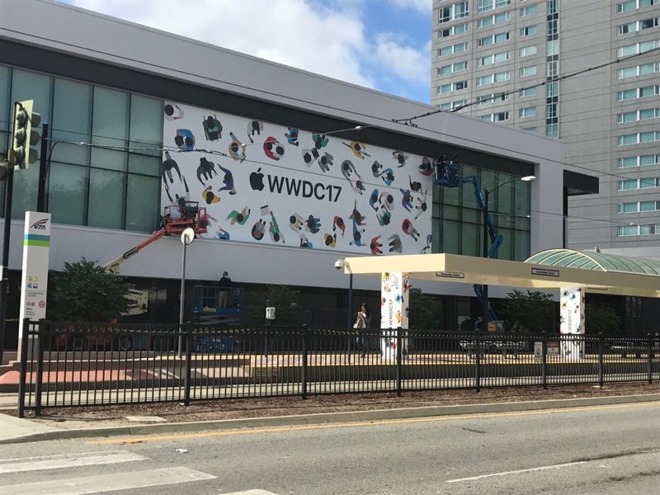

Apple Puts Up WWDC 2017 Decorations at San Jose's McEnery Convention Center


The conference's familiar imagery can be seen not just on a banner over the center, according to Twitter posts, but on lamp posts and even pillars at a nearby public transit station. More decorations are presumably being put up inside, as at past WWDCs.


This year's event is set to begin with an Apple keynote on June 5. While much of the company's time will probably be spent showcasing the next versions of iOS, macOS, tvOS, and watchOS, it's also expected to make its first WWDC hardware announcements since 2013.


Those should include new iPads, upgraded MacBooks, and potentially the company's rumored Siri home speaker. That device is allegedly already in manufacturing, but set to ship sometime later in 2017, perhaps well after June.


A number of unofficial gatherings will be taking place concurrent with WWDC. Some of them, like concerts and podcast recordings, are being highlighted on Apple's Beyond WWDC webpage.


The decision to host WWDC 2017 in San Jose caught some people offguard, since for years Apple has preferred San Francisco, specifically Moscone West. The company said that San Jose would be more convenient for participating staff, but it may have needed too much time to set up.


Source: appleinsider


Windows
Mac OS
iOS
Linux
3uTools
Win 64-bit For this device
V9.0 2025-11-11
Download
Win 32-bit For this device
V9.0 2025-11-11
Download
3uTools
Intel Chip How to Identify Chip Type
V9.0 2025-12-02
Download
Apple Chip
V9.0 2025-12-02
Download
How to Identify Chip Type
1.  Click the Apple icon in the top-left corner of the screen and select About This Mac.
2.  Check the Processor or Chip field to determine if it is "Intel" or "Apple".
Please use the 3uTools PC client to install the iOS client:
1、 Install either the Windows or Mac version of 3uTools on your computer
2、 Open the PC client and connect your device to the computer via USB cable
3、 After the connection is successful, wait for the computer to automatically install the mobile app for the device, or locate “Install Mobile App” on the computer and manually click to install.
3uTools
deb file
V3.01 2025-11-20
Download
rpm file
V3.01 2025-11-20
Download
Windows
Windows
iOS
iOS
Android
Android
TV
TV
3uAirPlayer
Win 64-bit For this device
V6.0.2 2025-11-19
Download
Win 32-bit For this device
V6.0.2 2025-11-19
Download
iOS Device Mirroring (No App Required)
1、 Install 3uAirPlayer on the Windows PC
2、 Open Control Center and select Screen Mirroring
3、 From the list, choose your PC to start mirroring
4、 Or connect your iOS device to the PC via USB to begin mirroring
Scan to get "3uAirPlayer" App
3uAirPlayer TV V1.0.18
2025-11-28
TV System Requirements: Android 7.0 or later
Download the TV installation package, copy it to a USB drive, insert it into your TV or set-top box, then select the file from the home screen to install.




