
NEWS

Apple Ends 2011 MacBook Pro Graphics Repair Program

05/22/2017

4037

If you bought a 2011 MacBook Pro and you were experiencing video issues, know that Apple had a repair program running that would address the issue for you. However that program has since come to an end for the 2011 models, according to Apple. This applies to both the 15-inch and 17-inch MacBook Pro models.


However the good news is that the Retina mid-2012 and early-2013 15-inch MacBook Pros are still eligible for the repair program, so if you are using those models then you should still be covered for now. There was no explanation given for the removal of the 2011 models, but given that it has been 6 years since the laptops were released, we guess it would be a bit unreasonable to expect Apple to keep them covered forever.
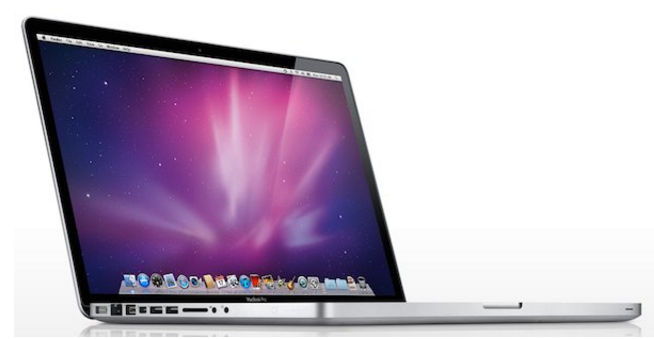

Apple Ends 2011 MacBook Pro Graphics Repair Program


For those unfamiliar with this repair program, basically there were a small set of MacBook Pro models that were experiencing video glitches due to faulty GPUs inside their laptops. However it seems that it might have affected more users than expected as a class-action lawsuit was filed against Apple several years ago, with an online petition managing to rack up over 40,000 signatures.


Like we said, customers with the mid-2012 and early-2013 models are still covered for now and if you are experiencing glitches, then you’ll want to get in touch with Apple ASAP and schedule an appointment


Source: ubergizmo

Windows
Mac OS
iOS
Linux
3uTools
Win 64-bit For this device
V9.0 2025-11-11
Download
Win 32-bit For this device
V9.0 2025-11-11
Download
3uTools
Intel Chip How to Identify Chip Type
V9.0 2025-12-02
Download
Apple Silicon
V9.0 2025-12-02
Download
How to Identify Chip Type
1.  Click the Apple icon in the top-left corner of the screen and select About This Mac.
2.  Check the Processor or Chip field to determine if it is "Intel" or "Apple".
Please use the 3uTools PC client to install the iOS client:
1、 Install either the Windows or Mac version of 3uTools on your computer
2、 Open the PC client and connect your device to the computer via USB cable
3、 After the connection is successful, wait for the computer to automatically install the mobile app for the device, or locate “Install Mobile App” on the computer and manually click to install.
3uTools
deb file
V3.01 2025-11-20
Download
rpm file
V3.01 2025-11-20
Download
Windows
Windows
iOS
iOS
Android
Android
TV
TV
3uAirPlayer
Win 64-bit For this device
V6.0.2 2025-11-19
Download
Win 32-bit For this device
V6.0.2 2025-11-19
Download
iOS Device Mirroring (No App Required)
1、 Install 3uAirPlayer on the Windows PC
2、 Open Control Center and select Screen Mirroring
3、 From the list, choose your PC to start mirroring
4、 Or connect your iOS device to the PC via USB to begin mirroring
Scan to get "3uAirPlayer" App
3uAirPlayer TV V1.0.18
2025-11-28
TV System Requirements: Android 7.0 or later
Download the TV installation package, copy it to a USB drive, insert it into your TV or set-top box, then select the file from the home screen to install.




