 NEWS
NEWS
Siri Saves Fishermen Stranded at Sea
 05/02/2017
 4009
4009
The iPhone’s “Hey Siri” feature helped save three fisherman from what could have otherwise been a tragic turn of events. Three fisherman were cruising along about 4 miles off the coast when they began encountering a violent spate of waves. Before long, the crew’s 18-foot boat proved no match for the waves as water began overtaking the boat.
Per the report, one of the fisherman used the “Hey Siri” feature on his iPhone 7 to call 911. Shortly thereafter, a helicopter from the coast guard went out in search of the trio before finding them and bringing them back to safety.
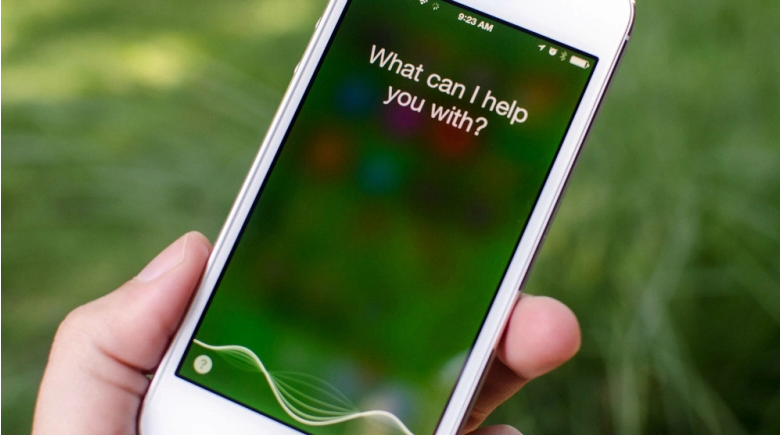
“They had an iPhone 7, which I’m learning today is waterproof. However, he couldn’t touch the screen with his fingers because they were cold, but he used Siri to call 911,” Sgt. James Barrett said.
Notably, this isn’t the first instance we’ve seen of iPhone owners utilizing “Hey Siri” in order to call for help when dialing 911 wasn’t feasible. Just a few months ago, for example, a four-year old used the feature in order to call 911 after his mom passed out. And this past summer, a mother in Australia used the feature to call for help while she tended to her 1-year-old daughter who had stopped breathing.
The “Hey Siri” feature on the iPhone was originally introduced on the iPhone 6s and is made possible by Apple’s M9 motion coprocessor. Apple has advertised the feature as a helpful way to use the iPhone’s various features hands-free — with the company’s Cookie Monster commercial being a prime example — but “Hey Siri” appears to be incredibly useful in emergency situations as well.
Source: bgr










