
TUTORIALS

What Should We Know When Purchasing A Second Hand iPhone?

11/11/2016

7357

What should we know when purchasing a second hand iPhone? A lot of people want to purchase iPhone6s, but a new iPhone6s is very expensive. So some people decided to buy a second hand iPhone, but they are easy to get cheated. This tutorial is mainly introducing a few notes on purchasing a second hand iPhone.
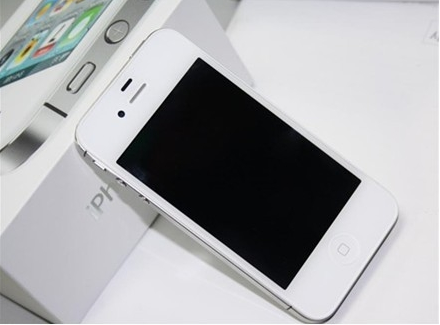


What Should We Know When Purchasing A Second Hand iPhone?


You don’t have to buy the following three iDevices.

·Don’t buy a jailbroken iPhone.

·Don’t buy an iPhone without erasing all settings. You need to ask the seller to erase all settings for you before deal.(“Settings”→“General”→“Reset”→“Erase All Content and Settings”).

·Don’t buy an iPhone out of warranty.


Then you need to check the following items.


Touch ID:Open the “Settings” of your iPhone →click the button “Touch ID & Passcode”, and then record your fingerprint on the iPhone. After it’s complete, try to unlock the iPhone with your own fingerprint. 
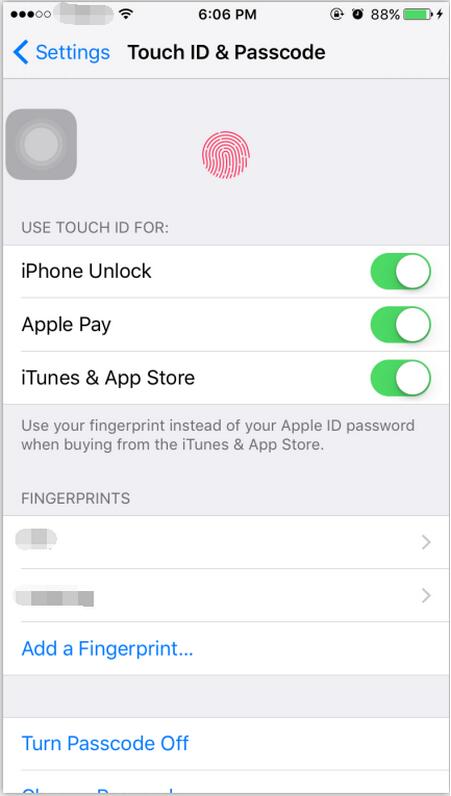

What Should We Know When Purchasing A Second Hand iPhone?


Flashlight: Open the “Control Center” of your iPhone, then click the button “Flashlight” to check if it will light up,  if the light is on, then it can be regarded as normal.


Vibrate: Open the “Settings” of your iPhone, then click the button “Sounds” →and turn on “Vibrate on Ring”. If your iPhone is vibrative, then it can be regarded as normal.


WiFi: Open the WiFi of your iPhone. If your iPhone has a full sign, then it can be regarded as normal.


Gyroscope: Open the“Compass” of your iPhone, and shake your iPhone. If the data is changed, then it can be regarded as normal. 



Windows
Mac OS
iOS
Linux
3uTools
Win 64-bit For this device
V9.0 2025-11-11
Download
Win 32-bit For this device
V9.0 2025-11-11
Download
3uTools
Intel Chip How to Identify Chip Type
V9.0 2025-12-02
Download
Apple Chip
V9.0 2025-12-02
Download
How to Identify Chip Type
1.  Click the Apple icon in the top-left corner of the screen and select About This Mac.
2.  Check the Processor or Chip field to determine if it is "Intel" or "Apple".
Please use the 3uTools PC client to install the iOS client:
1、 Install either the Windows or Mac version of 3uTools on your computer
2、 Open the PC client and connect your device to the computer via USB cable
3、 After the connection is successful, wait for the computer to automatically install the mobile app for the device, or locate “Install Mobile App” on the computer and manually click to install.
3uTools
deb file
V3.01 2025-11-20
Download
rpm file
V3.01 2025-11-20
Download
Windows
Windows
iOS
iOS
Android
Android
TV
TV
3uAirPlayer
Win 64-bit For this device
V6.0.2 2025-11-19
Download
Win 32-bit For this device
V6.0.2 2025-11-19
Download
iOS Device Mirroring (No App Required)
1、 Install 3uAirPlayer on the Windows PC
2、 Open Control Center and select Screen Mirroring
3、 From the list, choose your PC to start mirroring
4、 Or connect your iOS device to the PC via USB to begin mirroring
Scan to get "3uAirPlayer" App
3uAirPlayer TV V1.0.18
2025-11-28
TV System Requirements: Android 7.0 or later
Download the TV installation package, copy it to a USB drive, insert it into your TV or set-top box, then select the file from the home screen to install.




