TUTORIALS
How to register an Apple ID?
 02/17/2017
 1855413
Binding Apple ID on your iPhone can help you attain a better iPhone experience to explore its powerful features. So how to register an Apple ID account? This tutorial is mainly introducing how to apply for an Apple ID account on PC.
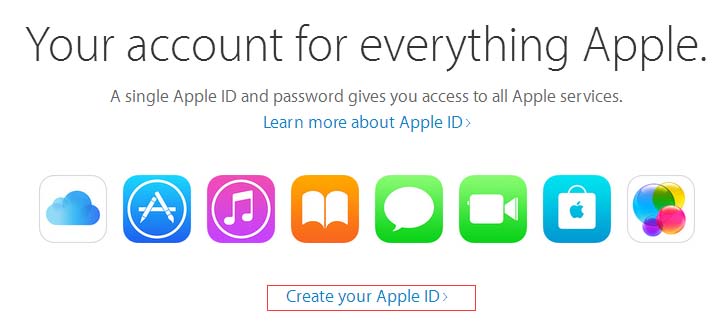
Step 1: Open Apple's official account managing page on your PC, then click the button “Create your Apple ID” as shown in the following figure.
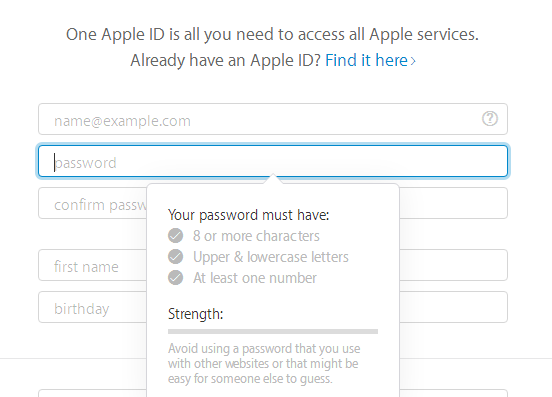
Step 2: You need to enter a lot of personal information while applying for an Apple ID account. For instance, you need to enter your name, email account and password firstly. You may enter an incorrect name, but the email account must be valid. We suggest you to set your frequently-used email as the Apple ID account.
Next, you need to set a secure password for your Apple ID account. Apple implements a set of strict rules in password settings, so you need to set it according to Apple's requirements.
The password you create must have more than 8 characters and contain uppercase letters, lowercase letters and numbers.
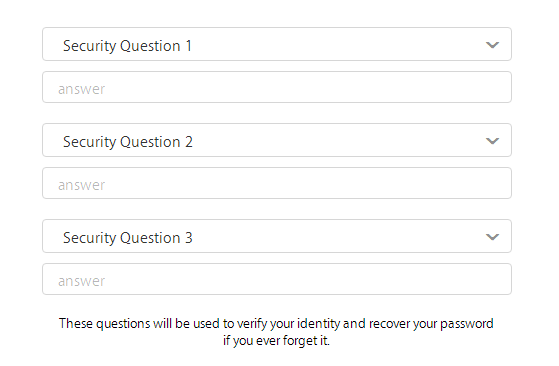
Step 3: Then you need to set your security questions for your Apple ID account. If you forget your password, you can use your security questions to reset the password . It's suggested to write your security questions down on the paper so as not to forget them.
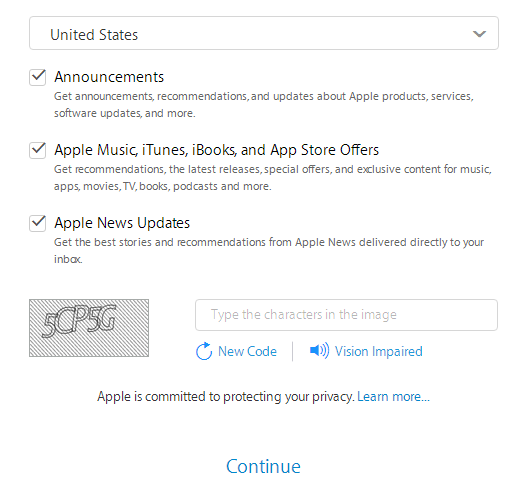
Step 4: After the security questions are set, you need to choose some regions and other relational subscription information; or you can retain the default settings. Then, please enter the verification code and click the button “continue” to finish the registration process. If your Apple ID account can't be passed, this page will show you some reminders. That means you need to check those wrong items carefully.
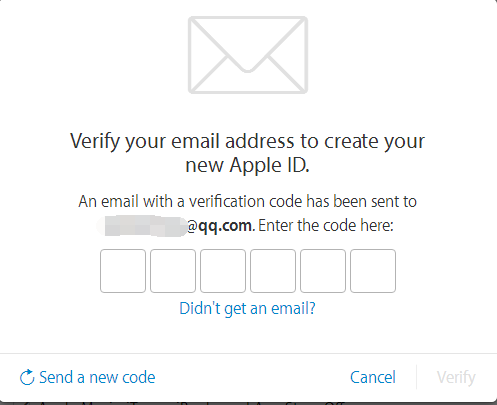
Step 5: After your Apple ID account was successfully registered, then your bound email will receive a verification code for your Apple ID account. Then enter the six letters verification code and click the button “verify”.
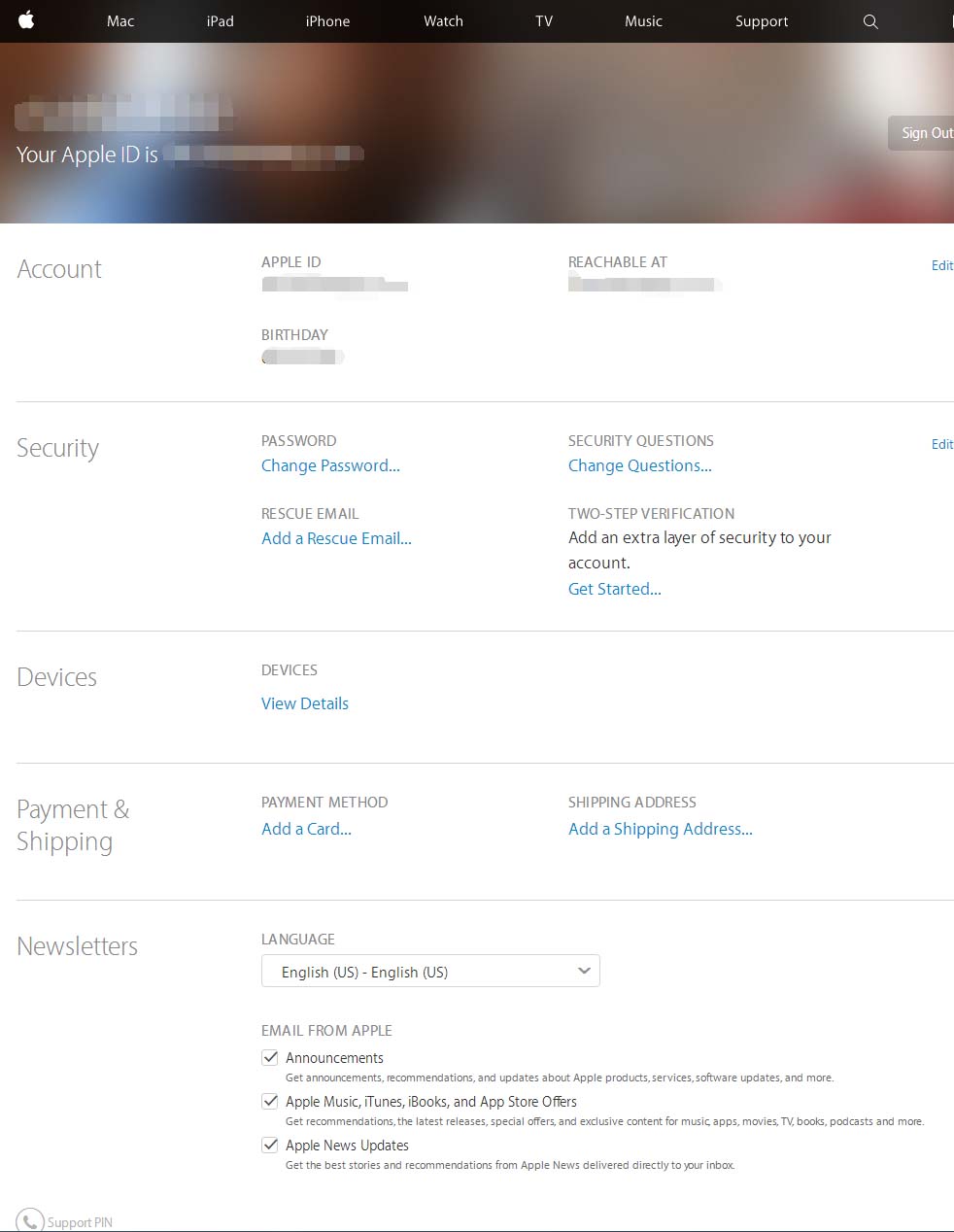
Step 6: The registration process is already done after you entered the verification code, and then the page will automatically skip to the managing page.
Step 7: If you want to bind your Apple ID account on 3uTools, you must login to iTunes /iTunes Store and agree to its clauses.
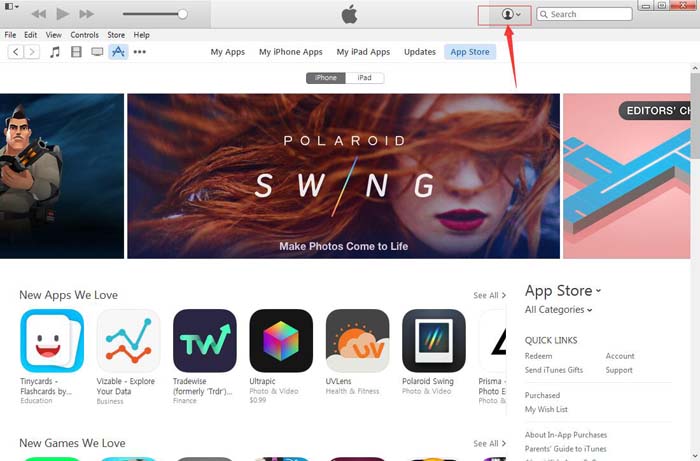
Logging in to PC: In the following picture, please click the avatar to log in iTunes & App Store.
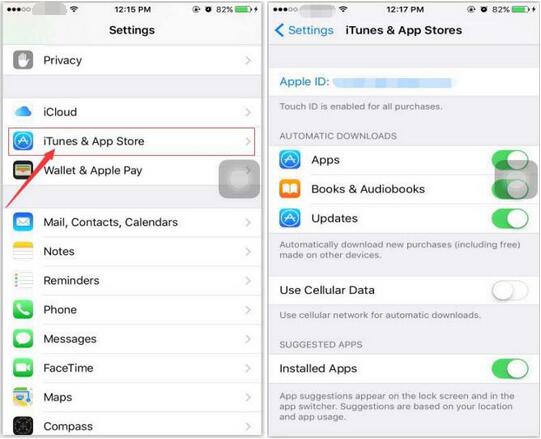
Logging in to iDevice: Open "Settings" of your iPhone, then login to iTunes Store & App Store.