 TUTORIALS
How to Fix SMS and LTE issues with iOS 12.1.2
 06/11/2019
 10344
10344
According to some Twitter users, there are reported Apple iOS 12.1.2 update problems that could reportedly affect your cellular data service. Because this issue manifests itself when your iPhone with iOS 12.1.2 is connected to a carrier’s LTE network, limiting the device to use LTE for data but not voice should fix this for you.
1) Open the Settings app.
2) Tap Cellular or Mobile Data.
3) Be sure that the Cellular Data toggle has been switched to the ON position.
4) Tap Wi-Fi Calling, then disable the feature.
5) Go back, then choose Cellular Data options from the list.
6) Tap Enable 4G, then choose the option labeled Data Only.
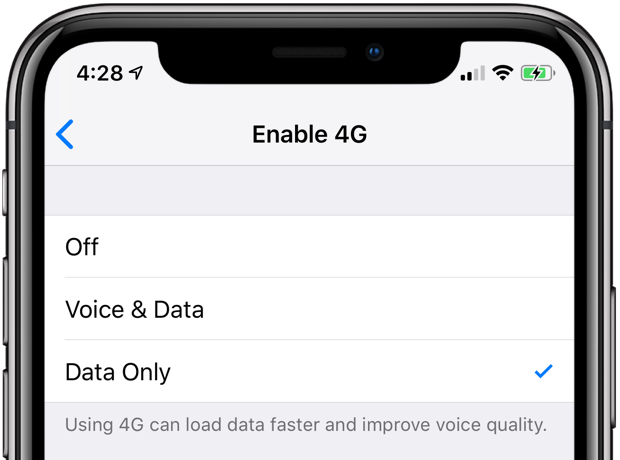
NOTE: You may need to restart your iPhone for the changes to take effect.
Doing so will force your iPhone onto 3G and older 4G networks. This should help resolve the issues in many cases but it may and probably won’t work for all the affected customers. After Apple issued a fix, remember to revisit the aforementioned settings and re-enable the Wi-Fi Calling feature and turn on Voice and Data for 4G networks.
This is just a temporary solution and as such isn’t perfect.
For instance, you may be unable to make voice calls over Wi-Fi networks (if Wi-Fi Calling is enabled) and regular phone calls over a carrier’s cellular network will not use VoLTE, meaning phone calls will take a few seconds to connect and they won’t sound as crisp as with VoLTE.
On the plus side, you’ll be able to use SMS/MMS messaging services without disruption, iMessage and all the apps that use cellular data will work perfectly and you will have no issues making or receiving phone calls (aside from lower audio quality).










