
TUTORIALS

How to Pair Apple AirPods With Other Bluetooth Device?

07/20/2017

6671

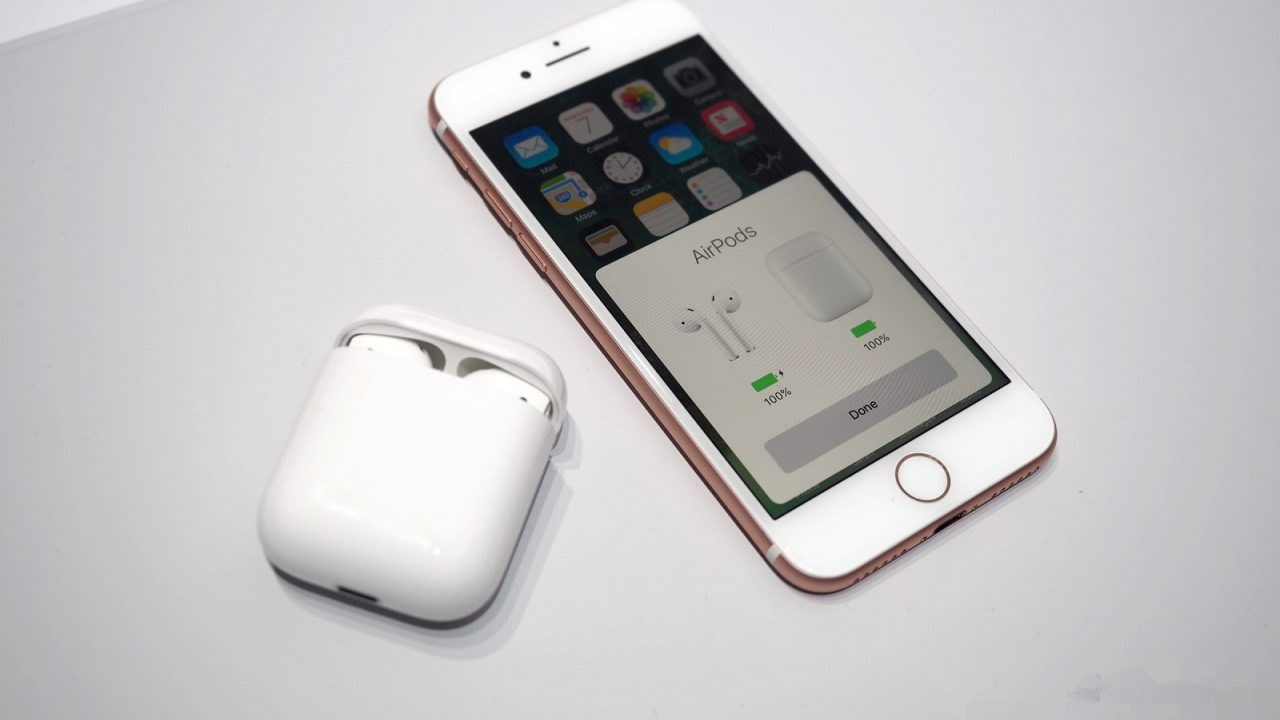
When Apple released its latest iPhones without the traditional 3.5mm headphone jack, it created an outrage that could be heard from almost all users. The headphone jack would be replaced by Apple's wireless earphones called AirPods. For Apple, the future is wireless. Hence, the decision to do away with the headphone jack. AirPods are Apple's second wearable product next to the Apple watch. These contain a W1 chip, which handles the communication between the iPhone and the headset, and infrared sensors that instantly detect once you put them on your ears.

How to Pair Apple AirPods With Other Bluetooth Device?


This tutorial aims to introduce how to pair Apple AirPods with other bluetooth device. For instance, you are able to pair your AirPods with iPhone, iPad, Mac, Apple Watch, Apple TV, Android or Windows device.


Thanks to the support of iCloud, AirPods can automatically pair with any iDevice that logs in with your iCloud account, that means you can enjoy music at any time using AirPods.


If your iMac/MacBook/MacBook Pro doesn’t support Handoff function, you can manually pair your Apple AirPods with device by the following steps:


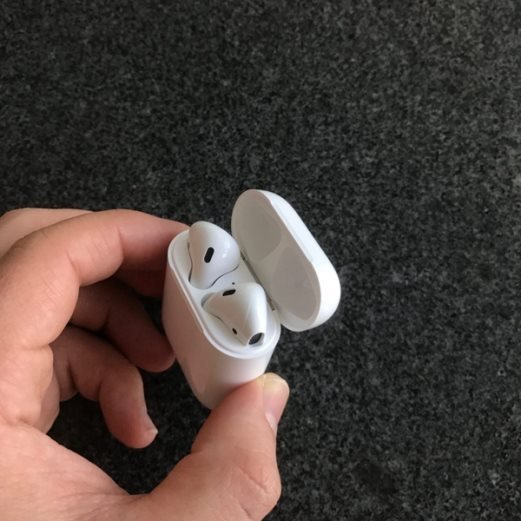
* Please make sure that AirpOds are well placed in the charger case before you start paring them with another device.

How to Pair Apple AirPods With Other Bluetooth Device?


* Open the lid of charger case, do not move AirPods.

How to Pair Apple AirPods With Other Bluetooth Device?


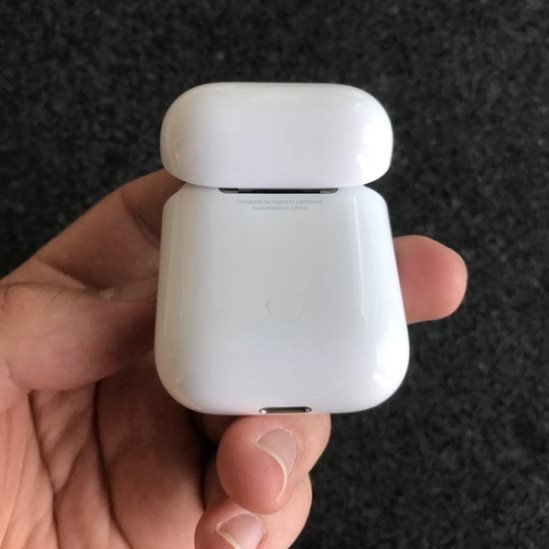
* At this moment, you can find a round button near the charging port on the back of the charger case. Press and hold it until the LED between the two AirPods lights up and blinks slowly.


How to Pair Apple AirPods With Other Bluetooth Device?


* Turn on the Bluetooth of other device, and pair them with the same way, choose AirPods in the list of bluetooth device. 


Windows
Mac OS
iOS
Linux
3uTools
Win 64-bit For this device
V9.0 2025-11-11
Download
Win 32-bit For this device
V9.0 2025-11-11
Download
3uTools
Intel Chip How to Identify Chip Type
V9.0 2025-12-02
Download
Apple Chip
V9.0 2025-12-02
Download
How to Identify Chip Type
1.  Click the Apple icon in the top-left corner of the screen and select About This Mac.
2.  Check the Processor or Chip field to determine if it is "Intel" or "Apple".
Please use the 3uTools PC client to install the iOS client:
1、 Install either the Windows or Mac version of 3uTools on your computer
2、 Open the PC client and connect your device to the computer via USB cable
3、 After the connection is successful, wait for the computer to automatically install the mobile app for the device, or locate “Install Mobile App” on the computer and manually click to install.
3uTools
deb file
V3.01 2025-11-20
Download
rpm file
V3.01 2025-11-20
Download
Windows
Windows
iOS
iOS
Android
Android
TV
TV
3uAirPlayer
Win 64-bit For this device
V6.0.2 2025-11-19
Download
Win 32-bit For this device
V6.0.2 2025-11-19
Download
iOS Device Mirroring (No App Required)
1、 Install 3uAirPlayer on the Windows PC
2、 Open Control Center and select Screen Mirroring
3、 From the list, choose your PC to start mirroring
4、 Or connect your iOS device to the PC via USB to begin mirroring
Scan to get "3uAirPlayer" App
3uAirPlayer TV V1.0.18
2025-11-28
TV System Requirements: Android 7.0 or later
Download the TV installation package, copy it to a USB drive, insert it into your TV or set-top box, then select the file from the home screen to install.




