
TUTORIALS

Liberty Lite: Hide Jailbreak Status on iOS 11 with Electra Jailbreak

03/13/2018

36243

You may notice this problem that some softwares or games you no longer play due to the policy, because they don’t support jailbreak, so how to hide the jailbreak status on your iOS device?  This tutorial aims to show you a jailbreak tweak named Liberty Lite, it will help you hide jailbreak status on iOS 11 with Electra jailbreak.


Previously there was a tweak called xCon works very well, but it is not compatible with iOS 11. However with Liberty Lite has just released, you do not need to worry about this anymore. Installation method is as follows:


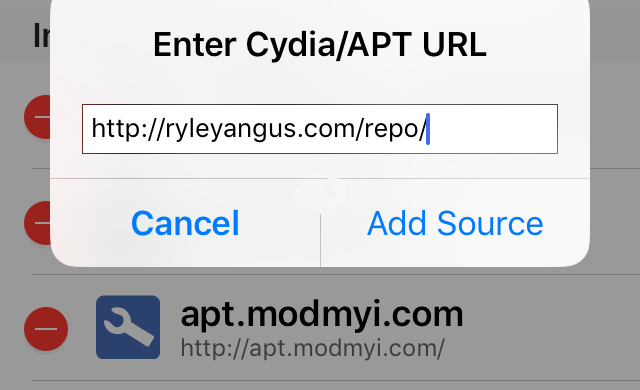
Step 1: You have Electra jailbroken with Cydia . Then you open Cydia, go to the Source tab and add to the repo  https://ryleyangus.com/repo/ .
 

Liberty Lite: Hide Jailbreak Status on iOS 11 with Electra Jailbreak


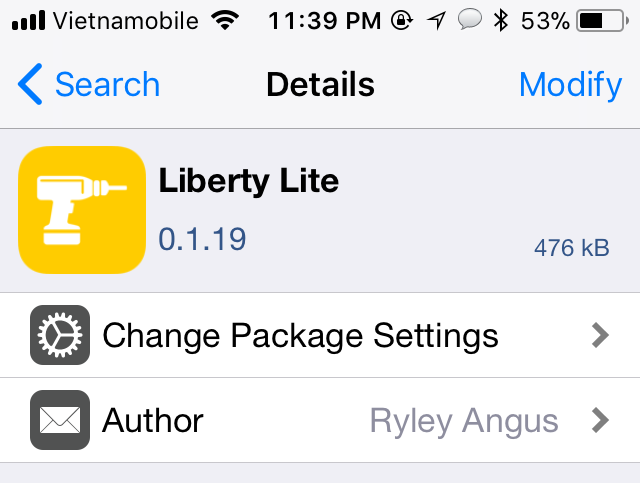
Step 2: Go to the Search tab, find the tweak named Liberty Lite . Current version is 0.1.19. Install, then select Restart Springboard to repsring the machine.
 

Liberty Lite: Hide Jailbreak Status on iOS 11 with Electra Jailbreak


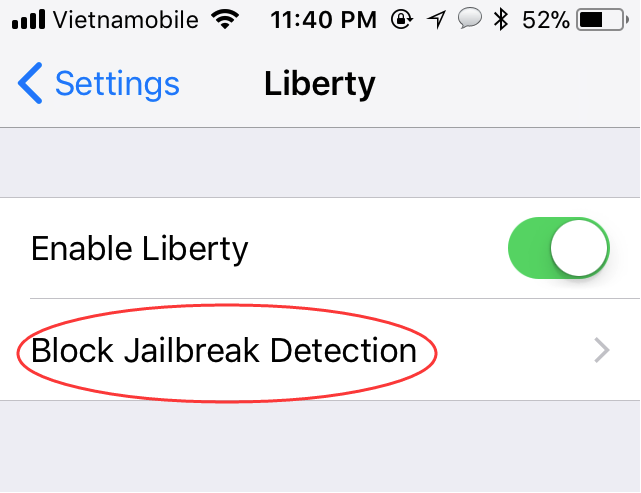
Step 3: Go to Settings > Liberty . Turn on Enable Liberty . Then click on Block Jailbreak Detection to start picking up each app that applies Liberty Lite.
 

Liberty Lite: Hide Jailbreak Status on iOS 11 with Electra Jailbreak


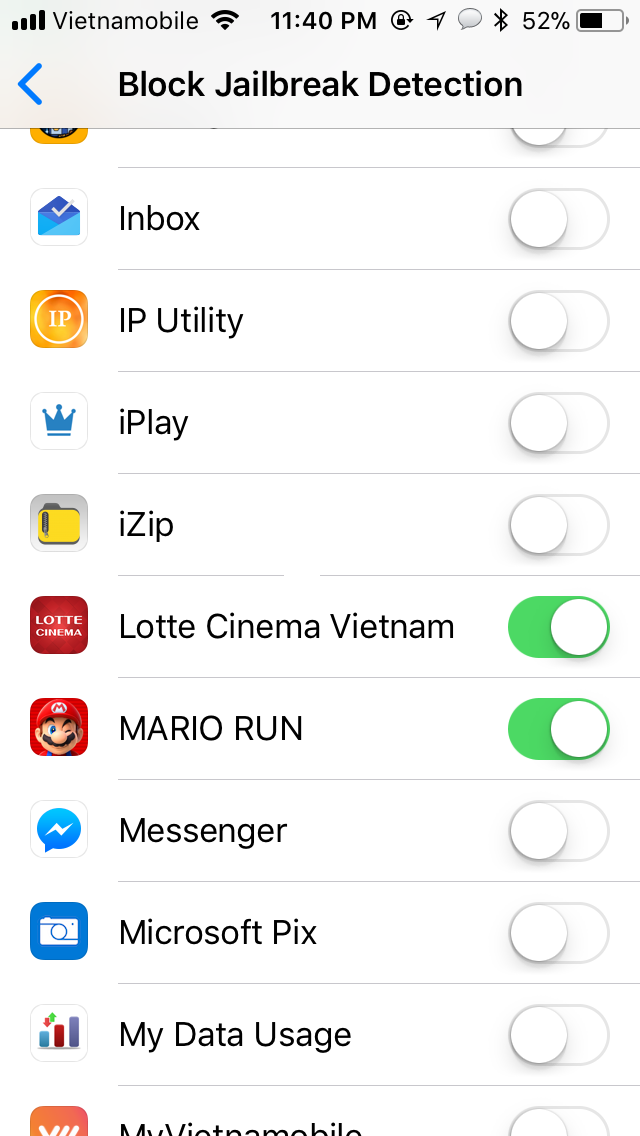
Step 4: In this lesson, you'll get both Super Mario Run and Lotte Cinema.
 

Liberty Lite: Hide Jailbreak Status on iOS 11 with Electra Jailbreak


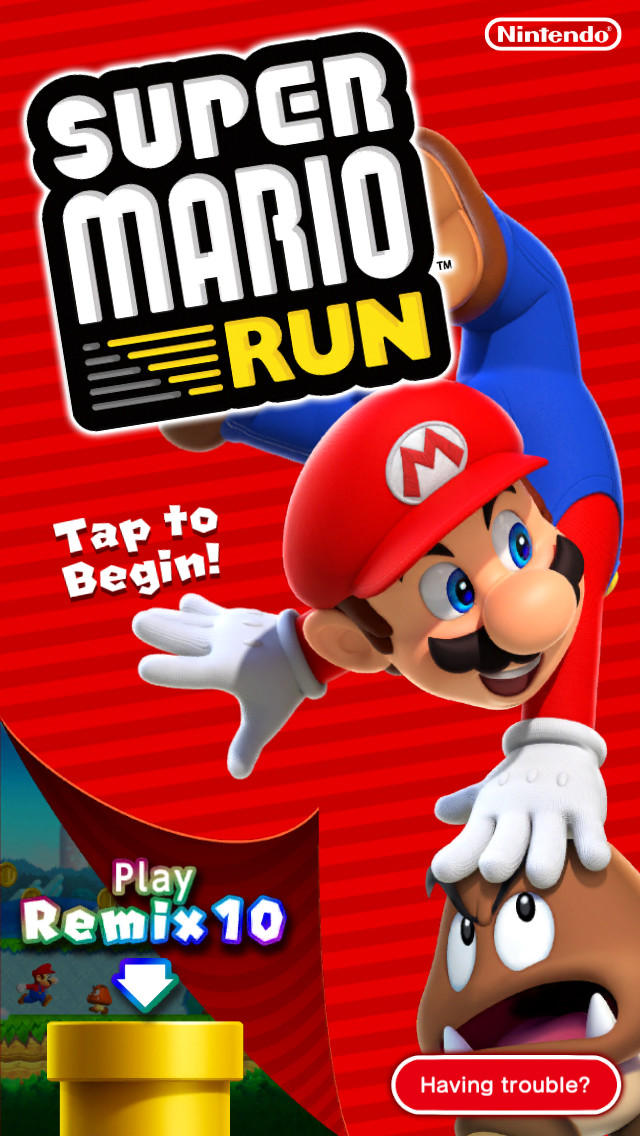
After turning on. I was in the game Super Mario Run and ... ta-daa ... not game.
 

Liberty Lite: Hide Jailbreak Status on iOS 11 with Electra Jailbreak


The Lotte Cinema application, too, has entered and no longer announces Jailbreak Detected.


Windows
Mac OS
iOS
Linux
3uTools
Win 64-bit For this device
V9.0 2025-11-11
Download
Win 32-bit For this device
V9.0 2025-11-11
Download
3uTools
Intel Chip How to Identify Chip Type
V9.0 2025-12-02
Download
Apple Chip
V9.0 2025-12-02
Download
How to Identify Chip Type
1.  Click the Apple icon in the top-left corner of the screen and select About This Mac.
2.  Check the Processor or Chip field to determine if it is "Intel" or "Apple".
Please use the 3uTools PC client to install the iOS client:
1、 Install either the Windows or Mac version of 3uTools on your computer
2、 Open the PC client and connect your device to the computer via USB cable
3、 After the connection is successful, wait for the computer to automatically install the mobile app for the device, or locate “Install Mobile App” on the computer and manually click to install.
3uTools
deb file
V3.01 2025-11-20
Download
rpm file
V3.01 2025-11-20
Download
Windows
Windows
iOS
iOS
Android
Android
TV
TV
3uAirPlayer
Win 64-bit For this device
V6.0.2 2025-11-19
Download
Win 32-bit For this device
V6.0.2 2025-11-19
Download
iOS Device Mirroring (No App Required)
1、 Install 3uAirPlayer on the Windows PC
2、 Open Control Center and select Screen Mirroring
3、 From the list, choose your PC to start mirroring
4、 Or connect your iOS device to the PC via USB to begin mirroring
Scan to get "3uAirPlayer" App
3uAirPlayer TV V1.0.18
2025-11-28
TV System Requirements: Android 7.0 or later
Download the TV installation package, copy it to a USB drive, insert it into your TV or set-top box, then select the file from the home screen to install.




